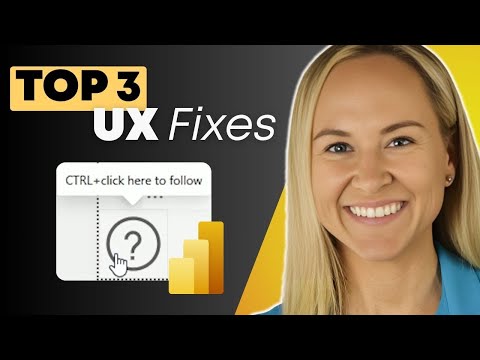
Power BI: Guided, User-Friendly Reports
Microsoft expert shares Power BI UX tips for overview pages, help overlays and visual header tooltips to boost adoption
Key insights
- Overview Page — Create a dedicated intro page that explains the report’s purpose, key metrics, data sources, and how to navigate. Use clear headings and short instructions so new users orient quickly.
- Help Overlay — Build a reusable overlay with buttons, shapes, and grouped callouts that users can open or close on demand. This lets reports "teach themselves" and cuts repetitive support questions.
- Visual Header Tooltips — Turn on header tooltips for important visuals to show contextual tips like how to drill through or change filters. Place instructions where users interact to reduce confusion.
- Bookmarks — Use bookmarks to save open/close states for help panels and overlays. Name and reuse bookmarks to keep actions consistent across pages and simplify maintenance.
- Callouts & Grouping — Design reusable callout boxes, group related shapes and labels, and give them clear names. Grouping speeds updates and keeps guidance consistent across the report.
- Copilot — Combine these UX patterns with built-in AI assistance like Copilot so users can ask natural-language questions, get contextual answers, and generate visuals without deep technical skill. This boosts adoption and user confidence.
The following article summarizes a YouTube video published by Pragmatic Works that demonstrates simple, Microsoft-recommended ways to make Power BI reports easier for end users to navigate and understand. The video centers on three concrete techniques: building an overview or info page, creating a help overlay with toggleable guidance, and enabling visual header help tooltips on key visuals. These patterns aim to reduce common "how do I use this?" questions while improving adoption and confidence among report consumers.
Video at a glance
The presenter opens by explaining why built-in assistance matters and then walks viewers through a short, hands-on demo of each technique. First, she outlines the concept of an information or overview page that explains purpose, data sources, and navigation points. Next, she shows how to make a help overlay using shapes, buttons, grouping, and bookmarks so users can reveal or hide guidance on demand. Finally, she enables visual header tooltips to deliver context-sensitive instructions where users are most likely to need them.
Designing an information and overview page
The video recommends adding an info page as the first page in a report to orient users quickly and reduce uncertainty about scope and trustworthiness. The presenter emphasizes concise descriptive text, clear labels for key metrics, and direct pointers to navigation actions so users can begin exploring without external training. By describing data sources and the report’s intended questions, the info page also helps establish expected use and limits, which supports data governance and reduces misinterpretation. In short, a well-crafted overview page works as a lightweight on-boarding experience that scales better than repeated one-off training sessions.
Building reusable help overlays with bookmarks
The video then demonstrates how to design a help overlay by combining shapes, buttons, and grouped callouts saved as bookmarks for open/close actions. This approach keeps the main layout clean, while allowing users to toggle guidance only when they need it, and it reuses elements across report pages to reduce maintenance. The presenter shows how thoughtful naming and grouping of objects makes bookmarks easier to manage and more resilient when edits occur. As a result, report authors gain a low-code way to embed contextual help without creating multiple static pages for every step.
Adding visual header help tooltips and contextual guidance
Next, the walkthrough covers enabling visual header tooltips on important visuals so that instructions appear in place, for example to indicate how to drill through or use a slicer. These help tooltips reduce interruption because users receive guidance exactly where interactions occur, which improves discoverability of advanced features. The presenter demonstrates how to pair these tooltips with succinct, action-oriented wording so the guidance remains useful and not overwhelming. Consequently, contextual tips can raise confidence for less technical users while still leaving the interface uncluttered.
Tradeoffs and practical challenges
While the techniques are low cost to implement, the video also implies several tradeoffs that teams should weigh carefully before rolling them out widely. For example, adding overlays and tooltips increases the authoring and maintenance burden: every change to visuals or navigation may require updates to bookmarks, grouped objects, and help text. Moreover, excessive overlays or verbose tooltips can clutter the experience and slow performance, especially on mobile devices, so authors must balance completeness against simplicity.
Recommendations and next steps
To get the most value from these patterns, the presenter suggests starting small, testing with actual users, and iterating based on real feedback so help content stays relevant and concise. Teams should also consider accessibility and localization early, because static callouts and tooltips need translation and proper screen-reader support to work for all audiences. Finally, combining these UX patterns with selective use of AI-driven assistants can speed adoption, but organizations should validate auto-generated outputs and maintain clear governance to preserve trust in the data.
In conclusion, the Pragmatic Works video offers actionable, practical steps to make Power BI reports more approachable without heavy development effort, and it highlights sensible tradeoffs to consider when embedding guidance. Report authors and BI teams can adopt these patterns quickly, test them with users, and refine them to lower support requests while improving analytical confidence across the organization.

Keywords
User friendly Power BI reports, Power BI built-in assistance, guided Power BI dashboards, interactive Power BI report design, Power BI usability best practices, Power BI report help features, Power BI accessibility and guidance, Power BI tips for non-technical users