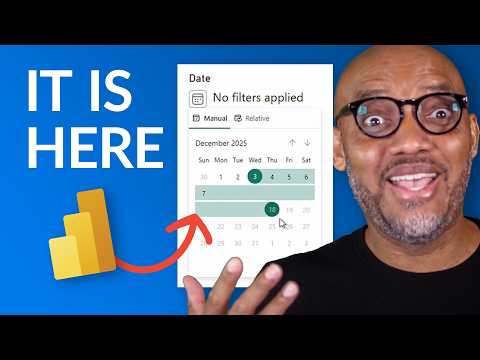
Power BI: Native Date Picker Arrives
Power BI Date Picker delivers calendar single date selection versus DAX workarounds and Between or Relative slicers
Key insights
- Date picker for slicers: Power BI now includes a native date picker visual (preview in the June 2026 update) that adds a compact calendar, slider, and manual range input inside a single slicer.
It removes many past workarounds and appears in both Power BI Desktop and the Power BI service. - Calendar interface: Users can pick a single date from a calendar box or drag a slider for ranges, all inside one control.
The visual shows the current selection clearly so viewers know what data is filtered. - Relative default: Authors can set rolling defaults (for example, last 7 or last 30 days) that automatically move forward as data refreshes.
This saves regular manual updates and keeps reports current without extra maintenance. - Single date and range flexibility: The Date Picker supports single-date selection, manual start/end ranges, and relative windows in one compact visual.
That flexibility reduces the need for multiple slicers or custom DAX tricks. - Data-aware selections: The picker anchors relative options to today, the first, or the last date in the model and shows indicators if a selection falls outside available data.
This reduces confusion and prevents invalid filters. - When to keep other slicers: Use the native Date Picker for user-driven single dates and mixed selection needs; keep Between and Relative Date slicers when you need simpler performance, fixed range controls, or optimized interactions for large models.
Choose the pattern that best matches report goals and performance constraints.
Lead: New Calendar Control Arrives in Power BI
In a recent YouTube video, Patrick LeBlanc from Guy in a Cube walked viewers through the long-awaited native Power BI Date Picker for slicers. He compared the new visual directly with an older workaround that many authors have relied on for single-date selection, and he highlighted practical scenarios for each approach. Consequently, the demo offers a clear look at how the feature can reduce maintenance and simplify the user experience. For newsroom readers, the video frames the change as both a user-facing improvement and a shift in authoring practice.
Overview of the Native Date Picker
The native Date Picker appears as a compact calendar-style option within the standard slicer, offering calendar selection, slider controls, and manual range entry all in one place. In addition, it supports relative defaults so authors can set selections like "last 7 days" that roll forward without monthly updates. Furthermore, because it is built into Desktop and the service, it removes the need for third-party visuals or elaborate DAX patches. Overall, this design aims to make date filtering more intuitive for report viewers.
However, the feature is marked as a preview in the June 2026 update, so administrators and authors should expect changes as Microsoft refines behaviors and accessibility. The control also respects the data model, anchoring relative picks to the actual first or last date in the dataset to avoid empty selections. As a result, reports maintain meaningful filters even as new data arrives. Yet, authors must still provide a proper date table and ensure their model supports the intended slicer behavior.
How the Video Demonstrates Functionality
Patrick LeBlanc places the native Date Picker side-by-side with a prior workaround to show usability differences, and he walks through selecting single dates, ranges, and relative windows. He emphasizes how the new slicer summarizes the active selection and warns the reader when a chosen date lies outside the data range, which improves clarity for end users. In addition, the video explains how viewers can override defaults, giving consumers direct control while preserving automatic behavior for most users. Consequently, the demonstration makes it easy to see where the new slicer matches or improves prior approaches.
Moreover, the presenter tests interactions with other slicer types to show how filters propagate through visuals, and he highlights default selection options that save time for report authors. He also notes edge cases, like how continuous versus categorical date fields may alter the control's behavior, so authors should validate the selection type before publishing. Therefore, the clip serves as both a tutorial and a checklist for implementation. Ultimately, the hands-on comparison helps teams decide whether to adopt the native control or keep a tailored workaround.
Comparing Native Date Picker and Workarounds
On balance, the native control reduces dependency on external visuals and lowers maintenance overhead because relative defaults roll forward with data refreshes. At the same time, some advanced workarounds still offer specialized behavior, such as tightly controlled single-date enforcement or custom styling that mirrors a product brand. Thus, organizations will trade off convenience against very specific functional needs when they decide whether to switch entirely to the built-in option. Furthermore, removing third-party components can simplify governance and licensing, which matters for enterprise deployments.
Nevertheless, there are technical tradeoffs to consider: performance can differ when a report relies on calculated DAX measures to emulate a picker, and the native slicer may behave differently with large date ranges or nonstandard calendars. Also, authors who implemented complex bookmarks, sync scenarios, or bespoke visuals might need to rework interactions to get an exact match. Consequently, testing is vital to confirm the native slicer meets business requirements without introducing regressions. In short, the new control streamlines many scenarios but does not automatically replace every custom approach.
When to Use Date Picker, Between, or Relative Slicers
Decision-making should depend on user needs and report context: choose the native Date Picker when you want an intuitive calendar, single-date choice, and a compact visual for general audiences. By contrast, use a Between slicer when you need to emphasize a contiguous numeric range or when users must set explicit start and end dates for a fixed analysis. Meanwhile, Relative Date slicers remain the best choice for rolling-window analytics where the intent is to always show the latest N days, weeks, or months without user intervention.
Moreover, consider mobile and accessibility implications because some slicer forms render differently on smaller screens and assistive technologies. Therefore, authors should balance visual simplicity against the precision requirements of analysts and decision-makers. If a report must support both casual consumers and power users, a combination of slicer types or clear instructions may be the optimal compromise. Overall, the video encourages measured adoption based on specific use cases rather than a one-size-fits-all swap.
Practical Tips and Implementation Challenges
To implement the native control well, start with a clean date table and mark it properly in the model, and then validate relative defaults against expected refresh windows. Additionally, test performance with representative data volumes and confirm synced slicers and bookmarks behave as intended across pages. For governance, remember that preview features may require tenant-level admin settings, so coordinate with IT before wider rollout.
Finally, document fallback plans for users who don't see preview features because of rollout timing or service differences, and plan a staged migration to minimize disruption. In doing so, teams balance rapid adoption benefits against the risk of inconsistent experiences across users. Altogether, the video from Guy in a Cube gives authors a useful starting point while reminding organizations to validate the control under real-world conditions.

Keywords
power bi date picker, power bi date slicer, power bi date filter, power bi calendar visual, power bi date picker update, how to use date picker in power bi, power bi new feature date picker, power bi datetime picker