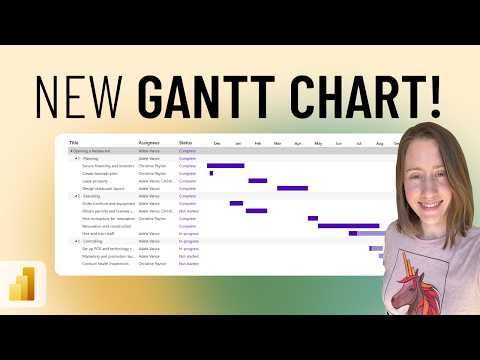
Power BI Gantt visual gets a native option
Power Platform Developer
Christine Payton shows Microsoft’s new Gantt visual in Power BI and explains how to set it up and what quirks to watch for.
Key insights
- Christine Payton demos Microsoft’s new Gantt visual for Power BI.
- The video covers configuration and formatting, plus quirks to watch out for.
- The visual is positioned for project task reporting in Power BI.
- The source notes describe it as a native Power BI option and a preview feature.
Christine Payton recently published a video titled New Microsoft Gantt in Power BI! In it, she walks through Microsoft’s new Gantt visual for Power BI, showing what it looks like, how to configure it, and which quirks to watch out for. Her takeaway is straightforward: this visual is meant to become a practical option for showing project tasks in Power BI reports.
The video is short and focused, with chapters for the intro, configuration, and formatting. The published description also points viewers to a related Gantt demo by Reid Haven and to a previous project management dashboarding video that provided the background used in the current clip. That makes the video useful both as a feature demo and as a quick orientation to a new reporting control.
What's new
The main subject is Microsoft’s new Gantt visual for Power BI. According to the research notes, this is a native Power BI visual and is currently described as a preview feature. It is intended to show project tasks on a timeline so users can view schedules, durations, progress, and milestones inside a Power BI report.
That matters because Gantt-style timelines have often been handled with custom visuals. A Microsoft-built option gives report authors a first-party way to present project schedules without leaving the Power BI environment. In the video, Christine focuses on the look of the visual, setup steps, and formatting choices rather than on a broad product announcement.
Why it matters
For report authors and project-oriented teams, a Gantt visual changes how schedule data can be read. Instead of scanning rows in a table, viewers can see task overlap, timing, and progress on a timeline. The research notes say the visual is useful for project planning, schedule tracking, portfolio reporting, and comparing activities across categories.
For admins and makers working in Power BI, the practical point is that a native visual may reduce reliance on third-party controls for basic timeline reporting. It also fits alongside other business metrics in the same report, which makes it easier to compare project timing with operational or financial indicators. The material does not state licensing details or rollout scope, so those remain unclear.
For end users, the effect is simpler but still important: schedules become easier to read. Milestones stand out, completed work can be distinguished from remaining work, and different projects or workstreams can be grouped in one view. If your team already uses Power BI for dashboards, this visual could make project reporting more accessible without moving to a separate planning tool.
How it works
Christine’s video is organized around configuration and formatting, and the research notes describe the fields the visual can take. The visual represents each task as a horizontal bar on a time axis. The bar’s position shows when work starts, and its length shows how long the task runs.
According to the notes, the visual can be configured with several types of data. The only required field is a label for each task. Other fields can add more context and make the timeline more useful for reporting.
- Provide a task or row label.
- Add a start date.
- Add an end date or a duration.
- Optionally include completion percentage.
- Optionally add groups or categories.
- Optionally add task details and milestones.
The notes also say the visual supports grouping by project, department, workstream, phase, or another category. That makes it possible to look at schedules at different levels in the same report. In addition, the timeline can adjust between years, months, and days based on the date range, the size of the visual, and the zoom level.
Because this is a Power BI visual, it can participate in report interaction. The notes say it can respond to filtering and cross-highlighting when the data model supports the relationship. In practical terms, that means selecting a related item in another visual can update the Gantt view.
Limitations and open questions
The source material does not provide a full list of supported options, and Christine’s description specifically says there are quirks to watch out for. The video title and description make it clear that setup is not completely frictionless, but the published text does not spell out every issue.
The research notes describe the visual as a preview feature, so it should be treated as not fully settled. The notes also point out that third-party visuals may still be needed for advanced scenarios such as complex hierarchies, baseline comparisons, resource planning, or specialized formatting. Those limitations are mentioned in the research material, but the published video description does not go into detail.
We also cannot verify from the provided material which tenants, licenses, or regions can use the visual. The source does not mention release timing, rollout stage beyond the preview note in research, or whether the feature is available to all Power BI users.
Sources
Frequently asked questions
What did Christine Payton show in the video?
She showed Microsoft’s new Gantt visual for Power BI and explained how to configure and format it. The description says she also covers quirks to watch out for.
What is the new Gantt visual meant for?
The research notes say it is meant for project planning, schedule tracking, portfolio reporting, and comparing activities across categories. It places tasks on a timeline inside Power BI.
What data does the Gantt visual need?
The only mandatory field mentioned is a label for each task. Other fields can add start dates, end dates or durations, completion percentages, groups, details, and milestones.
Is the visual fully released?
The research notes describe it as a preview feature, but the published video description does not confirm rollout or licensing details. So the exact availability is not stated in the source material.