Overview
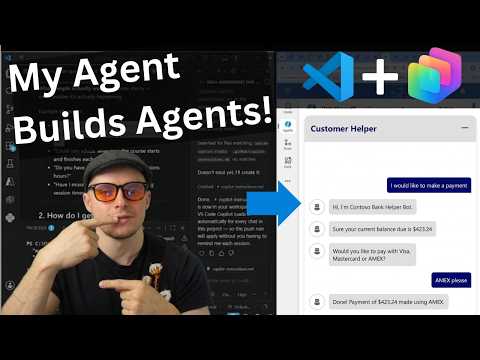
In a recent YouTube video, Sean Astrakhan (Untethered 365) shows how he built a chatbot for his website using Copilot Studio workflows without clicking through the Copilot Studio web UI. Instead, he worked from VS Code by using the Skills-for-Copilot-Studio extension and let an agent scaffold the project from prompts. Consequently, the video becomes a practical walkthrough that highlights developer-focused tooling while still relying on low-code agent features. Moreover, the presentation emphasizes real-world steps and tradeoffs for makers who want to move quickly from idea to a live site.
How the Agent Was Built
First, Astrakhan outlines his goal: a website chatbot that answers customer questions pulled from his inbox. Then he installs the Skills-for-Copilot-Studio extension in VS Code, creates a blank agent scaffold, and instructs an AI to generate the agent flow. He demonstrates pulling real questions via Work IQ to seed prompts, and he shows the agent asking clarifying questions before responding. Finally, he tests inside Copilot Studio, iterates on prompts when the agent errs, and deploys the finished bot live on the website.
Tools and Integration
Sean walks viewers through practical tools and integrations and explains why each piece matters for the final product. He uses Work IQ to surface authentic user queries, the Skills-for-Copilot-Studio extension to author and sync the agent in VS Code, and testing inside Copilot Studio to validate behaviors. In addition, the video touches on Microsoft’s broader direction such as MCP connectors and the concept of Agent 365 governance, which are relevant when scaling agents across enterprise systems. Therefore, the workflow blends developer convenience with enterprise-grade connectivity for real-world scenarios.
Benefits and Tradeoffs
The approach combines speed and control: using prompts in VS Code can be faster for developers who prefer scriptable workflows, while Copilot Studio still offers the safety of a visual test surface. However, this balance brings tradeoffs because code-driven workflows can obscure governance guardrails unless teams deliberately apply policies and reviews. Furthermore, low-code interfaces simplify creation for non-developers but may limit fine-grained customization that developers expect. As a result, teams must decide whether to prioritize rapid iteration or tight integration and control.
Moreover, Astrakhan demonstrates that iterating with prompts can correct many errors, yet some problems still require human expertise. For example, when domain knowledge or connector configuration is complex, the AI can scaffold only so much before a specialist must intervene. Consequently, organizations should plan for escalation paths and expert reviews, especially when agents act on sensitive systems or handle private data. In this way, the video highlights the need to combine AI assistance with human oversight.
Operational Challenges and Governance
Sean also addresses practical challenges such as testing, clarifying user intent, and recognizing when AI cannot safely resolve an issue. He shows the agent asking clarifying questions first, which reduces incorrect answers but increases conversational complexity. Meanwhile, enterprise deployment raises governance questions about connectors, sharing policies, and environmental zoning — topics that Microsoft frames in its broader Agent 365 and governance guidance. Therefore, teams should build inventories of agents, apply connector policies, and log actions to maintain control as they scale.
Security and privacy are additional operational concerns that the video signals but does not fully solve in a short demo. For instance, automated access to inbox data via Work IQ needs clear consent and audit trails, and connectors to CRM or email systems should follow principle-of-least-privilege. Moreover, monitoring and fallback mechanisms are essential when agents misinterpret requests or perform critical tasks. Hence, deployment must include both technical safeguards and process-level agreements.
Live Demo, Results, and Takeaways
In the live demo, the chatbot runs on the website and responds to customer questions, showing the end-to-end result of the VS Code-first workflow. Sean iterates on prompts during testing, which demonstrates a practical loop for improving accuracy while saving time on manual UI builds. The video makes a clear point: developer tooling like VS Code can coexist with visual agent experiences to speed delivery and maintain quality. Ultimately, the approach suits teams that want a reproducible, code-based pipeline with an option to migrate to visual governance later.
To conclude, this video by Sean Astrakhan offers a useful blueprint for developers and makers who want to build agents quickly while keeping governance and extensibility in mind. It balances practical steps, necessary tradeoffs, and operational warnings, and it underscores when to call in domain experts. Therefore, organizations should weigh speed against control and design escalation paths so AI agents help rather than hinder customer experiences.