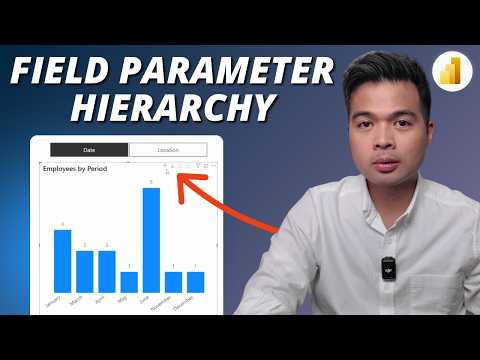
Power BI: Keep Field Hierarchies Intact
Power BI tip: preserve hierarchies with field parameters, custom fields and tutorials from a Microsoft Power BI expert
Key insights
- Field parameters act as dynamic selectors in Power BI that let report readers switch between fields or dimensions without creating extra visuals.
They make reports more interactive and reduce design work for creators. - DAX-based field lists define each parameter item with a name, a column reference, and an order number.
This lets one parameter reference multiple columns or hierarchy levels for flexible visualisation. - Hierarchies work with field parameters by adding multiple levels (created in Model view) and then including those levels in a parameter added to a matrix’s rows.
Use the parameter slicer to control which levels and order appear in the matrix. - Persist Hierarchy Level (January 2026) is a report-level toggle that controls whether a matrix keeps its expanded or collapsed state when the field parameter changes.
When on, the matrix preserves expansion; when off, the matrix collapses to the top level on change. - Collapse behavior history and example: before July 2025, matrices always collapsed to top level on parameter change; after July 2025 the expanded state persisted by default; the January 2026 update adds a toggle to pick the behavior.
Example: switching from Category to Class will either keep the expanded Year rows visible (persist on) or show only Class totals (persist off). - Best practice: choose the toggle based on user needs — enable persistence to keep context across switches, disable it for consistent top-level summaries.
Test with report readers and document the chosen setting so users know how the matrix will behave.
Video overview and purpose
The YouTube video, produced by Fernan Espejo (Solutions Abroad), demonstrates a practical trick for keeping hierarchies when using Field parameters in Power BI. It targets report authors who want smoother control over matrix visuals and hierarchical data. The video combines step-by-step setup with a short explainer about why the behavior of hierarchies matters for interactive reports.
Fernan also includes demo files and mentions further learning options for viewers who want hands-on practice. Consequently, the presentation balances quick wins with deeper guidance for analysts. Overall, the video aims to make the feature usable for both beginners and experienced users.
How field parameters and hierarchies work
At its core, a Field parameter is a dynamic selector built with DAX that references multiple columns and lets readers switch which dimension appears in a visual. To use them with hierarchies, the author shows how to create hierarchical fields in the model, then include each level in a parameter that you place on matrix rows. This approach lets a single visual present several different dimension structures without duplicating visuals or complex personalization rules.
Fernan walks through creating the hierarchy levels, building the field parameter with ordered entries, and then using the parameter slicer to change selections. He emphasizes that the technique reduces clutter in reports and keeps interaction intuitive. In practice, it also simplifies maintenance because you edit one parameter instead of many visuals.
The recent setting that changed the behavior
The video highlights a notable change in how Power BI treats hierarchy state: a toggle called Persist Hierarchy Level. Previously, changing the field parameter often collapsed the matrix to the top level, which some users preferred for clarity. Later, the platform altered default behavior so matrices retained their expanded or collapsed state when switching fields, which created both benefits and frustrations.
To address mixed feedback, Microsoft added a report-level toggle that lets authors choose whether the matrix should keep its expansion state or collapse on parameter change. Fernan demonstrates how enabling and disabling this toggle affects the matrix and shows the visual differences step by step. As a result, report creators can now match the behavior to their users’ expectations.
Tradeoffs and practical challenges
Keeping hierarchies persistent improves continuity for users who explore different fields while keeping context, yet it can confuse readers who expect a fresh, collapsed view when switching dimensions. Thus, the main tradeoff is between preserving context and ensuring predictable summarization. Report authors must decide based on audience needs and the typical navigation patterns of their reports.
Another challenge is performance and complexity. Expanding many hierarchy levels or switching large dimensions can increase render time and noise in the visual. Additionally, building and ordering multiple hierarchy levels in the model requires careful naming and testing to avoid misalignment between the parameter and the underlying data. Finally, interactions with other features such as bookmarks, drill actions, or custom visuals may produce unexpected results that authors should test thoroughly.
Maintenance is also a consideration. While field parameters reduce duplication, they make a single parameter a critical dependency. If fields change names or data types, the parameter and any dependent measures may need updates. Therefore, teams should document the model and include version control for complex reports to reduce future headaches.
Recommendations for report authors
Fernan suggests a few practical steps: test the toggle with a small user group, set sensible defaults for typical readers, and keep hierarchies shallow when performance matters. He also recommends naming levels clearly and keeping demo files for repeated use to speed adoption across projects. These actions help balance user experience with technical constraints.
Moreover, authors should prototype both behaviors—persistent and collapsed—to see which matches user workflows. Training and brief guidance inside reports can reduce confusion when behavior changes. Ultimately, choosing the setting should respond to real user needs rather than a default preference.
Conclusion
Fernan Espejo’s video offers a clear, practical walkthrough that helps Power BI practitioners leverage field parameters with hierarchies while managing the new Persist Hierarchy Level option. The tutorial strikes a balance between hands-on steps and strategic considerations, making it useful for day-to-day report design. By testing behavior, documenting choices, and considering performance, authors can create interactive, maintainable reports that align with reader expectations.

Keywords
Power BI field parameters hierarchy, field parameters hierarchy Power BI, preserve hierarchies Power BI, Power BI hierarchy in field parameters, keep hierarchies field parameters, dynamic hierarchies Power BI, field parameter drilldown Power BI, field parameters hierarchy tutorial