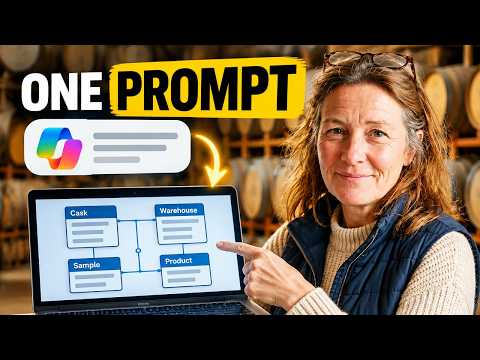
Dataverse: Build linked tables from one Cowork prompt
Power Platform Cloud Solutions Architect @ Microsoft | Microsoft BizApps MVP 2023 | Power Platform | SharePoint | Teams
Copilot Cowork can turn a plain-English request into linked Dataverse tables, while makers review changes and finish date columns in Power Apps.
Key insights
- The demonstrated cask register used one prompt to create four linked Dataverse tables.
- Cowork created Cask Type and Stage as choice columns and asked for approval before changes.
- The Dataverse plugin could not create Date only columns, so those were added in Power Apps.
- The example loaded 59 linked spreadsheet rows with no failures after the date columns were added.
- The build used 84 Copilot Credits; the full task, including rows, used 205.
Copilot Cowork can turn a plain-English description into linked Microsoft Dataverse tables, giving makers a starting data model without building every table by hand. The approach matters to Power Platform beginners and makers who want to prototype a business register from a prompt. Damien Bird demonstrates the workflow with a fictional whisky distillery’s cask register.
What it does
Dataverse stores structured business information in tables, with columns for individual details and relationships that connect records across tables. In this example, the requirement was to track casks, products, warehouse locations and samples. Instead of beginning with a blank set of tables, the maker described the need to Cowork and reviewed the proposed changes.
Cowork created four tables: Warehouse, Product, Cask and Sample. It also connected the tables and created Cask Type and Stage as choice columns, which hold values selected from defined options. These choices and relationships are part of the data model, not just labels in a spreadsheet.
The workflow still involved hands-on work. The Dataverse plugin could not create Date only columns, so the maker added Fill Date, Sample Date and Release Date in Power Apps. After that, Cowork read an Excel workbook from OneDrive and loaded 59 rows into the linked tables without failures.
Who it is for and what you need
This is a starting point for makers who want to translate a business process into a Dataverse structure using natural language. It can be useful when the requirements are clear in everyday terms—such as tracking each cask and its samples—but the maker is still learning how to map those requirements to tables, relationships and columns.
The demonstrated setup needs Microsoft 365 Copilot with Cowork, the Microsoft Dataverse plugin, and a Power Apps environment with Dataverse. Cowork runs on Copilot Credits. The broader Cowork and Dataverse capability is described as a preview feature, so organizations should evaluate it in a controlled environment before relying on it for production work.
The demonstration is a prototype-style exercise rather than a complete production deployment. The example data and people are fictional, and the workbook contains sample records. Makers should plan to inspect the proposed structure and decide whether it represents their own business process before loading real information.
How it works
The key is to describe the business information and how it connects, then review the proposed changes rather than treating the prompt as a finished application. Cowork asks before making changes, and the example shows a manual Power Apps step for the date fields the plugin could not create.
- Start with a Dataverse-enabled Power Apps environment, Microsoft 365 Copilot with Cowork, and the Dataverse plugin.
- Describe the business register in a prompt. The example asked for a cask-tracking setup, leading to Warehouse, Product, Cask and Sample tables.
- Read the approval card before accepting a proposed change. Cowork identifies the work it is about to perform and asks for approval.
- Check the resulting tables, relationships and choice columns. In the example, Cask Type and Stage were choices, while the four tables were linked.
- Open the tables in Power Apps and add the required date fields. Set each date field to Date only by configuring both Format and Time zone adjustment.
- Add the date columns before loading the workbook. Cowork then reads the Excel file from OneDrive and imports the rows into the linked structure.
That sequence matters because dates added after the import would leave the imported records without those date values. The demonstration’s advice is to create the date columns first, then load the rows. Check the approval card itself rather than relying only on the chat text when deciding whether to approve an operation.
Limitations and alternatives
The clearest limitation in this workflow is the plugin’s inability to create Date only columns. The workaround is to add those columns manually in Power Apps, with attention to both the Format and Time zone adjustment settings. This makes Cowork a way to accelerate the initial model, not a substitute for reviewing and completing the schema.
There is also a credit cost to consider. In the example, building the tables used 84 Copilot Credits; the complete task, including the imported rows, used 205 credits. The demonstration gives a rate of $0.01 per credit, making that example’s full task about $2. Actual usage can be checked by entering /cost in a Cowork task.
Building the same tables manually in Power Apps uses no Copilot Credits, according to the demonstration. That route may suit makers who prefer direct control or want to avoid credit consumption. For either approach, review the table names, relationships, choice options and date settings before using the structure for live business data.
Sources
Frequently asked questions
What do I need to build Dataverse tables with Copilot Cowork?
The demonstrated setup uses Microsoft 365 Copilot with Cowork, the Microsoft Dataverse plugin, and a Power Apps environment with Dataverse. Cowork uses Copilot Credits.
Can Copilot Cowork create Date only columns in Dataverse?
The Dataverse plugin in the demonstration could not create Date only columns. Add them in Power Apps, configuring both Format and Time zone adjustment.
How much did the Dataverse Cowork example cost?
The table build used 84 Copilot Credits, and the task including the imported rows used 205. The demonstration gives a rate of $0.01 per credit and says to enter /cost in a Cowork task to see its cost.
Can I build the same Dataverse tables without Cowork?
Yes. The demonstrated alternative is to build the tables manually in Power Apps, which uses no Copilot Credits.