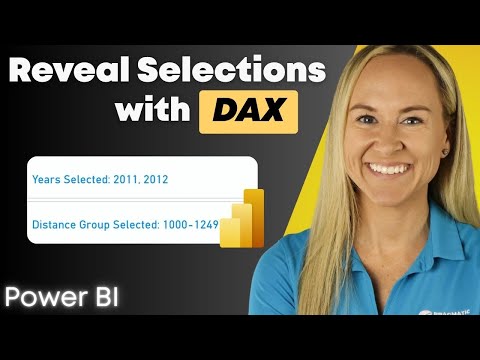
Power BI: Show Selected Points with DAX
Power BI DAX: create a reusable measure and card visual to show selected values and reduce user confusion
Key insights
- Selected data points: The video explains why visuals can look "wrong" when users make selections elsewhere in the report.
It shows how a visible label that describes active selections removes confusion for viewers. - DAX pattern: Build a text measure using IF + ISFILTERED (or HASONEVALUE) together with VALUES and CONCATENATEX to list chosen items.
Example: Selected Years = IF(ISFILTERED(Year[Year]), CONCATENATEX(VALUES(Year[Year]), Year[Year], ", "), "All Years"). - Measures table: Create a dedicated measures table to keep selection measures separate from data tables and make them easy to find.
Add the new measure to a card visual so the selection message appears clearly on the report canvas. - Formatting tips: Format the card to match report style and limit list length for readability (use TOPN or a custom message like "Multiple selected" when many items appear).
Keep the text concise so users instantly understand the active filter state. - Reuse pattern: Apply the same measure pattern to any field (dates, categories, distance groups) by replacing the column in VALUES and CONCATENATEX.
This makes the approach a reusable template for other visuals and fields. - Best practice: Test the measure with slicers and cross-filtering to ensure it reflects real filter context and helps non-technical users.
Use clear labels (for example "Years selected:" or "Distance group selected:") to reduce support questions and preserve interactive filtering.
Quick summary of the video
In a concise tutorial, Pragmatic Works demonstrates how to create a reusable DAX measure that shows which values a user has selected in a report, then surfaces that message in a card visual. The presenter, Angelica, walks viewers through the logic using core functions like IF, ISFILTERED, VALUES, and CONCATENATEX, and then formats a visual to display human-readable text such as “Years selected: 2019, 2020, 2021.” Consequently, this pattern helps viewers avoid confusion when cross-filtering makes charts appear to show unexpected data. As a result, the measure makes selection states explicit without disabling interactivity.
What the tutorial covers
The video breaks the solution into clear steps: create a dedicated measures table, write the selected-values measure, add a card visual, and adapt the pattern for other fields like distance groups. Angelica also shows how to use IF together with ISFILTERED to detect whether a slicer or visual has an active filter, and then uses CONCATENATEX with VALUES to build readable lists of selections. While she focuses on examples like year selections and distance ranges, the same idea applies to categories or product lists. The video timestamps highlight setting up the table, building the measure, testing the card, and reusing the pattern for different fields.
How to build the selected-values measure
First, create a small table in the model reserved just for report measures so you can find the new formula easily. Then add a new measure that tests filter state, for example using ISFILTERED or HASONEVALUE, and returns a formatted string; when several values are selected, CONCATENATEX joins them with commas or a chosen separator. Next, place that measure into a card visual and format the card to fit the report theme and layout. Finally, repeat the pattern for other fields by changing the referenced column and adjusting the formatting to suit length and context.
Benefits and tradeoffs
This approach improves usability because it keeps cross-filtering active while removing ambiguity about what a chart shows, which is especially helpful for occasional or non-technical users. On the other hand, showing long lists of selections can clutter the space and reduce legibility, so designers must balance completeness against readability by limiting displayed items or summarizing ranges. Moreover, the technique is low-cost to implement and highly reusable, but it adds a maintenance consideration when your model grows or when you rename fields. Therefore, teams should weigh immediate clarity for users against ongoing upkeep and potential visual noise.
Challenges to consider
One common challenge is handling many selections: concatenating dozens of values can produce very long strings that break layout or exceed visual limits, so developers often cap the count or show “N items selected” with an option to expand. Another issue is performance on very large models when the measure evaluates many values; prudent use of filter context and efficient DAX patterns matters here. Localization and formatting also complicate things, because separators, ranges, or date formats must match user expectations in different regions. Consequently, report builders must test across typical scenarios and plan for edge cases.
Practical tips for implementation
To keep the measure maintainable, store it in a dedicated measures table and give it a clear name that signals its purpose, like “Selected Values – Year.” Additionally, limit the number of concatenated items or present a short summary followed by a tooltip or drill-through for full details to reduce clutter. When reusing the pattern, adapt the separator and null handling for non-text fields and consider wrapping long text into a tooltip or secondary visual. Finally, run quick performance checks on representative data volumes to avoid surprises after deployment.
How teams can adopt this pattern
Teams that support mixed audiences will find this pattern a practical way to reduce support questions about “incorrect” visuals while keeping interactive filtering available. For governance, document the measure pattern and include examples in a report template so report authors can copy and adapt it without introducing inconsistent behavior. While the approach is simple, it pays to standardize naming, formatting, and limits so users see a consistent UX across reports. In the end, this measure offers a pragmatic balance of clarity, interactivity, and maintainability that many Power BI authors will value.
- Video author: Pragmatic Works
- Focus: reusable DAX measure to show selections
- Key functions: IF, ISFILTERED, VALUES, CONCATENATEX

Keywords
DAX measure tutorial, show selected data points Power BI, Power BI visual selection DAX, DAX selected value measure, Power BI DAX tips, highlight selected data points Power BI, dynamic selection filter Power BI, create DAX for selected points