Copilot: Edit & Upscale Images in PPT
Microsoft Copilot in PowerPoint: AI image editing to remove backgrounds, erase and move objects and upscale
Key insights
-
Video summary: This notes summarize a YouTube video by DRNITINPARANJAPE about Microsoft Copilot image editing in PowerPoint; I am not the video's author.
The video demos the new in-app editor and shows practical edits step by step. -
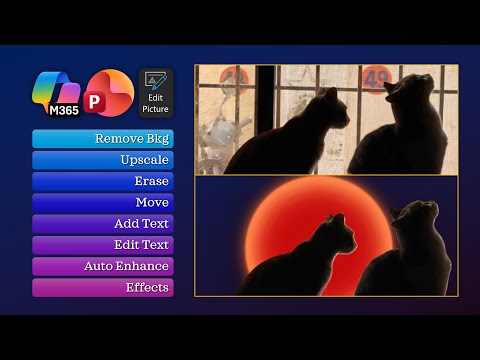
Core features: Built-in tools include Remove background, Upscale, Generative Erase, Generative Move, Auto Enhance, and Add Text/Effects.
Each tool lets you edit images directly on the slide without switching apps. -
How to use: Select an image, choose Edit Picture from Picture Format or right-click, then pick a tool from the side panel.
Preview changes in real time and use Undo to revert if needed. -
Workflow benefits: The integration delivers seamless in-app editing and speeds up design tasks with one-click AI adjustments.
It helps non-designers produce cleaner slides faster and reduces back-and-forth with external editors. -
Availability and licensing: Features began rolling out late 2025 and expanded into early 2026, with Windows Insiders getting early access and Mac/Web following.
A Copilot license unlocks the full generative capabilities; other Microsoft 365 users get limited access. -
Enterprise use and impact: The editor supports brand assets from SharePoint or approved libraries and pairs with Copilot chat for contextual suggestions.
This improves consistency for marketing, pitches, and reports while keeping edits compliant with corporate resources.
Introduction
In a recent YouTube video from Efficiency 365 by Dr Nitin, the presenter demonstrates a range of new image-editing tools that run directly inside PowerPoint. The video focuses on the built-in Designer editor powered by Copilot, showing practical steps such as how to remove background, upscale images, and move or erase objects without leaving the slide. As a result, the tutorial emphasizes how these features reduce the need to switch to separate image editors. Consequently, the video frames the change as a way to speed up presentation production for busy professionals.
Key Demonstrations in the Video
The author walks viewers through a clear sequence of edits that illustrates each tool’s purpose and results. First, the video shows the Remove background function, which isolates subjects quickly and with a preview pane that helps confirm accuracy before applying changes. Then, it demonstrates Generative Erase to remove unwanted elements and Generative Move to reposition objects in a scene, both of which the presenter uses to tidy visuals in a few clicks.
Later segments highlight text extraction directly from images, an Auto Enhance option to correct color and exposure, and an Upscale tool to improve image sharpness for larger displays. The presenter also shows how to add or edit text on images and apply various effects, before finishing with the new Copilot Create Editor interface. Overall, these demonstrations focus on real-world presentation scenarios, giving viewers practical guidance rather than abstract descriptions.
How It Changes Workflow
By keeping editing inside PowerPoint, the tool aims to eliminate the familiar cycle of exporting, editing in another app, and re-importing. Therefore, teams that prepare slides under tight deadlines can cut several steps from their process, which the video highlights as a major productivity win. Furthermore, the integration pairs with Copilot’s chat features to suggest refinements, making it easier for non-designers to produce cleaner visuals.
However, the video also implies that designers still retain control because every AI change can be previewed and undone, which helps manage unexpected results. Moreover, enterprise features integrate with approved asset libraries for consistent branding, so larger organizations can adopt these tools without losing governance. Thus, the overall effect described is smoother workflows with more consistent output, while keeping manual edits available when needed.
Tradeoffs and Technical Challenges
Despite the benefits, the video and the underlying technology present tradeoffs that users should weigh. For example, while Upscale can sharpen images, it may introduce artifacts or create unrealistic textures on complex subjects, which means designers might still prefer a specialized tool for critical image work. Similarly, automated background removal usually works well for clear subject separation, but it can struggle with fine details like hair or translucent objects, requiring manual touch-ups.
Privacy and licensing also factor into adoption: full generative features require a paid Copilot license according to the video, and unlicensed users receive limited access. Additionally, rollout timing means that some platforms or accounts may not see every feature immediately, so teams must plan for gradual availability. Consequently, organizations must balance the speed gains against quality control and licensing costs when deciding how to integrate these tools.
Availability, Licensing, and Takeaways
The video notes that the feature rolled out to Windows insiders first, with broader availability expected to expand to Mac and web platforms over time. As a result, users on different platforms will experience staggered access, and enterprises should monitor Microsoft’s release schedule before committing to workflow changes. The presenter also stresses that Copilot licensing unlocks the full suite of generative tools, which matters for teams that rely on advanced editing frequently.
In summary, Dr Nitin’s video provides a practical, hands-on look at how PowerPoint’s Copilot-driven image editor can speed up slide production while keeping edits in context. While the tools promise meaningful productivity improvements, they also come with tradeoffs in image fidelity, licensing, and phased rollout. Therefore, organizations and individuals should pilot the features, combine AI edits with manual review, and decide which tasks require specialist tools versus what can be handled directly inside PowerPoint.

Keywords
Copilot edit pictures PowerPoint, Remove background PowerPoint, Upscale images PowerPoint, PowerPoint remove background no Canva no Adobe, AI image editing PowerPoint, PowerPoint image upscale Copilot, Edit photos in PowerPoint without Canva, Copilot background removal PowerPoint