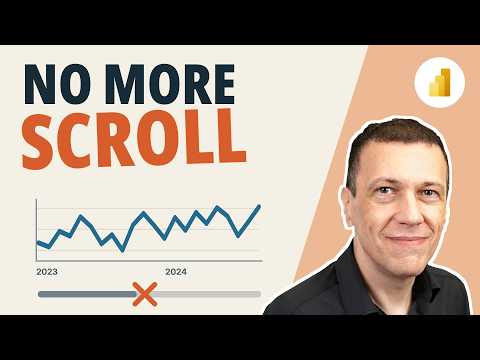
Power BI adds continuous axis for custom Date tables
SQLBI shows how to get a continuous month axis in Power BI with a custom Date table, not just auto date/time.
Key insights
- SQLBI shows a way to get a continuous X-axis at the month level with any Date table.
- The approach is meant to work like Power BI’s auto date/time experience.
- It uses model metadata and a user-defined hierarchy.
- The lowest level must be a date column with the PaddedDateTableDates category.
- The table must be configured as a date table, with the date column as the key column.
SQLBI recently published a post and video showing how to get a continuous X-axis at the month level in Power BI with any Date table, not only with the built-in auto date/time feature. The takeaway is simple: a custom calendar can be set up to behave more like Power BI’s hidden date hierarchy when you build charts that use time. For teams that rely on a dedicated Date table, that matters because it keeps model control without giving up the continuous axis experience.
The post is aimed at people who already work with Power BI date modeling and want the chart behavior they see from auto date/time, but on their own calendar table. SQLBI links both the video and an accompanying article/download, so the message is not just conceptual; it is tied to a practical model setup. The source material does not frame this as a general UI toggle, but as a modeling approach based on metadata.
What's new
The new point here is that continuous-axis behavior is not limited to Power BI’s automatically generated date/time tables. According to the material, the same month-level continuous X-axis can be achieved with a custom Date table. That closes a long-standing gap for modelers who prefer explicit calendar tables for reporting and governance.
The approach is based on model metadata and a user-defined hierarchy. In the background notes, the model is described as needing the right hierarchy shape and date categories so Power BI can treat the axis as continuous rather than just a list of labels. The source material itself points to the article and download for the detailed setup.
Why it matters
This is mainly relevant for Power BI authors, modelers, and BI teams that maintain shared semantic models. A dedicated Date table is usually the preferred design in enterprise models because it can hold fiscal calendars, holidays, working-day flags, and other business logic. The new behavior means those benefits do not have to come at the cost of a less useful chart axis.
For report consumers, the practical effect is better time-series visuals. A continuous axis represents time as a timeline instead of a set of disconnected category labels, which makes month-to-month movement easier to read. For admins and model owners, the value is also in reducing dependence on auto date/time, which creates hidden tables and can make calendar logic harder to standardize across reports.
The material does not mention licensing, rollout stages, or tenant restrictions. It also does not say that the feature is exposed through a new visual setting. What it does show is a modeling pattern that makes a custom Date table behave more like the built-in hierarchy users already know.
How it works
The research notes describe the conditions Power BI expects for this behavior. The axis must use a user-defined hierarchy, the table must be configured as a date table, and the date column must be marked as the key column. The lowest hierarchy level must be a date column with the PaddedDateTableDates data category, and the highest hierarchy level must be categorized as Years.
In practice, the hierarchy follows a date structure such as Year, Quarter, Month, and Date. The notes say the visual must use hierarchy levels beginning with Year, and the intermediate levels do not have to be strictly limited to the standard Year-Quarter-Month pattern. They can use other date-related columns, as long as the hierarchy starts with Year and ends with the correctly categorized date column.
- Create or use a custom Date table in the Power BI model.
- Configure it as a date table and identify the date column as the key column.
- Build a user-defined hierarchy that starts at Year.
- Make sure the lowest level is a date column categorized as PaddedDateTableDates.
- Use that hierarchy on the visual so the X-axis can be continuous at the month level.
The source material does not include the full technical steps in the post text, but it clearly points readers to the article and download for the implementation details. It also references SQLBI’s broader DAX learning material, which suggests the setup sits inside the wider data modeling discipline rather than a one-click chart option.
Limitations and open questions
The material is short and does not provide the full model script, screenshots, or all validation steps. It does not explain every metadata property in the post text, and it does not confirm whether the same pattern works for every chart type or only for the scenarios shown in the video. Because of that, readers should treat this as a modeling technique that needs the linked article for exact implementation.
It is also not clear from the source material whether the setup is intended only for month-level continuous axes or whether there are other supported granularities beyond what is shown. The notes say the approach can support Year, Quarter, Month, and Date levels, but the published snippet does not spell out every edge case. We also cannot verify from the provided text whether this is a preview, a new Power BI release behavior, or a documented workaround layered on top of existing metadata support.
Sources
Frequently asked questions
What problem does SQLBI say this solves?
It shows how to get a continuous X-axis at the month level in Power BI with a custom Date table, similar to auto date/time.
Does this require auto date/time?
No. The point of the post is that a custom Date table can be configured to behave like the built-in date/time experience.
What has to be true in the model?
The notes say the axis must use a user-defined hierarchy, the table must be a date table, and the lowest level must be a date column marked as PaddedDateTableDates.
Did SQLBI mention licensing or rollout details?
No. The provided material does not mention licensing, tenant rollout, or availability details.