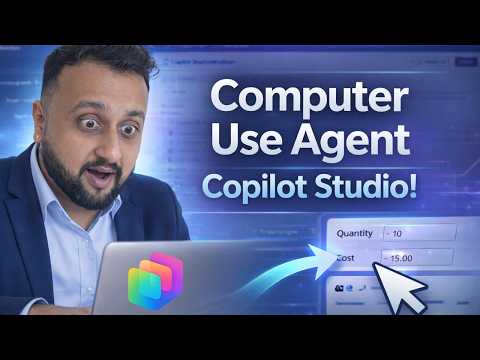
Copilot Studio: Build Computer Use Agent
Microsoft MVP (Business Application & Data Platform) | Microsoft Certified Trainer (MCT) | Microsoft SharePoint & Power Platform Practice Lead | Power BI Specialist | Blogger | YouTuber | Trainer
Microsoft expert on Computer Use Agent in Copilot Studio powering AI web and desktop automation with Azure Cloud PC
Key insights
- Computer Use Agent: The video introduces a preview feature in Microsoft Copilot Studio that lets an AI agent control websites and desktop apps using plain natural-language instructions.
It removes the need for manual step recording or building traditional RPA flows. - Perception → Reasoning → Action: The agent reads the screen (Perception), decides the next steps (Reasoning), and performs clicks and keystrokes (Action).
This loop enables adaptive behavior when interfaces change. - Key Capabilities: The demo shows web navigation, form filling, data extraction, multi-step workflows, and self-correction during entry.
Agents operate with virtual mouse and keyboard inputs to automate common tasks like inventory entry. - Configuration & Models: You add a Computer Use tool in Copilot Studio, write plain-language instructions, choose a model, and test the agent.
The video compares model options such as the OpenAI CUA model and Claude Sonnet 4.5 and stresses writing precise prompts. - Execution Environments: The agent can run in a hosted browser, an Azure Cloud PC pool, or on custom infrastructure for isolated execution.
Built-in credential management and session logs improve security and observability for enterprise use. - Availability, Limitations & Tips: Currently in preview for US tenants only, with some practical limits shown in testing.
Performance depends on instruction clarity; the presenter recommends iterative testing and refining prompts to reduce errors.
Overview
In a recent YouTube video, Dhruvin Shah [MVP] demonstrates a new preview feature in Microsoft Copilot Studio called the Computer Use Agent. The video shows how this AI-driven tool lets an agent interact with both websites and desktop applications using plain language instructions, which removes the need for manual step recording that traditional tools require. As a result, organizations can potentially automate repetitive UI tasks faster and with less upfront engineering. However, the feature is currently in preview and available only to US tenants, so broader rollout and enterprise adoption will take additional time.
How It Works: Perception → Reasoning → Action
The video explains that the Computer Use Agent operates in a three-stage loop: Perception → Reasoning → Action. First, the agent observes the screen by capturing pixels and UI elements to build context; next, it reasons about the right steps to take; finally, it executes those steps using virtual mouse clicks and keyboard inputs. Consequently, this approach lets the agent adapt to changes in the interface rather than failing when a recorded sequence no longer matches the UI. This model differs from deterministic automation in that the AI must interpret visual cues and respond, which introduces both flexibility and the need for careful instruction design.
Live Demo and Setup in Copilot Studio
Dhruvin walks through a live demo where the agent performs automated inventory data entry on a web form, showing how it navigates, fills fields, and self-corrects when input mismatches occur. The demonstration highlights how the tool handles multi-step workflows and shows examples of data extraction and submission without any recorded macro. Thus, viewers get a practical sense of the agent’s capabilities and immediate limitations.
Furthermore, the setup process in the video is straightforward: create or open an agent in Copilot Studio, add the computer use tool, describe the task in natural language, and configure execution options like model selection and execution environment. Options include choosing between the OpenAI CUA model or Claude Sonnet 4.5, and picking a hosted browser, an Azure Cloud PC, or custom infrastructure. Consequently, teams can balance convenience, cost, and security when deciding where automation runs.
Advantages Compared to Traditional RPA
The video emphasizes several practical advantages over classic robotic process automation. For example, natural language configuration reduces time spent on recording and scripting, while AI-driven interpretation makes the agent more resilient to small UI updates. As a result, maintenance overhead can drop because the agent reasons about actions rather than replaying brittle step sequences.
At the same time, these gains come with tradeoffs. Traditional RPA delivers deterministic behavior and precise replayability, which remains valuable for regulated or audit-heavy processes. Therefore, organizations should weigh ease of authoring and adaptability against the need for repeatable, fully auditable results when choosing between AI-driven agents and classic RPA solutions.
Limitations and Challenges
Importantly, Dhruvin provides an honest review that outlines current limitations. Performance depends heavily on instruction clarity, and ambiguous prompts can produce inconsistent results, so teams must invest time in refining prompts and testing edge cases. Additionally, because the feature is in preview, reliability and feature completeness are still evolving.
Security and governance also present challenges: automated UI control can access sensitive data and credentials, so enterprises need robust logging, credential management, and isolation. While the tool includes session replay and action logs, organizations must implement policies and monitoring to ensure safe production use. Moreover, latency, model cost, and differences between model choices like OpenAI and Claude Sonnet 4.5 affect total cost and behavior, creating further tradeoffs.
Practical Considerations and Future Outlook
For teams considering this technology, the video recommends iterative testing and a clear escalation path for failures so that human operators can step in when automation struggles. Additionally, choosing the right execution environment—hosted browser, Azure Cloud PC, or custom machines—depends on security needs and the complexity of desktop interactions. Consequently, planning for observability, such as session replays and run summaries, is essential for governance and troubleshooting.
Looking forward, the video suggests that continued model improvements and broader availability will make this approach more viable for many use cases. In the meantime, organizations should pilot the feature on low-risk workflows, measure outcomes, and compare costs and reliability with established RPA tools. Overall, Dhruvin’s walkthrough offers a balanced, practical introduction that highlights both the promise and the careful planning required to adopt the Computer Use Agent successfully.

Keywords
Copilot Studio computer use agent, Microsoft Copilot Studio agent, create computer use agent Copilot Studio, Copilot Studio agent tutorial, Copilot Studio automation agents, Copilot Studio best practices, Copilot Studio agent examples, Copilot Studio integration with apps