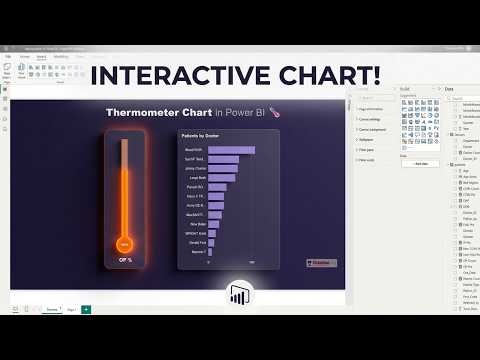
Power BI Interactive Thermometer Chart
Microsoft Power BI tutorial for interactive thermometer chart boosts reports and dashboards with dynamic visualization
Key insights
- Thermometer chart in Power BI: The video shows how to build an interactive visual that displays progress toward a goal, like sales, KPIs, or sensor readings.
Use it for quick status checks on dashboards and reports. - Data preparation: Create a simple table with Value, Target, Min, and Max, or use measures such as a Progress = DIVIDE([Current], [Goal]).
Keep data aggregated or use a single-row measure for the cleanest display. - Build the visual: Use the native Gauge visual in Power BI Desktop.
Drag Value to Value, Target to Target, Min to Minimum and Max to Maximum to form the base thermometer. - Format for thermometer look: Open Format visual to set start/end values, adjust Arc thickness, apply color zones, and add a Needle or central label for emphasis.
Hide unnecessary labels and pick contrasting colors for accessibility. - Interactivity and real-time: Add slicers and drill-through to filter by time, region, or category.
For live updates, connect with DirectQuery or streaming datasets (examples include Azure IoT/Stream Analytics) to refresh the chart automatically. - Alternatives and best practices: Replicate the look with a stacked bar or create custom visuals via Deneb when you need more control.
Always set clear min/max/target, use conditional formatting, and test performance on large datasets.
Quick summary of the video
In a recent YouTube tutorial, Chandoo demonstrates how to build an interactive thermometer chart in Power BI. The video walks viewers through a practical, step-by-step process that starts with simple data and ends with a polished visual suitable for dashboards. Consequently, the tutorial aims to help analysts and report authors create a progress-style visual that reads like a thermometer and responds to filters and slicers in real time.
Moreover, the presenter emphasizes low-code techniques that rely primarily on native visuals rather than third-party custom visuals. As a result, viewers see a method that balances visual appeal with maintainability and enterprise governance. Therefore, the tutorial is useful both for beginners and for experienced users who want to avoid external dependencies.
What a thermometer chart is and why it matters
A thermometer chart shows progress toward a target by filling a shape or arc proportionally to the current value. This makes it easy to understand whether a metric is on track at a glance, which explains its popularity for sales targets, fundraising goals, and operational KPIs. In short, it converts numeric performance into an intuitive, visual metaphor that decision-makers can read quickly.
Furthermore, Chandoo explains that thermometer-style visuals can be created using the built-in gauge visual or by composing shapes and measures with doughnut charts and creative formatting. In addition, the tutorial notes that tools like Deneb or stacked bars can offer more flexibility, but they introduce additional complexity. Thus, the choice of approach depends on priorities such as control, performance, and governance.
Step-by-step highlights from the tutorial
First, Chandoo recommends preparing a compact data model with clear fields for current value, target, minimum, and maximum. Then he shows how to add the built-in Gauge visual, map the fields, and adjust axis settings to set the visual range. Next, he customizes formatting — adjusting arc thickness, colors, and labels — to create the thermometer impression rather than a simple speedometer look.
After basic setup, the tutorial covers polishing touches such as hiding unnecessary text, adding a central label or needle, and applying conditional colors to indicate status zones. Chandoo also demonstrates how to use simple DAX measures like a Progress ratio to drive the visual and ensure it updates correctly when filters change. Consequently, viewers receive practical formulas they can adapt to different datasets and reporting needs.
Interactivity and integration options
Chandoo highlights interactivity as a key strength, showing how slicers, drill-through behavior, and tooltips increase the visual’s usefulness. He also outlines options for connecting to live or streaming data sources, mentioning methods such as DirectQuery and streaming datasets to enable near-real-time updates. Therefore, the thermometer can serve both static monthly reports and live operational dashboards, depending on the data pipeline.
However, the video notes that integrating real-time data introduces tradeoffs: live queries can affect performance, and governance teams may restrict streaming connections. In other words, there is a balance between immediacy and reliability that teams must manage. Accordingly, Chandoo advises testing performance and working with IT to ensure the architecture supports the desired refresh cadence and security requirements.
Tradeoffs and common challenges
Choosing between native visuals and custom approaches involves clear tradeoffs that the tutorial explains well. Native visuals offer simplicity, support, and often better performance, but they can limit visual flexibility; conversely, custom visuals or composed charts provide design freedom at the cost of added complexity and potential deployment restrictions. Thus, teams must weigh control against maintainability.
Data preparation and measure design also present challenges: incorrect min/max settings or poorly defined targets can mislead viewers, and overly complex DAX may be hard to maintain. Furthermore, making the visual accessible across devices requires testing on different screen sizes and ensuring color choices work for users with vision differences. Therefore, Chandoo recommends simple base measures, clear labeling, and collaboration with stakeholders to set meaningful thresholds.
Practical tips and final takeaways
Finally, the tutorial offers pragmatic tips: start with a single-row summary table for the KPI, use a straightforward Progress measure, and prefer built-in visuals unless a specific design need requires custom tooling. In addition, verify performance on representative datasets and document the measures so others can reuse them across reports. These steps help keep reports robust and easy to manage over time.
Overall, Chandoo delivers a clear, usable guide that balances aesthetics and practicality while acknowledging tradeoffs around performance and governance. Consequently, this tutorial should help Power BI authors build interactive thermometer charts that communicate goals clearly without introducing unnecessary technical debt. In short, it provides a solid foundation for teams looking to add effective KPI visuals to their dashboards.

Keywords
Power BI thermometer chart tutorial, interactive thermometer chart Power BI, build thermometer chart Power BI, Power BI custom visual thermometer, Power BI interactive chart tutorial, thermometer gauge Power BI alternative, DAX thermometer chart Power BI, create thermometer chart in Power BI