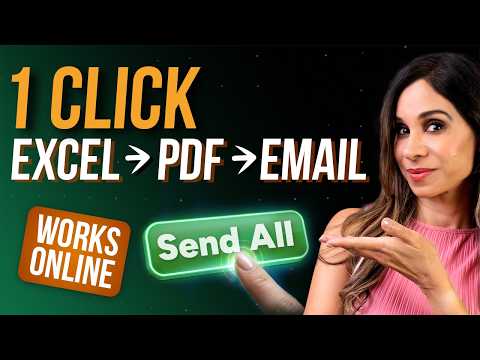
Excel: Auto Create & Email PDFs (No VBA)
Automate Excel reports with Office Scripts using convertToPdf and sendMail to PDF and email via Outlook and Teams
Key insights
- Office Scripts is a TypeScript-based scripting option in Excel for the web that automates tasks like exporting sheets as PDFs and sending emails.
It runs in the browser and works across Excel for the web, Teams, and Microsoft 365 without desktop macros. - convertToPdf and sendMail (or equivalent mail APIs) let scripts export ranges or sheets to PDF blobs and attach them directly to personalized emails.
This keeps files in memory, avoids local saves, and speeds up bulk delivery. - Recipient table is a simple data table (Name, Email, Sheet Name) you set up in the workbook to drive bulk processing.
Scripts loop rows, update sheet content for each recipient, export the PDF, and send the message automatically. - Automate tab provides the script editor and lets you add a one-click button on a sheet for a professional UI and easy manual runs.
You can test, run, and refine scripts directly from this interface. - Power Automate integration enables scheduled or triggered runs, so you can run the same script on a timetable or as part of a larger workflow.
This adds automation for repeating reporting without user intervention. - Cloud-native advantage replaces many VBA use cases: it’s secure, cross-platform, and avoids issues from VBA deprecation in modern Outlook.
Teams gain faster bulk processing and better tenant control when distributing reports.
Overview of the Video
Leila Gharani [MVP] recently published a practical tutorial that shows how to automatically create and email PDF reports from Excel without using VBA. In the video, she demonstrates a one-click solution that converts specific sheets to PDF and sends them via Outlook, using Office Scripts as the backbone. Consequently, the piece aims to help users stop spending hours manually saving, naming, and emailing Excel reports.
Furthermore, the presentation emphasizes that this approach works across Excel for the web environments, including the browser, desktop, and collaborative platforms. In particular, the video highlights compatibility with Microsoft 365, which positions the solution as modern and cloud-ready. Therefore, the tutorial targets people who need a reliable, cross-platform alternative to traditional macros.
Moreover, the author provides a downloadable workbook and walks viewers through a TypeScript script that ties together PDF conversion and mail sending. Alongside the walkthrough, timestamps guide users through setup, customization, and troubleshooting segments. As a result, the video serves both beginners and more advanced users who want to adapt the method to their dashboards.
How the Automation Works
First, the video shows how to structure a recipient table that includes fields like name, email, and sheet name, enabling bulk processing. Then, it explains the use of the convertToPdf method to export selected ranges or entire sheets into memory as PDF blobs, which avoids saving files to disk. Next, the tutorial connects these blobs to email messages using a mail API, often described as the sendMail approach or through calls to the Microsoft Graph.
Additionally, Leila demonstrates how to tie the script to a UI element so a user has a professional one-click experience inside the workbook. She also shows how to loop through rows and customize content per recipient, ensuring each PDF is personalized before dispatch. Consequently, the method streamlines bulk distribution while preserving individualized formatting and content.
Finally, the video explains how to run scripts on demand or trigger them via scheduling tools like Power Automate for recurring reports. This flexibility allows teams to choose immediate sends or automated schedules without manual intervention. Thus, organizations can integrate the solution into existing reporting cycles with minimal disruption.
Benefits and Tradeoffs
The primary benefit is the move away from legacy VBA macros toward a cloud-native model that runs in web clients and respects modern security policies. In addition, the approach reduces local dependencies and mitigates issues related to desktop-only macros, especially in organizations that use hybrid or web-first environments. Consequently, many teams will gain reliability and cross-device compatibility.
However, there are tradeoffs to consider, starting with licensing and permissions: not every Microsoft 365 plan or tenant will have the necessary scripting or API rights out of the box. Also, while memory-based PDF blobs speed operations, they can stress limits when processing very large batches or high-resolution reports, which may require batching or throttling. Therefore, planners must weigh convenience against operational constraints like tenant policies and quota limits.
Moreover, integration with mail APIs introduces governance considerations because sending automated emails often requires administrator consent or specific API permissions. Conversely, administrators can leverage these controls to enforce data handling rules and prevent abuse, which adds security at the price of extra setup. In short, the solution improves automation but shifts some responsibility to IT teams for secure configuration.
Implementation Challenges
One practical challenge is debugging scripts that run in the cloud rather than on a local desktop, which changes how errors surface and how logs are collected. Moreover, differences between the web and desktop renderings of Excel can affect PDF output, so users must test formatting and pagination carefully. As a result, initial deployments often require iterative testing and adjustments to layout and scaling settings.
Another challenge arises when handling large recipient lists, where rate limits or mailbox quotas can slow down or block sends; therefore, developers should implement retry logic and batching. Furthermore, attachments may face size constraints when reports include many images or detailed charts, so teams must balance visual fidelity with file size. In consequence, robust error handling and monitoring become essential parts of a production-ready solution.
Finally, teams moving from a VBA mindset must also adopt TypeScript basics and Office Scripts conventions, which introduces a learning curve. Training and documentation help, but organizations should plan for some ramp-up time as users and administrators adapt. Nonetheless, the long-term gains in compatibility and maintainability typically outweigh the initial learning investment.
Adoption and Next Steps
For groups considering adoption, the video recommends starting with a small pilot that exercises key scenarios, such as a limited set of recipients and varied worksheets. Then, teams can scale gradually while monitoring performance and permission needs, which reduces risk and reveals configuration gaps early. Consequently, a staged rollout tends to deliver smoother transitions and clearer governance practices.
Additionally, exchanging knowledge between report creators and IT administrators is crucial because script permissions, tenant policies, and scheduling all require coordinated change. As teams work together, they can refine templates, standardize recipient tables, and automate recurring tasks more safely. Ultimately, this cooperative approach helps organizations get the most value from Office Scripts while managing tradeoffs responsibly.
In conclusion, Leila Gharani’s tutorial offers a clear, practical route to modernize Excel report distribution by combining PDF creation and automated email sending without VBA. While the method brings efficiency and cross-platform support, it also requires attention to permissions, limits, and testing before broad deployment. Therefore, organizations should weigh these factors and plan pilots to validate the approach in their own environments.

Keywords
Automatically create PDF from Excel, Email PDFs from Excel without VBA, Automate Excel to PDF and email, Power Automate Excel to PDF, Export Excel to PDF online, Send Excel as PDF automatically, Create PDF from Excel without macros, Schedule Excel to PDF emails