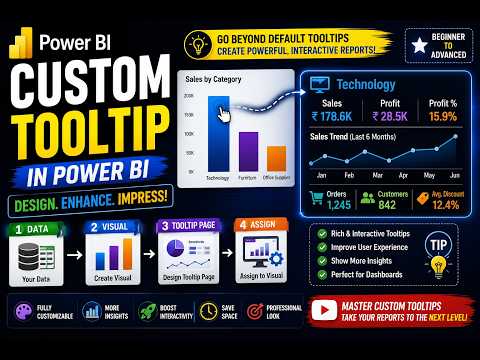
Power BI: Design Custom Report Tooltips
Microsoft Power BI expert guide to custom report page tooltips: assign per visual and hide page to enrich dashboards
Key insights
-
Video summary: the tutorial shows how to replace the global default tooltip with a purpose-built Report page tooltip and assign that tooltip to specific visuals only. It works in Power BI Desktop (2024–2026) and Power BI Service.
-
How to build a tooltip page: open a new report page, set the page size/type for create tooltip page (Tooltip canvas), then add cards, charts, and text designed to react to the hovered data point. Keep the layout compact and focused.
-
Assign to specific visuals: select the visual, go to the Format pane → visual-level configuration → Tooltips, choose “Report page” and pick the tooltip page. You can also set a visual to use no tooltip or the default tooltip.
-
Design and test with real filters: while authoring, apply realistic filters and preview hover behavior so elements respect the filter context. This ensures numbers and charts update correctly for each hovered value.
-
Hide and reuse tooltip pages: mark the tooltip page as hidden from report navigation (hide from report view) to keep the canvas clean, then assign that same tooltip page to multiple visuals for consistent contextual insights.
-
Benefits and best practices: custom tooltips give more detail without navigation, improve analysis for HR, Sales, and Finance, and reduce clutter on the main page. Design tooltips narrowly, test with sample data, and avoid overloading them with visuals.
Overview of the video
The YouTube video from Power BI Excellence explains how to build and assign a report page tooltip so it appears only on specific visuals instead of everywhere by default. First, the presenter frames the problem: default tooltips can be noisy and one-size-fits-all, so authors often need tailored context for individual charts. Then the video walks viewers through a compact workflow that works in both Power BI Desktop and the Power BI Service, showing practical steps and settings that matter for real dashboards.
Step-by-step demonstration
The tutorial begins by creating a dedicated tooltip page and adjusting the canvas size to match a compact hover layout, which keeps visuals readable without overwhelming the report. Next, the presenter adds cards, charts, and supporting elements, and formats those elements so they react sensibly to the filter context inherited from the source visual. After authoring the tooltip page, the video shows how to assign that page to a particular visual through the visual’s formatting pane, and then repeats the assignment for other visuals as needed.
Practical use cases and immediate benefits
As the author notes, tooltips add useful context without forcing users to change pages or apply extra filters, which maintains analytical momentum and reduces clicks. For instance, HR dashboards can display headcount trends and turnover metrics on hover, while sales and finance dashboards can show variance against target, trailing twelve-month trends, or regional breakouts next to a single bar. Consequently, report canvases stay cleaner because you avoid packing the main page with every supporting chart, and users still access rich detail when they need it.
Tradeoffs and performance considerations
However, the video also implies tradeoffs: richer tooltip pages increase report complexity and may affect rendering time, especially when many visuals use heavy calculations or large datasets. Moreover, each tooltip page adds maintenance overhead because developers must keep those mini-pages synchronized with measure logic and formatting standards. Therefore, teams should balance depth against speed and manageability by limiting tooltips to scenarios where the extra context materially improves decision making rather than decorating every visual.
Challenges and recommended best practices
The presenter highlights practical challenges such as previewing realistic filters while designing tooltip pages, ensuring visuals respond correctly to the hovered point, and hiding the tooltip page from report consumers so it does not appear in the page navigation. To address these issues, the video suggests testing with representative filter contexts, using clear names for tooltip pages, and validating performance in both Desktop and Service environments. Additionally, authors are advised to document tooltip usage and to apply consistent formatting so consumers experience predictable behavior across the report.
Implications for report design and adoption
Ultimately, the video presents report page tooltips as a focused design option that helps teams deliver context-rich analytics while preserving a tidy report canvas and smooth navigation flow. Yet, adopting this approach requires deliberate choices about when to add detail, how to test performance, and who will maintain these specialized pages over time. For teams that weigh those tradeoffs and follow the practical checks shown in the video, tooltips can raise the clarity and usefulness of dashboards without forcing users to leave the visual they are exploring.

Keywords
Power BI custom tooltips, report page tooltips Power BI, customize tooltips Power BI, dynamic tooltips Power BI, Power BI tooltip pages, Power BI tooltip tutorial, create tooltips Power BI, advanced tooltip customization Power BI