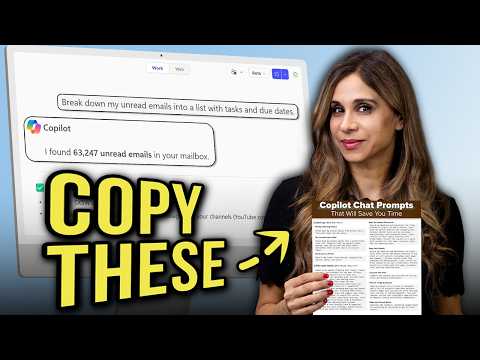
Copilot Chat: 10 Prompts I Use Weekly
Copilot Chat prompts for Microsoft three sixty five: tame Outlook, plan with Teams, find files in OneDrive SharePoint
Key insights
- Copilot Chat toolkit: A set of 10 practical, reusable prompts designed to speed up Microsoft 365 work.
They turn routine tasks into repeatable workflows you can copy, paste, and adapt. - Core prompt categories: inbox and task triage, catching up on a person, weekly planning, file search, deep Excel search, file summaries and comparisons.
These cover email, calendar, OneDrive/SharePoint, and document prep for meetings. - Key outcomes: generate a prioritized task list with due dates, build a Weekly Action Plan, produce a one-paragraph summary of a file, and quickly compare two files.
Each outcome saves manual triage and speeds decision making. - Reuse and optimize: save effective queries in the Prompt Library and convert strong outputs into an optimized prompt you can run weekly.
This turns ad hoc questions into reliable, repeatable actions. - Practical tips: use the filtered-inbox variant to focus on VIP senders or project folders, and run deep Excel searches to find hidden data or anomalies.
Export results into a document when you need shareable action plans. - Licensing and data access: Copilot Chat is available with Microsoft 365, but many Work mode features that access email, Teams, and SharePoint require a paid Copilot license and your organization’s data permissions.
Check IT policy before enabling broad data access.
In a concise and practical YouTube tutorial, Leila Gharani [MVP] demonstrates a set of 10 reusable prompts for Microsoft 365 Copilot Chat that she says she uses every week. The video frames these prompts as copy‑paste‑ready patterns designed to speed up common knowledge‑work tasks, from inbox triage to cross‑platform file searches. Consequently, the demonstration feels less like theory and more like an applied toolkit that readers can adapt to their own workflows. For editorial readers, this coverage highlights both immediate utility and the bigger picture of how AI assistants integrate with everyday office systems.
What the 10 prompts do
First, the prompts focus on handling information overload: they convert unread emails into prioritized tasks with due dates, and they provide a filtered inbox version for higher‑priority items. Next, several prompts aim to build context quickly by letting Copilot “catch up on a person” across email, chats, and files, and by planning the week from Outlook, Teams, and Calendar events. In addition, the toolkit includes prompts for file work such as broad file search across OneDrive and SharePoint, deep searches inside Excel, one‑paragraph file summaries, and file comparisons. Finally, the set teaches users to prepare for hard meeting questions and to turn strong Copilot results into saved, optimized prompts for repeated use.
How these prompts speed up work
By automating routine cognitive steps, these prompts reduce the time spent scanning messages and hunting for documents, which often consumes much of a knowledge worker’s day. For example, turning an inbox into a task list with owners and deadlines converts passive information into an actionable plan that teams can follow. Moreover, summarizing or comparing files reduces hours of manual review into seconds, so users can focus on decisions rather than data retrieval. As a result, teams can spend more time on analysis and negotiation instead of clerical triage.
At the same time, the prompts aim to surface context that matters before meetings, helping people arrive prepared and aligned with stakeholders. The weekly planning prompt, for instance, generates a Weekly Action Plan document that gathers priorities and meeting prep in one place. This structured output encourages follow‑through and reduces the chance that important but non‑urgent work slips through the cracks. Therefore, the workflow creates small efficiencies that add up over weeks and months.
Tradeoffs and licensing challenges
Despite the clear benefits, there are important tradeoffs to consider, particularly around access and cost. While basic Copilot Chat may be available with some Microsoft 365 accounts, many of the more powerful “Work mode” prompts require a paid Copilot license that allows the assistant to access mailbox, SharePoint, and Teams data at scale. Consequently, organizations must weigh the productivity gains against licensing expenses and determine whether the return justifies the investment. Additionally, conditional access and admin policies can limit functionality, so IT involvement is often necessary for broad rollout.
Privacy and governance present another set of tradeoffs. Granting Copilot access to corporate data can improve insights, but it also raises questions about data handling and compliance, especially in regulated industries. Therefore, teams must balance openness for productivity with restrictions required by security and legal frameworks. In practice, that means striking a middle ground through careful configuration, monitoring, and user training rather than simple on/off decisions.
Making prompts reusable and reliable
Gharani emphasizes saving strong Copilot outputs and turning them into optimized prompts that you can reuse weekly. This practice creates consistency across users and reduces the cognitive load of crafting effective queries each time. Moreover, using the prompt library lets teams share proven approaches, which encourages standardization and speeds onboarding for new hires. Thus, the optimized prompt workflow turns ad hoc success into repeatable operations.
However, prompt reliability depends on the quality of the inputs and the prompt design itself; vague or incomplete context can produce misleading outputs. Therefore, users should refine prompts iteratively, test results against known facts, and capture the best prompts as templates. Over time, a curated library of prompts yields both speed and accuracy gains, but it requires maintenance and governance to remain effective. In short, reuse is powerful but not automatic; it demands deliberate stewardship.
Limitations, best practices, and next steps
Finally, the video highlights practical limitations that organizations should accept up front: Copilot is a tool that augments judgment rather than replaces it, and it can make mistakes if prompts are ambiguous. To manage that risk, teams should use Copilot outputs as first drafts, cross‑check critical facts, and document any assumptions the tool relied on. In addition, training users on prompt design and on when to escalate to human review improves outcomes and reduces surprises.
In conclusion, Leila Gharani’s tutorial delivers a pragmatic set of weekly Copilot Chat prompts that can materially speed common workflows while also surfacing important governance and licensing considerations. As organizations experiment with these patterns, they will need to balance convenience against cost and compliance, and to commit to prompt curation as part of operational practice. For busy professionals, the real value lies in making these prompts part of a disciplined routine rather than a one‑off trick.

Keywords
copilot chat prompts, best copilot prompts for productivity, microsoft copilot chat examples, copilot prompts for creators, copilot prompts for marketing, copilot prompts for writing, daily copilot chat prompts, copilot prompt ideas