- All of Microsoft
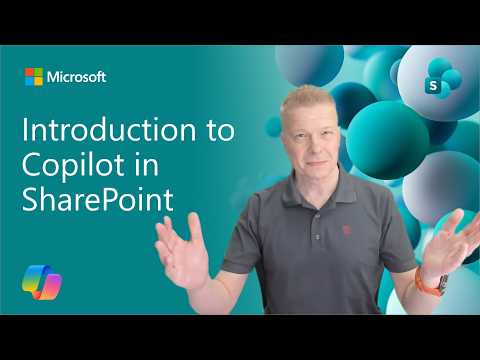
Copilot in SharePoint: Quick Start Guide
Software Development Redmond, Washington
Copilot in SharePoint uses natural language to build content, reusable Skills and instant dashboards with Power Platform
Key insights
- Copilot in SharePoint helps users create, edit, and manage SharePoint content using conversational prompts rather than manual design steps.
It turns SharePoint into a content-aware workspace so teams can move faster and collaborate more easily. - AI page creation lets you describe a page, attach reference files, and receive a draft you can review, edit, and publish.
This reduces the blank-page problem and can convert documents or slides into SharePoint pages quickly. - Smart sections provide modular, AI-generated page parts you can add or refine one at a time.
They make it simple for non-designers to build pages incrementally and keep layouts consistent. - SharePoint Skills let teams save and reuse automation and content patterns directly in a site.
Site owners can manage and evolve Skills so the same expertise works across pages and projects. - Dynamic HTML dashboards transform SharePoint list data into interactive dashboards instantly, making insights visible without manual coding.
This speeds reporting and helps teams act on data faster. - Permission-aware access uses Microsoft Graph and tenant controls so Copilot only reads content users are allowed to see.
Admins can apply governance and compliance settings to limit sources and protect sensitive information.
Overview
The newsroom reviewed a recent YouTube demo published by Microsoft that introduces Copilot in SharePoint. The video frames Copilot as a shift from file storage to a conversational workspace that helps people build pages, generate content, and structure sites with natural language. Consequently, the demo highlights how everyday creators and teams might work faster by turning words and existing documents into ready-made site components. Overall, the presentation positions Copilot as a productivity layer embedded inside the familiar SharePoint experience.
Demo Highlights
First, the video demonstrates that users can ask Copilot to draft full pages or specific page sections using plain language and optional reference files. Additionally, presenters show how the tool can convert list data into dynamic HTML dashboards and save reusable expertise as Skills within a site, which helps teams repeat successful patterns. These examples emphasize speed and accessibility, as the system reduces the need for specialized design or development skills to get useful SharePoint pages online.
Moreover, the demo follows a concise agenda with a live demo segment that illustrates real-time interactions and editing. The presenter, Vesa Juvonen from Microsoft, walks through creating content from prompts, grounding drafts in existing files, and refining layouts before publishing. Thus, the audience sees both the creative possibilities and the practical steps an author can take to move from idea to published page. In turn, that live format makes the capabilities feel tangible for site authors and administrators alike.
How Copilot Works in SharePoint
At a technical level, Copilot combines large language models with Microsoft Graph and tenant data that users are permitted to access. The system uses natural language prompts and organizational context to ground drafts in real content, while permission-aware access ensures people see only what they’re allowed to view. Therefore, Copilot generates suggestions that are intended to be relevant to the organization’s data and security boundaries rather than generic outputs. This architecture aims to balance helpfulness and data governance by design.
In practice, the video highlights two practical building blocks: full-page drafting agents and modular “smart sections.” The page agent can create draft pages from a description and supporting documents, while smart sections let teams incrementally assemble pages by generating targeted content blocks. As a result, authors can either start from a complete draft or piece together content section by section, which supports different workflows and preferences across teams.
Governance, Security, and Tradeoffs
While Copilot promises faster content creation, the demo and accompanying documentation stress governance and admin controls to manage risk. For example, administrators can use advanced management and restricted search settings to limit which content sources Copilot may use, thereby reducing exposure to sensitive or obsolete information. However, this introduces a tradeoff: tighter controls improve safety but can also limit the assistant’s usefulness if too much context is blocked.
Furthermore, balancing productivity with compliance requires ongoing coordination between site owners, security teams, and content authors. Administrators must decide how broadly to enable Copilot features, which in turn affects how many users benefit from the automation. Consequently, organizations should weigh speed gains against potential compliance overhead and plan for policies that evolve as usage patterns emerge.
Challenges and the Road Ahead
Despite clear benefits, the approach carries practical challenges that the video acknowledges implicitly rather than solves outright. For one, generative suggestions depend on well-grounded source data; without good input or careful prompts, outputs can be inaccurate or misleading, creating extra work to verify and edit drafts. Therefore, teams will need to invest time in training authors on how to prompt effectively and in curating the content that Copilot can access.
Moreover, maintaining Skills and custom site behaviors requires ongoing attention, because SharePoint sites and organizational priorities change over time. Administrators must balance automation with maintenance work, ensuring Skills remain current and helpful. Finally, as Copilot integrates across Microsoft 365 apps, interoperability promises smoother workflows but also raises questions about permissions consistency and cross-application governance. Ultimately, this technology offers clear productivity gains, but realizing them responsibly will depend on careful governance, training, and iterative improvement.

Keywords
Copilot in SharePoint, SharePoint Copilot tutorial, Microsoft Copilot SharePoint, SharePoint AI assistant, Copilot for Microsoft 365 SharePoint, SharePoint Copilot features, SharePoint AI collaboration, Setup SharePoint Copilot