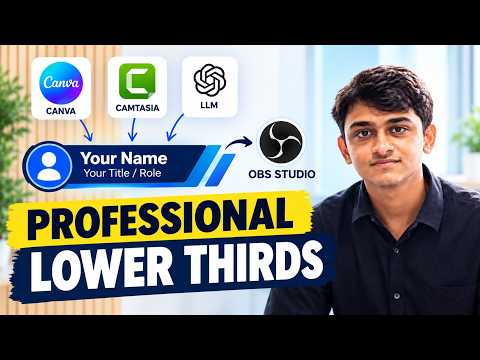
How to Create Lower Thirds for OBS Studio — Overview
Overview of the video
The YouTube video by Presentation Process YouTube titled How to Create Lower Thirds for OBS Studio — 3 Easy Ways walks viewers through practical ways to add lower thirds to live streams and recorded content. It targets users who want to display names, titles, or social handles without obscuring main content. The presenters demonstrate free and paid options, simple and animated approaches, and practical loading methods for OBS Studio, so viewers can choose what fits their needs. Consequently, the video serves both beginners and intermediate creators who want faster, more polished overlays.
The walkthrough emphasizes accessibility by showing methods that require minimal technical setup and alternatives that offer more polish. For example, the video covers free web tools, a popular design platform, and traditional video-editing software, then shows how to import those assets into OBS Studio. As a result, the guide gives a clear path from creation to live use, helping producers avoid common setup pitfalls. Moreover, the presenters highlight how animations and transparency affect workflow and performance.
Three methods the video presents
First, the creators show how to build basic, static lower thirds directly inside OBS Studio by combining a color bar and text sources. They explain how to crop, position, and reuse scenes to keep branding consistent across broadcasts. Next, the video demonstrates using a browser-based asset from tools like Profounder and HTML overlays as a Browser source in OBS for richer styling and animation. Finally, the presenters cover animated lower thirds from platforms such as Canva, as well as exporting animated assets like WEBM files or using green-screen renders from editors like Camtasia.
Additionally, the video touches on using AI or LLMs to speed copy creation and templating for lower-third text, which can be useful during fast-moving productions. It then demonstrates how to import those animated files into OBS and how to set browser source behaviors for smoother transitions. These combined approaches make it clear that users can prioritize speed, appearance, or automation depending on their priorities. Therefore, the video frames each option as part of a broader set of tradeoffs between simplicity and control.
How to implement each approach
For the manual OBS build, the video recommends starting with a scene and adding a Color Source as the backing bar and a Text source for the name and title. The presenters then guide viewers through cropping and transforming elements so the lower third sits cleanly in the frame without covering important visuals. They also suggest duplicating scenes to keep consistent layouts across multiple camera angles or segments. This straightforward approach is fast and works well on low-resource systems.
When using browser-based overlays, the video advises creating or sourcing an HTML/CSS/JavaScript lower third and loading it as a Browser source with appropriate dimensions, commonly at 1920×1080 for full-frame overlays. Viewers are encouraged to enable settings like refreshing when a scene becomes active to avoid stale content and to test performance impacts beforehand. For animated assets such as WEBM files, the presenters show how to import them as media sources and set loop or restart behaviors to match live cues. These steps reduce the need for on-the-fly graphic construction but require attention to file size and format compatibility.
Tradeoffs and challenges
Each method brings tradeoffs between flexibility, system load, and live control. Manual scene builds demand almost no external tools and are extremely stable, but they lack the polished animations and easy editing that browser-based or pre-rendered animated files provide. Conversely, browser overlays and WEBM assets deliver better visuals and animation, yet they can increase CPU/GPU usage and introduce timing or compatibility issues if not tested. Thus, creators must balance appearance against reliability, especially during long or resource-heavy streams.
Another challenge is live operation: manually changing text in OBS text sources can be slow, while plugin or control-panel workflows that accept input in a dock are faster but require extra setup. The video highlights how using a dedicated control panel or Source Transitions simplifies live triggers and animations, but it also means learning a new toolchain. Therefore, producers working alone may prefer simplicity, while teams or frequent streamers may accept added complexity for faster live control and more consistent branding.
Practical tips and conclusion
The presenters recommend testing every asset and transition ahead of live shows, and they stress checking for visual conflicts with lower-third placement. They also advise optimizing file sizes for WEBM clips and using browser-source caching sensibly to minimize stutters. Moreover, the video encourages creators to choose a single workflow and refine it rather than switching methods mid-production, which reduces errors and speeds operation.
In summary, the video from Presentation Process YouTube offers a clear, practical set of options for adding lower thirds to OBS Studio productions. It balances fast manual builds with richer browser-based overlays and pre-rendered animations, while also outlining the real tradeoffs around performance and live control. Consequently, streamers and presenters can select a method that fits their technical comfort and production needs, and then refine that approach through testing and repetition.