Word mail merge from Excel: personalize documents
Principal Group Product Manager - Microsoft Education
Use an Excel recipient list to create personalized letters, labels, envelopes, or email messages in Word.
Key insights
- Each Excel row supplies information for an individual merge recipient.
- Use clear column headings so Word can offer the data as merge fields.
- Preview several records before completing the merge to catch field or formatting issues.
- The source material does not specify licensing, availability, or version requirements.
Word mail merge combines a document with an Excel list to create personalized letters, labels, envelopes, or email messages for each recipient. It is useful for Word users who already maintain recipient details in a spreadsheet and need to produce multiple customized documents. Mike Tholfsen’s brief post labels this an “oldie but a goodie”; the accompanying material does not include a spoken walkthrough.
What it does
Mail merge connects a main document in Word to a data source, such as an Excel workbook. Word uses the workbook’s rows as individual records and its column headings as fields that can be inserted into the document. For example, a letter can include a different name and address for each row.
This is an existing Word workflow, not a newly announced feature. The supplied research notes describe mail merge for letters, labels, envelopes, directory-style documents, and email messages. They also describe using recipient filters and conditional rules, but the short publisher material itself does not demonstrate those options.
Who it is for and what you need
The workflow suits people who manage a recipient list in Excel and need repeatable, individualized output from Word. The supplied material does not state required Word or Excel versions, licences, subscription plans, regional limits, or a rollout status, so those requirements cannot be confirmed here.
Prepare the workbook before connecting it. Use a clear heading for each information type, such as FirstName, LastName, or PostalCode, and keep one recipient per row. The research notes recommend keeping the relevant data on the first worksheet used for the merge and saving the workbook locally or on a file share; they say an HTTP location is not supported as a data source.
How it works
The basic sequence is to prepare the spreadsheet, connect it in Word, place fields in the document, review sample results, and complete the merge. Menu names below come from the supplied research notes, not from a transcript of the post.
- In Excel, put column headings in the first row and recipient information in the rows below. Check that headings are clear and that dates, currency, percentages, and postal codes are stored or formatted as intended.
- Save the workbook. In Word, open a document and go to Mailings > Start Mail Merge, then choose the output type, such as Letters, E-mail Messages, Labels, or Envelopes.
- Choose Mailings > Select Recipients > Use an Existing List. Browse to the workbook, select the worksheet containing the list, and confirm the relevant range if Word asks.
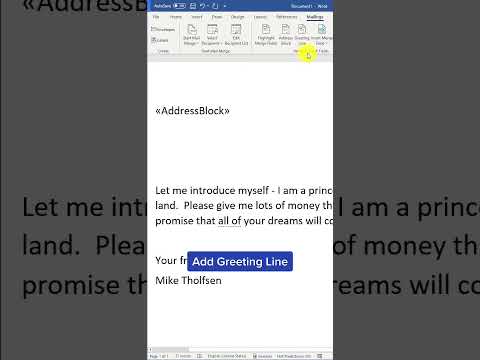
- Put the cursor where personalized content belongs and choose Mailings > Insert Merge Field. Select the matching Excel heading. For common letter details, the research notes also name the Address Block and Greeting Line tools.
- Choose Preview Results and move through multiple records. Check field mappings, spacing, blank values, and formats before selecting Finish & Merge and an output option.
Word’s Edit Recipient List can be used to exclude selected recipients without deleting their records from the Excel workbook, according to the research notes. The notes also identify the Rules menu for conditional content, such as wording that varies according to a value in the recipient data.
Limitations and open questions
A merge depends on the workbook being structured so Word can interpret it consistently. Blank headings, inconsistent values, or selecting the wrong worksheet can cause missing or confusing fields. Postal codes deserve particular attention because Excel may treat them as numbers and remove leading zeros; the notes recommend preserving those zeros, for example by storing the values as text.
Previewing is a practical check, not a guarantee that every record is correct. Inspect more than the first recipient, especially where date or number formats matter. The supplied notes say to complete Excel changes before connecting the workbook; they do not provide detailed steps for refreshing a connection after rows or columns change.
The source material does not establish whether any menu labels vary by platform, nor does it provide troubleshooting steps verified in a current Word build. It also does not explain how the merge behaves with cloud-hosted workbooks beyond noting that an HTTP location is unsupported. Check your organization’s setup if the workbook is not available through the locations described.
Sources
Frequently asked questions
How do I use an Excel list for mail merge in Word?
In Word, choose Mailings > Select Recipients > Use an Existing List, select the workbook and worksheet, then insert the desired fields. Preview records before completing the merge.
What should an Excel mail merge list look like?
Use a clear heading for each field in the first row and one recipient per row. Check special values such as postal codes and dates before connecting the workbook.
What licence or version do I need for Word mail merge?
The supplied material does not specify licence, plan, or version requirements.
Can Word mail merge use an Excel file from an HTTP location?
The supplied research notes say an HTTP location is not supported as a mail-merge data source. They recommend using a local computer or file-share location.