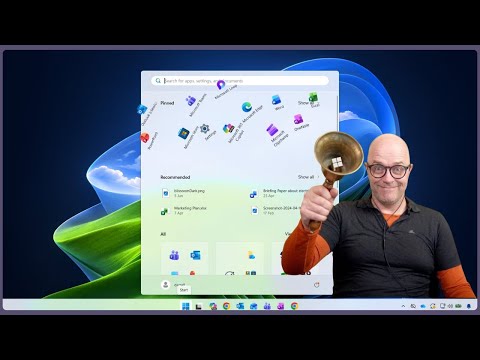
Windows: Mute System Sounds Quickly
Modern Work Mentor, Change Consultant, Content Creator, Community Conduit.
Tune Windows Eleven Notification Center with Do Not Disturb, Focus Timer and Microsoft Teams for better focus
Key insights
- Notifications can help or hurt your work—set them to match your Focus needs.
Decide which alerts you must see immediately and which you can check later to reduce distractions. - Sort alerts into three clear groups: Need To Know (use Banner alerts), Good To Know (send to Notification Centre), and Don’t Want To Know (turn notifications off).
Apply these labels per app so the most important items interrupt you only when needed. - Use built-in controls: enable Do Not Disturb for quick focus, set Priority exceptions so some alerts still get through, and schedule automatic start/stop times.
Try the Focus Timer for blocks of concentrated work and link settings with Microsoft Teams when available. - Choose which apps and sites can notify you: manage App notifications, disable noisy Browser notifications, and review permissions for Web apps.
Check these settings periodically to keep your workflow tidy. - Interruptions harm work: research shows Interruptions slow you down and increase Stress, lowering Productivity.
Set intervals for checking nonurgent alerts and tune notifications to protect deep work time. - “Windows is NOISY” often means audio bugs, not a new Microsoft feature—typical fixes include turning off Audio Enhancements, updating or rolling back Drivers, and running the built-in Troubleshooter.
Be aware that automatic driver updates and Spatial Sound settings can sometimes trigger audio problems.
Video overview and purpose
In a recent YouTube video, Darrell Webster, known as the Modern Work Mentor, walks viewers through how to manage notifications in Windows 11 to reduce interruptions and improve focus. He frames notifications as either helpful or disruptive and argues that deliberate settings can make them useful rather than distracting. The video organizes guidance into short chapters that explain quick fixes, priority controls, and scheduling options for focus time.
Webster opens by asking why users should tailor notifications, and he then contrasts the quick but blunt approach of simply silencing everything with more nuanced options. Consequently, the video emphasizes balancing immediate productivity with remaining reachable for critical alerts. Throughout, he demonstrates where to find settings and how different notification behaviors serve various needs.
Core features explained
First, Webster introduces Do Not Disturb as a fast way to stop interruptions, but he cautions that it is often too blunt because it can hide important messages. He explains that Priority notifications can bypass Do Not Disturb, allowing selected apps or contacts to alert you when necessary. This layered control keeps urgent items visible while suppressing less critical pings.
Next, the video covers the Focus Timer, which lets users set defined intervals for uninterrupted work and then restore notifications at the end. Webster also distinguishes between three delivery methods: Banner for urgent, need-to-know alerts; Notification Centre for good-to-know items that can wait; and Notification Off for things you do not want to see. He shows how to customize these modes per app, including Microsoft Teams and web apps, so that each source behaves according to your priorities.
Practical setup and tradeoffs
Webster demonstrates how to choose which apps should notify you and advises making a few deliberate decisions rather than leaving defaults in place. However, setting strict rules can create tradeoffs: while fewer interruptions boost concentration, they increase the risk of missing time-sensitive messages from colleagues or services. Therefore, he suggests categorizing apps by real impact and using a mixed approach to stay both focused and informed.
He outlines the benefit of scheduling automatic activation and deactivation of Do Not Disturb so that focus modes align with your calendar or personal rhythms. Yet challenges remain, such as knowing which notifications should be allowed through, and whether certain alerts should appear as banners or only in the Notification Centre. Webster recommends revisiting settings periodically because one-size-fits-all rules rarely suit changing workflows.
Integration challenges: Teams, browsers, and web apps
The video highlights specific integration issues, noting that Microsoft Teams interacts with Windows DND and may require extra configuration so that status and notifications match. In addition, Webster explains how web apps and browser notifications complicate the picture because they often rely on separate permissions inside each browser. Consequently, users must manage both Windows-level permissions and browser settings to achieve consistent results.
He provides concrete examples to show how a misconfigured browser can bypass global settings, producing unexpected banner alerts during focused work. Furthermore, system-level features such as automatic driver updates or app behavior changes can alter notification delivery, which means that tuning requires ongoing attention. The practical takeaway is that integration is possible but requires patience and occasional maintenance.
Clarifying the phrase “Windows is NOISY” and final recommendations
Importantly, Webster’s framing of "Windows is NOISY" appears to refer largely to notification overload, not to audio hardware issues, though the blog text notes that some users use the phrase to describe audio bugs. Therefore, the video’s focus is on information noise and interruption management rather than on troubleshooting distorted sound. The two topics are separate and require different fixes: notification tuning for interruptions, and driver or enhancement adjustments for audio artifacts.
To conclude, Webster urges viewers to take time to tune notification settings and to test their choices during everyday work. He recommends combining scheduled focus sessions with carefully chosen priority exceptions so that users maintain concentration without becoming isolated from critical updates. Finally, he reminds users to review settings periodically and adjust as work patterns change, because balancing focus and awareness is an ongoing process rather than a one-time task.

Keywords
Windows noisy fix,reduce Windows system sounds,turn off Windows sound effects,mute Windows startup sound,disable Windows notification sounds,quiet Windows 11,fix loud system sounds Windows,Windows sound settings tutorial