ChatGPT: From PPT Scribbles to Graphics
Microsoft expert: turn PowerPoint sketches in Microsoft Office into polished AI visuals with ChatGPT for faster slides
Key insights
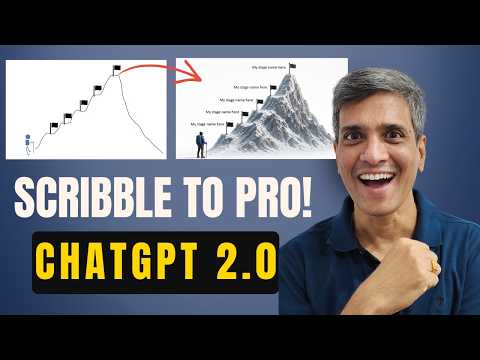
- Rough sketch method: The video shows how to draw a quick layout in PowerPoint, upload that slide to the ChatGPT 2.0 Image Generator, and get a polished visual back in minutes.
Use a simple sketch to convey shapes, positions, and focal points before you ask the model to render it. - Fast visual creation: This workflow removes long searches for stock photos and complex prompting, so you can produce tailored graphics much faster.
It works without advanced AI or design skills, saving time on slide design. - Types of visuals: The presenter demonstrates practical outputs such as milestone mountains, a dramatic “crossing the chasm” scene, curved 3D timelines, and executive org charts with photos.
These examples show how to map common presentation concepts to clear, cinematic images. - Practical tips: Keep sketches simple and label key elements, tell the generator the desired style (cinematic, flat, photo-real), and set size or aspect ratio for slides.
Iterate quickly: small prompt tweaks and one or two re-renders usually get professional results. - Best uses: Ideal for business decks, training slides, consulting reports, and keynote visuals when you need custom graphics that match your message.
The method helps maintain consistent branding and visual clarity across slides. - Limitations & review: Expect to do minor cleanups in PowerPoint after generation, check image resolution and reuse rules, and always perform a human review for accuracy and sensitive content.
Use generated images as design-ready assets, not final copy without inspection.
Video overview
Presentation Process YouTube published a concise how-to that shows presenters how to convert rough slides into finished visuals using the new ChatGPT 2.0 Image Generator. In the video, presenter Ramgopal demonstrates a step-by-step method that begins with a quick sketch in PowerPoint and ends with a polished graphic, all within minutes. Consequently, the piece aims to help busy professionals who need custom visuals without long searches for stock images or complex prompting. Overall, the tutorial positions the sketch-first approach as a practical shortcut for slide designers.
Reporters found the video paced for working presenters, with clear chapters and repeatable steps that viewers can apply immediately. Moreover, the presentation emphasizes speed and clarity rather than advanced technical tricks, making the technique accessible to a broad audience. As a result, it promises benefits for consultants, trainers, and corporate communicators who routinely rely on visual storytelling. Still, the video also raises questions about consistency and control when relying on automated image generation.
The sketch-to-image workflow
The central workflow shown is simple: sketch roughly in PowerPoint, upload that sketch to ChatGPT, and request a refined image. In practice, the video demonstrates how a loose “scribble” communicates intent far better than a long written prompt, and therefore reduces the need for repeated edits. Furthermore, Ramgopal explains that this method sidesteps tedious stock-photo hunting and complex multi-tool pipelines. Consequently, users can iterate quickly and focus on message clarity rather than technical image assembly.
However, the presenter also notes that the outcome depends on the quality of the sketch and the phrasing of the follow-up prompt you give to the image model. Thus, while the initial barrier to entry is low, some iteration is still required to achieve exact results. Moreover, the video encourages users to refine composition, color, and scale inside PowerPoint after generating the image. This hybrid approach—AI plus manual polishing—balances speed with necessary design adjustments.
Examples demonstrated
To illustrate the method, the video walks through distinct use cases such as milestone mountains, a “crossing the chasm” bridge graphic, curved 3D timelines, and an executive org chart with photos. Each example shows how a quick sketch plus targeted prompts yields a cinematic yet presentation-ready visual that would otherwise take much longer to craft. For presenters, these templates improve storytelling by turning abstract ideas into clear, shareable images. Moreover, the examples highlight how the tool handles perspective, shading, and photo integration when guided by a simple sketch.
Importantly, the video demonstrates that different concepts require different sketching approaches; for instance, a timeline needs clear curvature and spacing while an org chart needs placeholders for faces and labels. Therefore, the user must still think like a designer when composing the rough draft. Additionally, some outputs may require masking or cropping once reinserted into PowerPoint, so the final assembly step remains important. This reinforces the point that AI speeds the process but does not fully replace human judgment.
Tradeoffs and challenges
While the sketch-first method speeds visual creation, it introduces tradeoffs between speed and precise control. On the one hand, automated image generation reduces repetition and creative friction, but on the other hand it can produce stylistic or alignment inconsistencies that need manual correction. Moreover, teams with strict brand guidelines may find that generated images require additional adjustments to match color palettes, fonts, and iconography. Consequently, organizations must balance the convenience of rapid generation with the effort needed to enforce brand consistency.
Another challenge is reproducibility: AI-generated images can vary between runs, so exact replication of a previous visual may be difficult without careful versioning. Furthermore, there are practical limits around image fidelity, file size, and the degree of editability once an image is rasterized. Thus, the method works best when used for creative concepting and presentation-ready visuals rather than for assets that require frequent revision by multiple stakeholders. In short, users should weigh the benefits of speed against downstream maintenance costs.
Practical implications and tips
For practitioners looking to adopt this workflow, the video suggests sensible rules: keep sketches simple, iterate with short corrective prompts, and finalize layout inside PowerPoint to preserve editability. Furthermore, designers should export and store generated images alongside the source slides so that future edits remain manageable. Consequently, a hybrid process that mixes rapid AI generation with manual cleanup yields the best balance of speed and quality.
Finally, the broader implication is that presentation teams can scale visual production without hiring additional designers, provided they apply effective review practices. However, organizations must also invest time in training staff to sketch intent clearly and to manage generated assets responsibly. Overall, the video offers a pragmatic pathway for professionals who want better visuals faster, while reminding viewers that good design judgment remains essential.
Keywords
PowerPoint sketch to graphic, ChatGPT PowerPoint graphics, Convert scribbles to visuals, AI graphic design for PowerPoint, ChatGPT design prompts for presentations, PowerPoint AI automation, Hand-drawn to presentation graphics, Turn sketches into slides with AI