Copilot: turn meeting notes into a sketchnote
Enterprise Architect and Microsoft MVP specializing in Microsoft Teams, Yammer, Virtual Events, and Metaverse.
Use Copilot Chat to turn meeting notes into a sketchnote, then save the prompt in an agent for repeat use.
Key insights
- Paste meeting notes into Copilot Chat and ask for a hand-drawn-style sketchnote.
- Describe the sketchnote style you want in your prompt.
- Create an agent from the Agents area to reuse the prompt.
- The source does not specify licensing, availability, or how to export the result.
Microsoft Copilot can turn pasted meeting notes into a sketchnote-style visual, making the central ideas easier to scan than a long block of text. This approach may help people who prepare or share meeting follow-ups and want a visual summary without drawing it themselves. John Moore [MVP] demonstrates the prompt-and-agent workflow in a YouTube video.
What it does
The workflow starts with meeting notes that you already have. You paste them into Copilot Chat and ask Copilot to create a sketchnote in a style you describe.
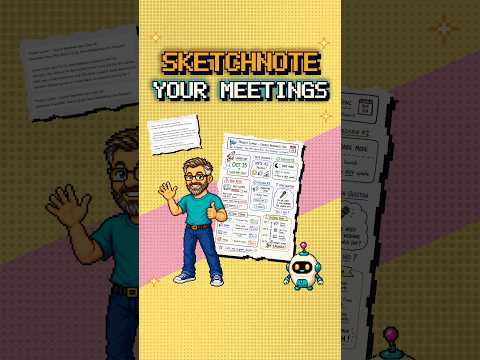
A sketchnote uses visual organization alongside text. In the demonstration, the resulting image emphasizes the meeting’s big idea, decisions, and action items. The goal is to give readers a different way to scan the meeting’s outcomes, rather than simply present notes as a continuous block of text.
The example prompt shown in the transcript is: “Please make a hand-drawn style sketchnote of this meeting.” You can specify the style in the prompt, but the supplied material does not provide a definitive prompt template or instructions for tuning the visual output.
Who it is for and what you need
This is a workflow for people who have meeting notes and want to turn them into a visual summary with Copilot. The source does not say that the notes must come from a Teams meeting, or that the notes need to be Copilot-generated.
You need notes to paste into Copilot Chat and a prompt that describes the sketchnote style. Drawing ability is not a prerequisite: the demonstration is specifically framed around using Copilot to produce the sketchnote.
The material does not state which Copilot license, subscription, or tenant configuration is required. It also does not establish rollout status, regional availability, or whether every user can create an agent. Check your organization’s Copilot access and agent options before planning a wider deployment.
How it works
- Gather the meeting notes you want to visualize. The demonstrated process begins with notes ready to paste; it does not cover capturing a meeting or generating its transcript.
- Open Copilot Chat, paste the notes, and ask for a sketchnote. Include the style you want, such as the demonstrated request for a hand-drawn style.
- Review the generated result for the meeting’s main idea, decisions, and action items. The source presents those as information that can stand out visually, but does not explain a formal review or correction process.
- To reuse the prompt, go to Agents, select New agent, and give the agent the same prompt. The publisher describes this as making future meetings a paste-and-run workflow.
Using an agent is an optional repeatability step, not a requirement for making a single sketchnote. If you only need a one-off result, the Chat prompt is the workflow described for that task.
Limitations and open questions
The supplied demonstration is a short walkthrough of the core steps, not a complete guide to the Copilot experience. It does not show specific controls for editing the image, changing its layout after generation, exporting or sharing it, or storing it alongside meeting records.
It also does not explain how Copilot handles inaccurate or incomplete notes. Treat the sketchnote as a generated representation of the input rather than a verified meeting record, and check that decisions and action items are correct before sharing it.
Details about licenses, admin settings, availability, and agent governance are not provided. Organizations considering repeated use should confirm those points in their own environment; the available source material does not establish them.
Sources
Frequently asked questions
How do I turn meeting notes into a sketchnote with Copilot?
Paste the notes into Copilot Chat and ask for a sketchnote, specifying a style such as hand-drawn. The source does not describe additional editing or export steps.
Can I reuse a sketchnote prompt in Copilot?
Yes. The described method is to go to Agents, choose New agent, and give it the same prompt. The material does not provide further agent setup or governance instructions.
What Copilot license do I need to create sketchnotes?
The source does not specify a license or subscription requirement. Check the Copilot and agent options available in your organization.