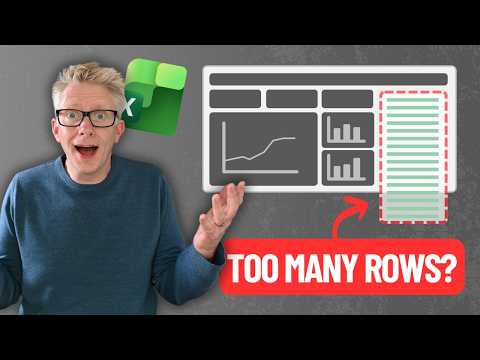
Excel: Unlimited Pagination for Reports
Excel Off The Grid will show you how to work smarter, not harder with Microsoft Excel.
Microsoft Excel pagination to handle unlimited rows with dynamic arrays, Power Query and Power BI for seamless reports
Key insights
- Excel Pagination Trick: A manual method that uses Excel 365 dynamic array formulas to show a subset of rows as a "page."
It is a creator technique, not an official Microsoft feature or new product. - Core formulas: Use functions like SEQUENCE and INDEX to extract a slice of rows.
Example pattern: =INDEX(data_range, SEQUENCE(rows_per_page,1,(page_number-1)*rows_per_page+1),1). - Controls and inputs: Store the page number and rows per page in cells and link a spin button or data validation to the page cell for navigation.
This makes page changes simple and interactive for users. - Benefits: Creates an interactive, clean report view without splitting data across sheets.
It works on a single-sheet layout and requires no VBA when built with dynamic arrays and form controls. - Requirements and limits: Requires Excel 365 or Excel 2021 for dynamic arrays.
It does not bypass Excel’s row limit (1,048,576 rows) and is intended for screen-only navigation, not printing large paginated outputs. - Use cases and alternatives: Best for dashboards or reports where you need to browse many records without redesigning sheets.
For true large-scale reporting or server-side pagination, consider Power BI, Power Query, or reporting services as alternatives.
Introduction: What the Video Covers
The YouTube video from Excel Off The Grid demonstrates a practical method for adding pagination to Excel reports so that layouts remain stable regardless of how many rows the source data contains. The author frames the technique as a way to make reports appear "unlimited" by showing only a subset of rows at a time. Consequently, the approach is useful for dashboards and report views where an unknown or large number of records would otherwise disrupt formatting.
How the Pagination Trick Works
At its core, the method relies on Excel 365's dynamic array functions and simple worksheet controls. For example, the video shows how to store a page number and a rows per page value in cells, then use a formula built with SEQUENCE and INDEX to extract the correct slice of rows for display. The result is an interactive area on the sheet that updates when the page number changes, effectively mimicking web-style pagination without moving the source data.
Additionally, the author illustrates two common ways to control page navigation: a spin button (Form Control) linked to the page cell, and data validation to prevent invalid page entries. This combination keeps users within the valid range and offers a simple click-or-type interface to move between pages. Therefore, the user experiences a clean, report-like view while the underlying table remains intact on the same worksheet or in a named range.
Advantages and Tradeoffs
The primary advantage is improved readability and interactivity for on-screen reports. By loading only a fixed number of rows at once, the technique preserves layout and makes dashboards more user friendly. Furthermore, it avoids adding extra sheets or requiring server-side tools for basic pagination needs.
However, there are tradeoffs to consider. First, the approach depends on Excel 365 or a recent version that supports dynamic arrays, so it is not universally available. Second, it does not change Excel’s storage limits: worksheets still cap at 1,048,576 rows, so this is a viewing convenience rather than a way to store beyond that limit. Finally, complex reports that require printing, multi-column pagination, or frequent sorting may need additional logic or an alternative tool.
Challenges and Practical Limitations
One challenge is performance when dynamic formulas reference very large ranges or when many pages are calculated simultaneously. While the video recommends using non-volatile functions like INDEX, heavy use can still slow larger workbooks. Therefore, careful design and testing are important when implementing pagination in production files.
Another limitation is integration with other interactive features. For example, combining pagination with filters, sorts, or Excel tables requires extra steps to ensure the page slice aligns with the current view. Moreover, because this technique is screen-focused, it is not a direct solution for print pagination or for automated exports that expect contiguous records across pages.
Implementation Tips and Alternatives
To build a reliable paginated report, start by naming the data range and storing the page and rows per page in clearly labeled cells. Then use a formula pattern that calculates the offset and uses SEQUENCE with INDEX to return the desired rows. Also, prefer Form Controls or data validation for navigation to reduce user errors and to limit the page number to valid values.
If you need a different balance between ease and power, consider alternatives. For heavy-duty reporting, tools like Power Query or Power BI can handle larger datasets and more sophisticated pagination or filtering. Likewise, VBA can automate navigation and export tasks, though it introduces maintenance overhead and compatibility considerations. Thus, the right choice depends on spreadsheet size, user skills, and long-term maintainability.
Conclusion: When to Use This Technique
The approach shown by Excel Off The Grid is a practical, formula-based way to add pagination to on-screen Excel reports. It is particularly useful when designers want a single-sheet solution without writing code, and when end users need a friendly way to browse many records. Therefore, teams working in Excel 365 can readily adopt it for dashboards and interactive reports.
Nevertheless, teams should weigh the tradeoffs: reliance on newer Excel functions, potential performance concerns, and the fact that it is a viewing strategy rather than a storage extension. In short, the trick is a valuable addition to an Excel toolkit, but designers must balance usability, performance, and future maintenance when choosing to implement it.

Keywords
Excel pagination trick, Excel page breaks tutorial, unlimited reports Excel, automate pagination in Excel, Excel printing large reports, dynamic pagination Excel, Excel report formatting tips, remove page limits Excel