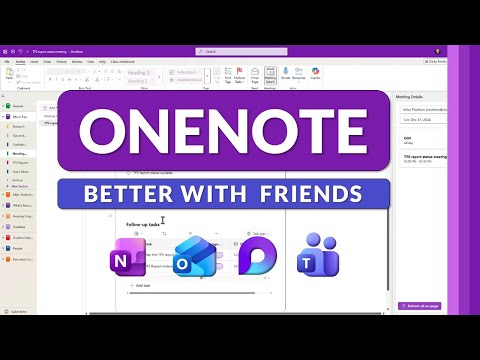
OneNote + Outlook, Loop & Teams Workflow
Principal Group Product Manager - Microsoft Education
Microsoft expert tips to boost OneNote with Loop Teams Outlook and Linked Notes in Word and PowerPoint
Key insights
- OneNote as central hub: OneNote stores notes, agendas, and embeds meeting details from Outlook.
It opens inside Teams and hosts Loop elements so related info stays together and easy to find. - Send to OneNote and Meeting Details: Use the ribbon commands to insert full meeting info or send emails to OneNote.
Enable the add-in in Outlook if needed and note that the newer web-style Outlook may not support all direct "Send to OneNote" actions. - Teams meeting workflow: OneNote can appear in the meeting pane so participants edit notes live.
This improves focus and keeps agendas, decisions, and action items in one shared place for the team. - Loop components in OneNote: Embed live Loop pieces (tasks, checklists, mini-boards) that update everywhere they appear.
Use these for collaborative tasks and quick, synced summaries during meetings. - Tags and Outlook Tasks: Tag items in OneNote and create Outlook Tasks with due dates to sync with To-Do and calendar reminders.
This turns notes into actionable items you can track across Microsoft 365. - Best practices: Use shared notebooks for team work, paste meeting details with Meeting Details, and try Linked Notes in Word and PowerPoint to keep source context.
These habits cut app switching and keep project info linked and discoverable.
Overview
The recent YouTube video by Mike Tholfsen demonstrates how OneNote becomes more powerful when it works together with Outlook, Loop and Teams. In clear, step‑by‑step segments, the presenter shows practical ways to insert meeting details, send pages to email, and embed live Loop components into notes. Furthermore, he highlights a lesser‑known trick that links notes from Word and PowerPoint back into OneNote, which can improve continuity across documents and presentations. As a result, viewers get a hands‑on sense of how these tools reduce app switching and keep context intact during projects.
What the Video Shows
First, Tholfsen walks through inserting Outlook meeting information directly into a OneNote page using the Meeting Details menu so that dates, participants, and Teams links appear together. Next, he demonstrates how to send emails or entire pages to OneNote from Outlook, which helps capture correspondence alongside notes and actions. He then opens a Teams meeting pane to show live collaboration and how notes can follow a meeting in real time, and finally he introduces embedding Loop components for shared tasks or summaries. By sequencing these examples, the video emphasizes practical steps rather than abstract benefits.
How the Integrations Work in Practice
When integrated, these apps share context: meeting notes link back to calendar entries, tags in OneNote can become Outlook tasks, and Loop items embedded in notes update across collaborators. For example, assigning an Outlook task from a tagged item in OneNote surface it in To‑Do and keeps deadlines visible across the suite. During Teams meetings, the notes pane can auto‑open so participants see the same agenda and action list, which streamlines follow‑ups. Consequently, teams spend less time reconciling scattered information and more time on decisions.
Practical Workflows and Tips
Tholfsen suggests workflows that start from a calendar event, move into a collaborative note, and finish with assigned Outlook tasks to ensure follow‑through. He also points out that in the newer Outlook interfaces, direct "Send to OneNote" from emails may not appear, so users should rely on the desktop client or the OneNote email page option as a workaround. Additionally, the video highlights using Loop components for interactive agendas that multiple people can edit at once, which keeps everyone on the same page during iterative planning. These small changes add coordination without forcing a complete process overhaul.
Tradeoffs and Challenges
Despite clear benefits, the video and the underlying tools involve tradeoffs between convenience and complexity, especially in mixed environments that include web, desktop, and mobile clients. For instance, some integrations work best in the full desktop apps while their web counterparts lag behind, which can frustrate teams that rely on browser access or the "new Outlook" experience. Security and governance add another layer: enterprise IT may restrict how notebooks are shared or how Loop components sync, which requires balancing openness with compliance. Therefore, teams must weigh ease of collaboration against management controls and user training needs.
Common Pain Points and Solutions
Tholfsen acknowledges challenges like syncing delays, confused versions of OneNote, and occasional add‑in issues when sending items from Outlook to OneNote. He recommends verifying add‑ins are enabled in desktop Outlook and choosing consistent client apps across a team to minimize version conflicts. Moreover, he shows the little‑known Linked Notes feature for Word and PowerPoint, which links document context back to a note page and helps when users must connect slide content or document sections to meeting discussions. In short, small setup steps and consistent habits prevent most integration headaches.
Final Takeaways
Overall, the video offers a concise, actionable guide for making OneNote a central collaboration hub when paired with Outlook, Loop, and Teams. While the integrations bring obvious productivity gains, successful adoption depends on selecting the right client apps, addressing governance, and training users to follow shared workflows. Ultimately, the approach can reduce app switching, preserve context across meetings and documents, and improve task follow‑through, provided teams accept the initial tradeoffs and handle configuration carefully. For those who want practical steps, the demonstration presents a useful starting point to test and adapt in real work settings.
Keywords
OneNote productivity tips, OneNote Outlook integration, OneNote Teams collaboration, Microsoft Loop for OneNote, collaborative note taking, OneNote meeting notes Outlook, boost productivity Microsoft 365, automate OneNote workflows