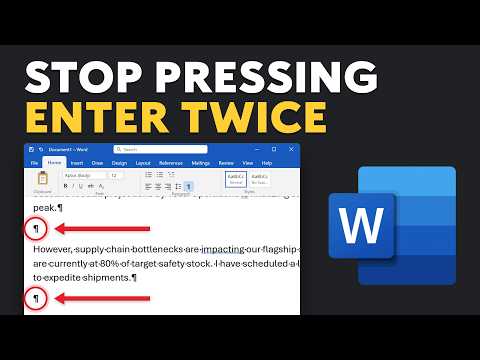
Word paragraph spacing without double Enter
This channel is about productivity and project management. New videos will be uploaded weekly, so check back regularly!
Andy Park shows how to use Word’s spacing controls instead of pressing Enter twice, which keeps documents easier to edit.
Key insights
- Andy Park’s tutorial focuses on paragraph spacing in Microsoft Word.
- He contrasts pressing Enter twice with Word’s built-in spacing controls.
- The video covers the ribbon menu, the full Paragraph dialog, and line spacing settings.
- It also shows how to set spacing as the default so you do not repeat the setup.
Andy Park recently published a tutorial on Microsoft Word paragraph spacing, with the core message that pressing Enter twice to create visual gaps makes documents harder to edit later. His walkthrough focuses on using Word’s built-in spacing controls instead of adding empty paragraphs. The practical takeaway is simple: set paragraph spacing once, then let Word handle the layout as you edit.
What's new
The tutorial walks through every main way to control paragraph spacing in Word. That includes the ribbon menu, the full Paragraph dialog, and the line spacing settings that many users confuse with paragraph spacing. Park also shows how to make the spacing the default, so the document keeps the same look without repeated manual fixes.
The video is framed as a fix for a common habit: pressing Enter twice between paragraphs. In Word, that creates extra empty paragraphs rather than true spacing, which can lead to documents that break when you change text, formatting, or structure. Park’s guidance shifts the workflow to explicit spacing values instead.
Why it matters
This matters most for people who edit documents after they have already been written. If spacing is created with extra Enter presses, small changes can throw off the layout and leave awkward gaps. Using paragraph spacing gives you a more predictable document that is easier to revise.
It also matters for anyone building templates or reusing styles. Once spacing is set as a default, you do not need to fix each paragraph by hand. For readers who want a general Microsoft 365 reference point, our Microsoft 365 coverage includes related Office app guidance. The tutorial does not mention licensing or rollout stages, so there is no extra product scope to interpret here.
How it works
Park’s approach follows Word’s own spacing model. Line spacing controls the distance between lines inside a paragraph, while paragraph spacing controls the space before or after a paragraph. That distinction matters because many users adjust the wrong setting and still end up with documents that look inconsistent.
The tutorial highlights several ways to change spacing:
- Use the ribbon menu for quick access to paragraph spacing.
- Open the full Paragraph dialog for more precise control.
- Adjust line spacing settings when you need to change the spacing inside a paragraph.
- Set the spacing as the default so the format applies automatically in future documents.
The source material also notes that Word’s built-in options are more reliable than inserting blank lines. That is the main workflow change: instead of creating visual space with extra carriage returns, you use formatting values that Word can preserve as content changes.
Limitations and open questions
The source material is a short tutorial description, so it does not give every menu label or show each screen step in detail. It says the video covers the ribbon menu, the Paragraph dialog, and the spacing settings, but it does not list exact point values or document types.
It is also not clear from the material whether any of the guidance depends on a particular Word version or tenant setting. The tutorial description does not mention a preview feature, a rollout, or any limitations beyond the general warning that pressing Enter twice causes problems when you edit later.
Finally, the source includes promotional text for an Amazon link and a storefront, but those are not part of the instructional content. They do not change the Word guidance, so they are left out of this article.
Sources
Frequently asked questions
What is the main mistake this tutorial addresses?
It addresses the habit of pressing Enter twice to create space between paragraphs. Park says that breaks documents when you edit them later.
What should I use instead of blank lines?
Use Word’s paragraph spacing controls, such as the Before and After settings. The tutorial also covers line spacing, but that is a different control.
Can I set the spacing once for future documents?
Yes. The tutorial says you can set the spacing as the default so you only have to do it once.