Smart PowerPoint: Class Recap Slides
Microsoft expert tips for teachers crafting PowerPoint summary slides with preview, shapes and animations in Office
Key insights
- Smart Summary Slide and AI-powered: This PowerPoint feature automatically creates concise recap slides from your lesson content.
It helps students review key ideas quickly and reduces manual slide prep for teachers. - Content analysis and Copilot: The tool scans slide text and elements, extracts main points, and synthesizes them into a clear recap.
It builds on Microsoft Copilot-style AI to suggest visuals and structure. - Time-saving and engagement: Auto-generated summaries cut preparation time and present information in visual formats that boost student recall.
Teachers can reassign saved time to interactive activities or personalized support. - Visual learning and consistency: Generated slides include simple visuals and uniform layouts to support different learning styles and predictable lesson flow.
This consistency helps students who thrive on structured reviews. - Interactive integration and real-time feedback: The summary slide works with quizzes, polls, and live responses to make recaps more active.
Use it to follow up key points with quick checks for understanding. - Teacher control and review output: Teachers should edit and adapt auto summaries for accuracy, tone, and level of detail.
Use the generated slide as a starting point, not a final script, to match your class needs.
Introduction: A Practical Demo for Teachers
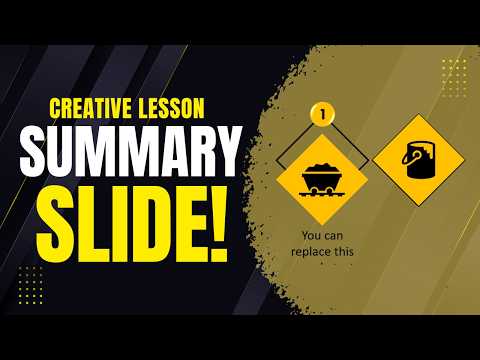
The YouTube channel Presentation Process YouTube recently released a concise tutorial that showcases a new classroom-focused tool in PowerPoint. The video walks viewers through how to build a Smart PowerPoint Summary Slide that makes lesson recaps visual and engaging. It is aimed squarely at teachers who want quick, clear review slides for students. Overall, the presentation balances practical tips with a demonstration of the feature in action.
What the Video Shows
First, the video previews the completed summary slide and then breaks the process into simple steps. The timeline marks clear moments: a preview at the start, then adding custom shapes, applying animations, and finally adding more points. Consequently, viewers can follow along at their own pace and replicate the steps in their own lessons. The presenters use straightforward language and visible examples to make each step easy to copy.
Moreover, the clip highlights how shapes and animations can turn a plain recap into a visual map of a lesson. The hosts demonstrate adjusting timing and entrance effects so the summary reveals information progressively. This method helps maintain student attention without overwhelming them with text. In short, the video stresses that small design choices can improve clarity and retention.
How the Feature Works
The tutorial explains that the Smart PowerPoint Summary Slide draws on AI features already available in Microsoft 365, including elements similar to Copilot. It analyzes existing slide content, extracts key points, and suggests a compact slide layout. Then, it offers visual elements and simple animations to present those points clearly. As a result, teachers can produce polished recaps with less manual formatting.
However, the video also demonstrates that editing remains essential. The automatic summary gives a strong starting point, but instructors must refine wording, reorder items, and tweak visuals to match learning goals. Therefore, the tool works best when combined with a teacher’s judgment and familiarity with student needs. In practice, teachers will typically use the feature to speed up work rather than to replace their planning.
Benefits and Tradeoffs
One major benefit shown is time savings: the feature reduces repetitive slide work and speeds up end-of-lesson recaps. Additionally, the visual design and animation choices can boost student engagement and support different learning styles. Consequently, many teachers may find it easier to create consistent recaps across multiple lessons and grade levels.
On the other hand, tradeoffs exist. Automatic summaries can oversimplify nuanced topics, and AI suggestions may miss subject-specific priorities. Likewise, relying heavily on animations risks increasing cognitive load if teachers add too many effects. Therefore, educators must balance automation with careful editing to maintain accuracy and clarity.
Classroom Challenges and Implementation Tips
The video acknowledges practical classroom challenges, such as varying access to recent versions of PowerPoint and differences in teacher confidence with design tools. To address this, the presenters recommend starting small and using the summary slide as a template rather than a final product. In addition, they show how teachers can customize shapes and timings to align the recap with lesson pacing.
Privacy and data concerns also deserve attention, especially where AI scans lesson content. Although the tutorial focuses on classroom use, teachers should check school policies about cloud features and data sharing. Moreover, the presenters advise testing the feature on non-sensitive material before applying it to assessment or student work.
Practical Takeaways from the Video
First, the channel encourages teachers to preview the auto-generated slide and then make selective edits to improve emphasis and accuracy. Second, the hosts stress that animations should reveal one idea at a time to reinforce memory without distraction. Third, the video shows that simple shape and color changes can make a summary more readable for diverse learners.
Finally, the presenters suggest integrating the summary slide with quizzes or live responses to check comprehension immediately after a recap. This approach turns a static summary into an interactive checkpoint, which can help teachers gauge understanding quickly. Altogether, the tutorial offers a realistic path for teachers who want to adopt AI-assisted slides while keeping control over content and pedagogy.
Conclusion: A Useful Tool with Human Oversight
The Presentation Process YouTube video effectively introduces a time-saving, visually oriented tool for lesson recaps in PowerPoint. It highlights both strengths and limits, encouraging teachers to use the feature as a starting point rather than a finished product. In doing so, the clip offers practical steps, clear examples, and sensible cautions.
In sum, the Smart Summary Slide can streamline recap creation and support student review, provided teachers balance automation with careful editing, attention to learning goals, and awareness of privacy policies. For educators aiming to make review sessions more visual and efficient, the video provides a measured and usable guide.

Keywords
smart PowerPoint summary slide for teachers, PowerPoint lesson recap template, visual recap slide for students, editable recap slide PowerPoint, classroom review slide template PPT, fun learning recap slides for teachers, summary slide design ideas for teachers, interactive recap PowerPoint slide