
Skipping Apply to Each Loop in PowerAutomate from Parse JSON
MCT || Content Creator || Power Platform Business Consultant at Novacapta
Master the Apply To Each Loop in Power Automate with variables in our comprehensive Microsoft tech guide.
Enhancing Workflow Automation: Breaking 'Apply to Each' Loop
The Power Automate video by Enea Ilias Liçaj offers a detailed explanation of how to effectively interrupt the 'Apply to each' loop in workflow automation. The process involves the establishment and manipulation of variables.
An Apply to Each loop can be created in the flow with the variable initialized to "True". The loop initiates when the variable equals "True" as one of the conditions within the loop. To cease the process if the condition isn't met, the 'Set Variable' action is employed. If the need to continue the loop arises, the variable is established as "True". If the loop is to be broken, setting the variable to "False" is required.
Note that the direct action to conclude the flow - Terminate - may not be utilized within the loop thus implementing the above method becomes beneficial in some scenarios.
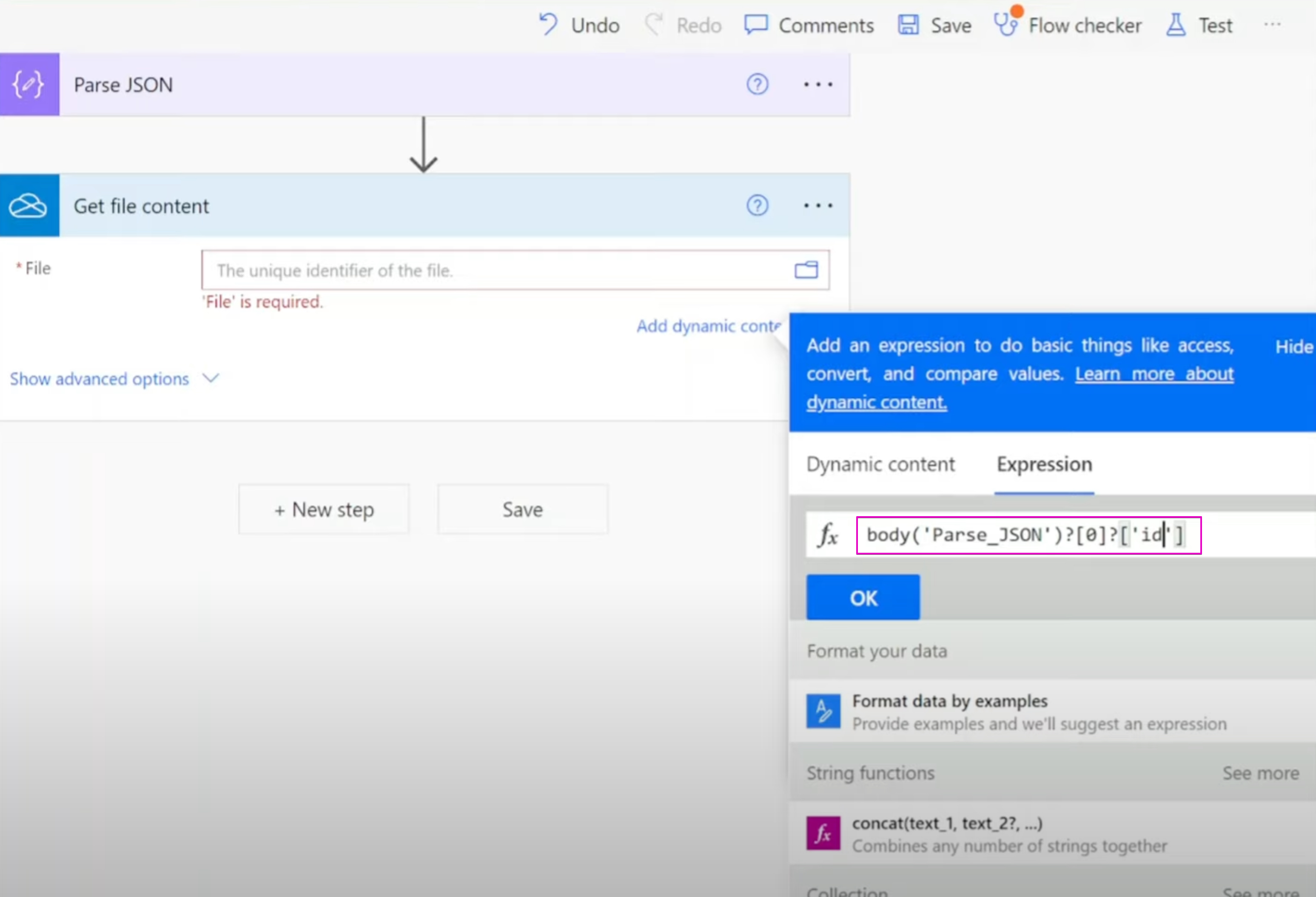
Understanding Parse JSON Function
The Parse JSON function holds the capability to evaluate a valid JSON string and yield an untyped object to present the JSON structure. It might return errors if the structure does not comply with the ECMA-404 or IETF RFC 8259 JSON notation format. The syntax reads as ParseJSON(JSONString) and JSONString represents the JSON structure in a textual format.
Post the ParseJSON function, an explicit conversion of field values into supported data types is required due to the function returning an untyped object. There are various datatypes in Power Apps that correspond to the JSON data, needing conversion. This includes Boolean, Color, Currency, Date, DateTime, Time, Record, Table, Text, etc.
Each datatype is represented and converted differently. For instance, a Boolean is directly converted as it is an explicit type in JSON while a color value is crafted from RGBA integers or hexadecimal strings due to the absence of a distinct color type in JSON.
Using Variables and Converting Data Types
There are instances where you might have to handle variables to either access value fields or convert datatypes. On encountering fields with an invalid identifier name, the field names could be positioned in single quotes.
If 'null' values come up in JSON, they are taken as Blank(). If JSON carries arrays or Arrays of records, they can be converted into tables, single column tables or typed tables of records.
In summary, the video provides an insightful breakdown on handling loop break in Power Automate, understanding Parse JSON function, data type conversion in workflows and accessing field values, which are beneficial in complex automation workflow scenarios.

Learn about PowerAutomate - Skip Apply to Each Loop from Parse JSON Action
In the current digital age, Microsoft's Power Automate, formerly known as Microsoft Flow, has taken the stage in transforming manual and repetitive tasks into automated workflows. But when it comes to the specifics, learning how to manipulate each function is essential. This is the case while dealing with Parse JSON action and apply to each loops.
The tutorial focuses on how to apply a condition to break a loop when necessary in Power Automate. This is achieved by initializing a variable to hold a 'true' value and using it in the loop's condition. When the condition fails, the flow can be halted by resetting the variable using the 'set variable' action. This eliminates the need to rely on the ‘Terminate’ function, which cannot function within the loop.
ParseJSON, a feature in Microsoft's automation toolkit, plays a crucial role in this process. This function parses a valid JSON string, returning an object that represents the JSON structure. However, this process may have error instances if the string provided does not conform to the JSON format set by ECMA-404 and IETF RFC 8259 standards.
Moreover, it’s worth noting that the ParseJSON function often returns an untyped object, which then requires that field values be explicitly converted into supported data types. It supports everything from boolean, color, currency to date, time and GUID amongst others, each having its specific conversion protocols.
For instance, Boolean values can be directly converted in the JSON format, and likewise, values of data types like currency are represented directly in JSON. Other data types like color values, which have no direct color type in JSON, need to be constituted using RGBA integers or hexadecimal strings.
This tutorial provides several examples of how to manipulate these data types, including creating boolean values, converting untyped data into specific types such as color, currency, date/time, and GUIDs. It also provides an in-depth understanding of how to parse JSON for hyperlink/media URLs and convert object data types collected from a JSON field to records or tables.
Furthermore, the JSON structure representing each data type is made available, which aids in proper comprehension. Each of these conversions involves the JSON function or other specific methods provided by the Power Automate platform. These solutions cover everything from simple arrays and accessing field values to parsing of record arrays.
In conclusion, this tutorial is an all-encompassing guide that covers the intricacies of manipulating apply to each loops using JSON parsing in Power Automate. Apart from presenting an introduction to the basic concepts, it provides a detailed guide on the functionality and usage of these methods. By following this guide, one can seamlessly automate their tasks and save valuable time spent on repetitive tasks.
More links on about PowerAutomate - Skip Apply to Each Loop from Parse JSON Action
- JSON to Array without Apply to Each
- Aug 2, 2021 — I know that I can use Apply to Each to loop through each item in the JSON. ... Read more here: How to Use the Toolbar: Power Apps, Power Automate ...
- Looping Parsed JSON creates double Apply to Each
- Mar 3, 2021 — How can I solve this/make it better? sharepoint-online · power-automate · json · loop · Share.
Keywords
PowerAutomate, Skip Apply, Each Loop, Parse JSON Action, JSON Parsing, Automation Process, Workflow Automation, Microsoft Power Automate, JSON in Power Automate, Loop Control in Power Automate