Excel Copilot: Unpivot Single Cell Fast
Microsoft expert: Excel Copilot Agent Mode unpivots messy single cell data with complex formulas for Power BI
Key insights
- Agent Mode: An AI assistant in Excel that plans, runs, and verifies multi-step spreadsheet tasks like a digital analyst.
It works in Excel for web, Windows, and Mac to automate workflows instead of only answering simple questions. - Single Cell Unpivot: A method to turn messy, wide data into tidy row-based data for easier analysis.
Agent Mode can automate this unpivot process across cells, eliminating manual steps to reshape tables. - =COPILOT() function: An in-cell AI formula that reads nearby headers and data to produce results that stay in the workbook.
Use it to generate formulas, categorize text, or extract structured values from context. - Automated complex analysis: Agent Mode builds pivot tables, dashboards, and KPIs from raw data in minutes.
This reduces repetitive setup and speeds up insight generation for reports and presentations. - Formula generation: Describe a calculation in plain language and the agent suggests the correct formula based on column names and data structure.
This makes tasks like year-over-year or percent-change calculations fast and accurate. - Text analysis and sentiment scoring: Apply AI-driven formulas to classify feedback, score sentiment, or tag text at scale.
These capabilities let teams analyze customer comments and open responses directly inside Excel.
Overview of the Video
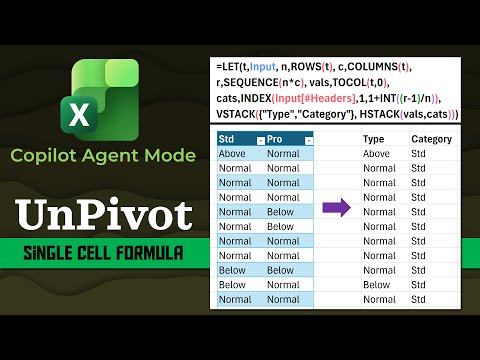
In a recent YouTube tutorial, Efficiency 365 by Dr Nitin showcases how to use Agent Mode in Excel to transform messy data into a table that is easier to analyze. The video focuses on a technique the author refers to as Single Cell Unpivot, and it demonstrates how AI can build a complex formula in minutes. Consequently, viewers see a practical workflow that bridges manual spreadsheet work and AI-powered automation. The tutorial also includes a sample workbook that users can download and practice with at their own pace.
What the Video Demonstrates
First, the presenter walks through a real-world example of unclean, column-oriented data and asks Agent Mode to create a single-cell solution that unpivots the set. Next, the video shows the tool generating a formula similar to the =COPILOT() approach to analyze context and produce persistent results inside the workbook. Moreover, the demo highlights how the agent plans steps, runs them, and verifies outputs, which reduces repetitive manual setup such as multiple helper columns or manual pivot transforms. As a result, the process appears faster and more accessible to users who lack advanced formula skills.
How Agent Mode Works in Practice
The tutorial explains that Agent Mode acts like an automated analyst that interprets multi-step requests and executes them inside Excel. It leverages context from headers and neighboring cells and can suggest or insert formulas that perform tasks like text categorization, sentiment scoring, or structural transformations. Furthermore, the video emphasizes that the system can generate dashboards, pivot tables, and linked sheets based on the same natural language prompts. Therefore, users can move from question to working solution with fewer manual edits.
However, the presenter also shows that outputs may need human review to ensure business logic matches expectations. While the automation speeds up routine tasks, it sometimes assumes intent that does not align with a specific reporting rule or exception. Consequently, the video recommends validating results and keeping copies of original data for auditability. In practice, this hybrid approach blends AI speed with human oversight to maintain accuracy.
Tradeoffs and Practical Challenges
One clear tradeoff is the balance between automation speed and user control; AI-generated formulas save time but can obscure intermediate steps that analysts usually inspect. For instance, relying on a single-cell solution simplifies the sheet but makes debugging harder if the formula fails or the data structure changes. Moreover, there are platform and licensing considerations since advanced features may only appear in specific versions of Excel or require access to AI services. Therefore, organizations must weigh convenience against maintainability and access costs.
Another challenge the video discusses is handling messy data edge cases such as inconsistent headers, missing values, or mixed data types. Although Agent Mode handles many common patterns, it can struggle with subtle exceptions that need domain knowledge. Consequently, Dr Nitin advises combining AI assistance with manual cleaning steps or validation rules, particularly when the analysis drives decision-making. This recommendation underscores the need for a governance approach when adopting automation.
Implications for Users and Next Steps
The tutorial encourages analysts and everyday spreadsheet users to experiment with AI features but to do so with safeguards in place. For example, save backup copies, test on sample files, and check formulas against standard calculations to confirm they meet business rules. Additionally, the video points out that learning how to interpret the agent’s steps improves long-term proficiency and reduces risk. Thus, the tool is best seen as an accelerator that requires informed use.
Finally, the author invites viewers to explore related tutorials and practice files to build confidence with the method. While the video demonstrates a compelling shortcut for unpivoting data, it also frames the approach as part of a broader shift toward integrating AI into everyday productivity tools. As a result, this tutorial serves as both a how-to and a cautionary primer, guiding users toward faster workflows while reminding them to keep oversight and reproducibility front of mind.

Keywords
single cell unpivot Excel, Excel Copilot Agent Mode unpivot, unpivot single merged cell Excel, Excel unpivot tutorial Copilot, Copilot Agent Mode Excel tips, single-cell data transformation Excel, unpivot pivoted data Excel Copilot, Excel Copilot unpivot step-by-step