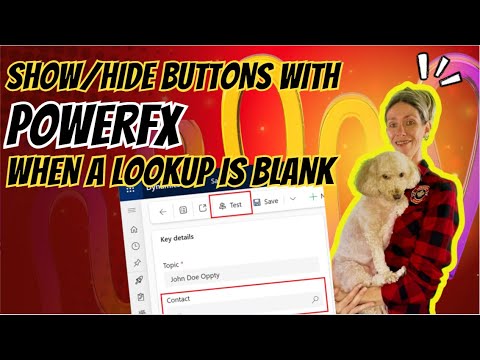
PowerFX: Hide Buttons If Lookup Blank
Microsoft MVP | Dynamics 365 CE Presales Engineer - Director at RSM US LLP | LinkedIn Learning Author
Show or hide a custom button in Power Apps with Power FX using Dataverse lookup values for cleaner model driven UX
Key insights
- Topic: The video demonstrates how to show or hide a custom button on a Microsoft Power Apps form using PowerFX when a lookup column is blank.
It explains the conditional visibility approach so users only see relevant actions. - Where to configure: Open the app in the Command Designer on make.powerapps.com, edit the target form, and add a custom button.
All visibility settings are configured in the command pane for that button. - Visibility setup: Change the button’s visibility mode to "Show on condition from formula" and set the Visible property with a PowerFX expression instead of relying on OnSelect.
This lets PowerFX decide whether the button appears based on the lookup value. - Key PowerFX functions: Use IsBlank to test if a lookup field has no value, and combine with LookUp or Filter when you must find specific records.
Example logic: show the button when the lookup is not blank; hide it when IsBlank returns true. - Advanced conditions: Combine lookup checks with permission or data checks using functions like DataSourceInfo so visibility also respects user rights.
Use simple combined expressions to handle both data state and security in one rule. - Benefits and best practices: This approach creates a context-aware UI, reduces clutter, and improves user experience.
Keep formulas readable, test across users, and document each rule so the solution stays maintainable.
Dian Taylor — identified on the video as Dian Taylor - [MVP] (Dynamics 365 Talk) — demonstrates a concise method for showing or hiding custom buttons in Microsoft Power Apps forms based on whether a lookup column is empty. In the short tutorial, she walks viewers through using the Command Designer and writing a visibility rule with PowerFX so that buttons appear only when they are relevant. The video targets makers who want cleaner forms and fewer confusing options for end users while keeping logic in formulas rather than code. Overall, it frames a practical approach to improving form UX with a few clear steps and examples.
Overview of the technique
The video explains how to use the Command Designer inside make.powerapps.com to add a custom button to a form and then change its behavior using a formula. In particular, the author highlights how to switch from the button's default action to the Visible property and then use PowerFX to evaluate a lookup field. She shows that the visibility rule can simply check whether a lookup is blank with the IsBlank function, and then display the button only when needed. By doing so, the interface becomes context-aware and less cluttered.
Furthermore, the video emphasizes that this method moves control out of traditional code and into the formula layer, which many makers already use for other form logic. Consequently, organizations that prefer low-code solutions can maintain these rules without deep developer involvement. At the same time, the approach still supports more advanced formulas that combine lookup checks with permission or status checks. That makes it flexible enough for both simple and complex scenarios.
Step-by-step implementation
Dian begins with creating a new custom button in the Command Designer, choosing an icon and a label, and then locating the correct form command bar for that button. Next, she switches the control's visibility setting to "Show on condition from formula" and opens the formula bar to edit the Visible property. The typical formula shown uses IsBlank to test the lookup field and flips that result so the button appears only when the lookup contains a value.
She also references common formula helpers such as LookUp and Filter for retrieving or checking related records when a direct field test is not enough. These functions let makers write more targeted conditions, though they also introduce complexity when a dataset grows. As a result, the author suggests keeping conditions as simple as possible for performance and clarity while using the richer functions only when necessary.
Benefits and tradeoffs
This technique improves user experience by reducing visible options to those that matter, which can speed task flows and lower user errors. In addition, because the logic lives in PowerFX, non-developers who know formulas can update rules without changing server code. However, there are tradeoffs: complex formulas that call LookUp or Filter on large tables can hit delegation or performance limits, and they can become hard to read and maintain over time.
Moreover, relying solely on UI visibility to enforce rules offers a clear UX benefit but does not replace server-side checks. Therefore, teams must balance the convenience of client-side formulas with the need for robust back-end validation. In addition, adding multiple conditional layers—such as combining lookup checks with permission logic—can create subtle bugs if the order and assumptions are not documented.
Challenges and practical tips
Dian calls out several practical challenges, including delegation limits when using Filter and LookUp on external data sources, and the possibility of UI flicker while the form resolves related records. To reduce these issues, she recommends testing formulas with real data, using simple tests like IsBlank where possible, and caching results into form variables if the logic repeats. These steps help reduce repeated queries and make the interface feel faster to end users.
She also suggests naming conventions and keeping a small set of readable formulas so other team members can maintain them easily. When visibility logic depends on permissions, integrating checks with functions like DataSourceInfo or role-based conditions can be useful, but teams should watch for unexpected interactions. Finally, she reminds viewers to test across roles and form states to catch edge cases early.
Security and maintenance best practices
The video stresses that hiding a button in the UI is not a substitute for server-side security, and it recommends validating important actions on the server or in flows. In practice, that means pairing client-side visibility rules with permission checks on the data connector, plugin, or Power Automate flow that performs the action. This layered approach preserves the cleaner UI while ensuring users cannot bypass controls.
For long-term maintenance, Dian advises keeping formulas short and documented, using consistent field names, and limiting deep logic in the command bar. This makes updates easier and reduces the chance that future changes will introduce regressions. In essence, the best results come from balancing clear formulas, good testing, and strong back-end validation.
In summary, the video by Dian Taylor - [MVP] (Dynamics 365 Talk) offers a practical, low-code method to conditionally show or hide custom buttons using PowerFX and the Command Designer. While the approach yields cleaner forms and easier maintenance, teams must weigh performance and security tradeoffs and adopt complementary server-side checks. Ultimately, the technique is a useful addition to the maker toolbox, provided developers and administrators follow testing and governance practices to keep apps reliable and secure.

Keywords
PowerFX show hide button, PowerApps conditional button visibility, PowerApps lookup column blank, PowerFX If IsBlank lookup, PowerApps show hide custom button, Canvas app conditional visibility PowerFX, PowerApps disable button when lookup empty, PowerFX visibility rule for lookup field