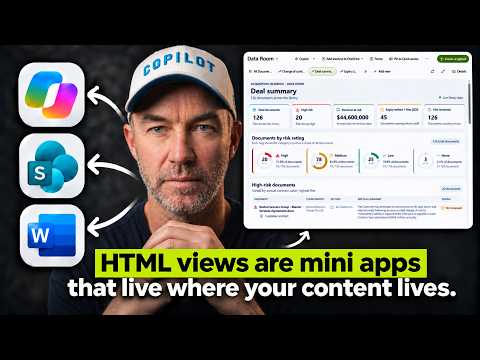
SharePoint HTML views: Build a library dashboard
A Microsoft MVP 𝗁𝖾𝗅𝗉𝗂𝗇𝗀 develop careers, scale and 𝗀𝗋𝗈𝗐 businesses 𝖻𝗒 𝖾𝗆𝗉𝗈𝗐𝖾𝗋𝗂𝗇𝗀 everyone 𝗍𝗈 𝖺𝖼𝗁𝗂𝖾𝗏𝖾 𝗆𝗈𝗋𝖾 𝗐𝗂𝗍𝗁 𝖬𝗂𝖼𝗋𝗈𝗌𝗈𝖿𝗍 𝟥𝟨𝟧
SharePoint HTML views can turn library metadata into an interactive dashboard for teams that need to find important documents quickly.
Key insights
- The demonstrated HTML views summarize and present documents already stored in a SharePoint library.
- Autofill columns extract the same selected facts from documents into library metadata.
- The demonstration uses a view without folders to select files and trigger autofill across the library.
- The HTML views include deal summary, change-of-control and expiry-focused presentations.
- The sample company, documents and figures in the demonstration are fictional.
SharePoint HTML views can turn document-library metadata into dashboard-style screens, helping a team find relevant documents without replacing the library itself. This approach may help SharePoint users who need to triage a large collection of agreements or other files. Daniel Anderson [MVP] demonstrates the approach using a fictional due-diligence data room and Copilot in SharePoint.
What's new
The demonstration brings together a document library, autofill columns and HTML views. Autofill columns are configured with prompts to extract selected facts from documents into library fields. HTML views then present information from those fields in a more visual, task-focused layout than a standard document list.
The example library contains contracts and other due-diligence documents arranged in folders. Its planned metadata includes fields such as counterparty, expiry date, change of control, liability cap, risk rating and questions for the seller. The views use that information to help the deal team locate files and themes that may need attention.
Anderson creates separate views for a deal summary, change-of-control terms and approaching expiries. The description also identifies a red-flags heat map, questions for the seller and a combined tabbed view as parts of the intended build. These are ways to present and organize the library’s information; they do not replace review of the underlying contracts.
Who it is for and what you need
The example is aimed at a deal team that must review a set of company documents on a short timeline. The same general pattern could be relevant to teams managing agreements such as leases, supplier contracts or insurance renewals, as described in the video description. It is a triage aid: the demonstration explicitly treats the output as a starting point for review, not legal advice.
The workflow depends on a SharePoint document library, useful metadata columns and Copilot in SharePoint for the demonstrated schema and view-building steps. Anderson first drafts a library schema as a Markdown file with Copilot, reviews it, and then asks Copilot in SharePoint to build the library after approval. The material does not identify required Microsoft 365 plans, licenses, tenant settings, rollout status or regional availability, so those details cannot be established here.
Metadata quality is a prerequisite for useful summaries. A view can organize information represented in the library columns, but the demonstration spot-checks autofill results before relying on them. The folders help organize uploaded files, but the example uses metadata—not folder structure—as the basis for reporting and grouping.
How it works
The demonstrated process starts with the information structure rather than the dashboard. Anderson uses Copilot to propose the library columns and choices, saves the schema in Markdown, and asks Copilot in SharePoint to review and build it. This gives the library fields intended to hold consistent facts from the documents.
- Prepare the document library schema, including the columns and choices needed for the task. In the example, Copilot drafts a Markdown schema and Copilot in SharePoint reviews it before creating the library.
- Upload the documents, including any existing folder structure. Then configure the autofill columns with prompts describing the facts to extract.
- To run autofill across files in the example, create a library view that shows items without folders. The demonstration says selecting folders does not allow autofill to be triggered; selecting the files in the no-folders view does.
- Run autofill and spot-check the resulting metadata against documents. Anderson groups by change-of-control information and checks a termination-right value in a document as examples of validation.
- Open Copilot chat at the library level and describe the HTML view’s audience, purpose and desired content. The first example requests a deal summary. Refine the result with follow-up prompts rather than assuming the first version is final.
- Create additional views for specific questions, such as documents with a change-of-control entry or files with expiry dates. Where a field is blank, the example asks Copilot to populate the Section column based on each document’s folder.
The resulting layouts use summary cards, groupings and an expiry timeline to make patterns easier to scan. The demonstration also shows that late-arriving files can affect the figures in the views, which is why the team needs to check what the displayed totals represent as documents change.
Limitations and open questions
Autofill output should be treated as information to verify, not as a definitive interpretation of a contract. The demonstration includes spot-checking, and its stated purpose is to help people find where to look. It does not establish that the extracted facts are complete or correct for every document type.
HTML views depend on relevant, populated metadata. In the example, the Section field is empty until Copilot is asked to assign values based on folders, and a separate view without folders is needed to select files for autofill. A library with inconsistent fields or missing values may therefore produce less useful summaries.
The sample uses fictional company information and numbers, so its revenue-risk figures are illustrative rather than evidence about a real business. The supplied material does not document licensing, rollout, view-sharing behavior, technical limits or a specific process for turning HTML views on or off. It also does not show the remaining steps after the Section-column update request, so details of the final combined tabbed view are not established here.
Sources
Frequently asked questions
What are SharePoint HTML views used for?
In the demonstrated workflow, they present library information in dashboard-style layouts, such as a deal summary or an expiry-focused view. They use metadata from the library to help users scan and locate documents.
Do SharePoint HTML views replace the document library?
No. In the demonstration, the library continues to hold the documents and metadata; HTML views provide another way to present that information.
How do you run autofill on files stored in folders?
The demonstration creates a library view that shows all items without folders, then selects the files in that view and triggers autofill. It says selecting the folders themselves does not expose the autofill action.
What license is required for SharePoint HTML views?
The supplied material does not specify licensing requirements. Check current Microsoft documentation or your organization’s licensing guidance before planning deployment.