SharePoint: Create Actions Without JSON
Principal Power Platform Advocacy Team Lead at Microsoft ◉ YouTuber ◉ Speaker ◉ LinkedIn Learning Course Author ◉ Low Code Revolution Host
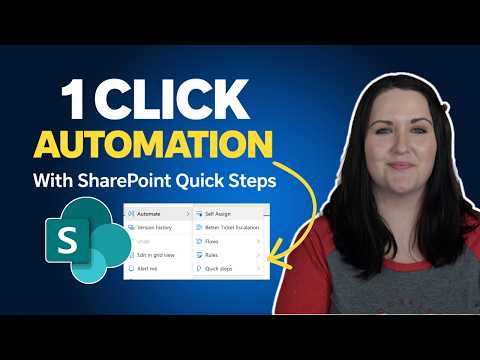
SharePoint Quick Steps add action with no JSON or code to start Teams chat draft email set values and run Power Automate
Key insights
- Quick Steps
The video shows how to add one-click commands to lists and libraries so you can start chats, draft emails, set fields, or run flows — all without writing JSON. - Row Actions
Use the built-in row actions via the list view (Format current view / Quick Steps) to add buttons with a point-and-click experience instead of pasting code. - Power Automate
You can trigger a flow from a Quick Step to handle complex logic or multi-step processes while keeping simple tasks inline and fast. - Use Cases
Practical examples include ticket escalation, self-assigning items, conditional visibility of actions, and quick file operations to speed daily work. - No-code
This approach empowers non-developers to create reliable, reusable actions quickly, reducing maintenance and avoiding common JSON errors. - Limitations
Some advanced UI overrides (for example double-click row editing) and deeply custom styling still need JSON or a flow, so pick the right tool for the job.
Overview of the Video
In a clear, user-focused YouTube video, author April Dunnam demonstrates how to create clickable actions in SharePoint lists and libraries without writing any JSON. The presentation focuses on the built-in Quick Steps and row actions that let users add immediate commands like starting a chat, drafting an email, setting field values, or running a flow. Furthermore, Dunnam emphasizes speed and ease, showing that many common tasks can be configured in seconds through the interface rather than by pasting code. Consequently, the approach targets power users and site owners who prefer a no-code path to customization.
What April Dunnam Demonstrates
First, Dunnam walks through creating a Quick Step that starts a Microsoft Teams chat directly from a list item, which highlights how actions can reduce friction in team communication. Next, she shows how to draft an email and how to set field values to streamline common updates, and she explains how those actions work together with existing list metadata. Then, she demonstrates invoking a Power Automate flow from a list row, which illustrates a hybrid model where no-code buttons can still trigger more advanced logic when needed. Overall, the video balances step-by-step guidance with practical examples to make the concepts tangible for everyday SharePoint users.
Practical Scenarios and Benefits
For example, Dunnam shows how to build a ticket escalation Quick Step that routes items to a supervisor with one click, enabling faster response times and clearer accountability. In addition, she covers self-assigning items and conditional visibility so users only see relevant actions when criteria are met, thereby reducing clutter and mistakes. Because these Quick Steps live in the list UI, teams gain consistency across views and can embed actions into list web parts on pages. As a result, the feature can significantly reduce the need for small custom scripts and speed up common workflows.
Tradeoffs and Challenges
However, the no-code approach also involves tradeoffs that organizations must weigh carefully. While Quick Steps and row actions deliver quick wins and lower the barrier to entry, they cannot replace complex business logic that a full Power Automate flow or custom development can handle, so teams must decide when depth outweighs convenience. Moreover, some limitations remain by design, such as the inability to override certain built-in behaviors like double-click row editing, which means advanced UI customizations may still require developer input. Therefore, administrators should plan governance and testing to prevent sprawl and to ensure actions behave predictably under different permissions and data conditions.
Adoption Tips and Best Practices
To adopt these features successfully, start with a small pilot list and document intended behaviors so you can compare outcomes to existing processes before rolling changes out broadly. In addition, use conditional visibility and clear naming so users understand what each Quick Step does, and thereby reduce accidental clicks and training overhead. Also, combine Quick Steps with targeted Power Automate flows only when flows need conditional branching, long-running operations, or integration with external systems, because flows add complexity and require monitoring. Finally, maintain an inventory of Quick Steps and flows so site owners can update or retire them as requirements change.
Conclusion and Editorial Takeaway
In summary, April Dunnam’s video presents a practical path for modernizing SharePoint list interactions with minimal friction, empowering non-developers to add meaningful actions directly in the UI. While no-code Quick Steps provide speed and accessibility, they bring tradeoffs in flexibility and occasionally require a hybrid approach with Power Automate flows or developer support. Therefore, organizations should weigh the benefits of fast, maintainable actions against the need for complex logic or tight UI control, and then adopt a governance approach that balances autonomy with oversight. Ultimately, the feature is a valuable addition to the SharePoint toolkit that can reduce routine work and improve collaboration when applied thoughtfully.

Keywords
SharePoint actions without JSON, SharePoint no-code actions, Quick SharePoint actions guide, SharePoint column formatting alternatives, Automate SharePoint without JSON, SharePoint UI actions tutorial, Rapid SharePoint customization, SharePoint JSON-free automation