Teams
Dec 6, 2024 9:21 PM
Seamlessly Schedule Meetings Directly Within Microsoft Teams Chats!
by HubSite 365 about Darrell Webster Modern Work Mentor
Modern Work Mentor, Change Consultant, Content Creator, Community Conduit.
Microsoft Teams, Outlook, Microsoft 365
Key insights
- Schedule a Meeting in Teams Chat: You can schedule a meeting directly from a Microsoft Teams chat without needing to open Outlook, inviting all chat members as attendees.
- Suggested Times: The system offers suggested meeting times based on everyone's calendar availability, helping you find the best time for all participants.
- Add Live Notes: Include live meeting notes in the invite to set an agenda and list tasks to prepare before the meeting, enhancing preparation and collaboration.
- Simplified Process: This method keeps communications within the same chat thread, making it easier to reference previous messages and files during meetings.
- Avoid Inbox Distractions: By scheduling directly from Teams, you stay focused on the conversation without distractions from your Inbox or Outlook calendar.
- Instant Meetings Option: To keep all communications unified in one thread, consider starting an instant meeting by clicking the Meet now button in the chat.
Introduction to Scheduling Meetings in Microsoft Teams Chat
Scheduling meetings in Microsoft Teams is a feature that significantly enhances productivity by allowing users to transition smoothly from text-based discussions to face-to-face interactions. The process is designed to be efficient, enabling users to set up meetings without leaving the chat environment or opening Outlook. This article will explore how to schedule a meeting within a Teams chat, the benefits of this method, potential challenges, and tips for maintaining seamless communication.Steps to Schedule a Meeting from a Teams Chat
To schedule a meeting directly from a Teams chat, follow these straightforward steps:- Open the Chat: Begin by navigating to the chat with the individual or group you wish to meet.
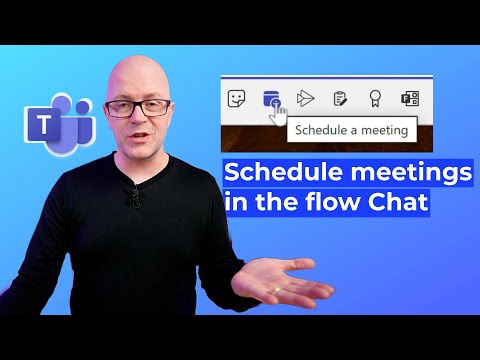
- Access Meeting Scheduling: Click on the Calendar icon located below the message composition box. Alternatively, select the More options (three dots) at the top of the chat and choose Schedule a meeting.
- Set Meeting Details: In the meeting scheduler, chat participants are automatically added to the attendee list. Enter the meeting title, select the date and time, and adjust any other settings as needed.
- Send the Invitation: After finalizing the details, click Send. The meeting will appear in both your and the attendees’ calendars.
Benefits of Scheduling Meetings in Teams Chat
Scheduling meetings directly from a Teams chat offers several advantages:- Enhanced Productivity: By keeping all communications within the chat, users can focus on their tasks without the distraction of switching between different applications like Outlook.
- Streamlined Communication: The continuity of conversation threads helps maintain context, which is crucial for effective decision-making and collaboration.
- Efficient Time Management: Suggested meeting times based on calendar availability help in quickly finding suitable slots for all participants.
Challenges and Considerations
While scheduling meetings from a Teams chat is convenient, there are some challenges and considerations to keep in mind:- Separate Meeting Chats: Some users have reported that scheduling a meeting from a chat may create a new meeting chat separate from the original conversation. This can lead to fragmented communication if not managed properly.
- Instant Meetings: To avoid separate threads, consider starting an instant meeting directly from the chat by clicking the Meet now button. This approach keeps the meeting and chat history unified.
Tips for Maintaining Seamless Communication
To ensure that your meetings and communications remain seamless, consider the following tips:- Use Live Meeting Notes: Add live meeting notes to the invite to prepare for the meeting, set an agenda together, and list tasks to prepare before you meet.
- Refer to Previous Messages: Keep the chat open during meetings to easily reference previous messages and shared files.
- Stay Organized: Regularly review and clean up your chat threads to prevent clutter and ensure that important information is easily accessible.
Conclusion
Scheduling meetings directly from a Microsoft Teams chat is a powerful feature that enhances personal productivity and team collaboration. While it offers numerous benefits, it is important to be aware of potential challenges and take steps to address them. By following the outlined steps and tips, users can ensure that their meetings are well-organized and their communications remain seamless. This approach not only saves time but also fosters a more collaborative and efficient work environment.

Keywords
Microsoft Teams meeting scheduling, schedule meeting in Teams chat, Microsoft Teams calendar integration, book meetings in Teams chat, streamline meetings in Microsoft Teams, efficient meeting setup in Teams, organize meetings via Teams chat, seamless scheduling with Microsoft Teams.
HubSite 365 Apps