Excel SCAN: Tame the Tough Function
Co-Founder at Career Principles | Microsoft MVP
Microsoft Excel SCAN tutorial for running totals, running max and cashflow with LAMBDA and REDUCE, plus Power BI insight
Key insights
- SCAN: A modern Excel function that processes an array step by step and returns a new array of intermediate results, ideal for building running calculations and progressive text joins.
- LAMBDA: Use LAMBDA inside SCAN to define custom accumulator logic so you can write clear, reusable formulas without helper columns or VBA.
- Running totals: Create cumulative sums with a single formula, e.g. =SCAN(0, B5:B1000, LAMBDA(a,b,a+b)), and let the result automatically spill down the sheet.
- Dynamic arrays: SCAN works with Excel’s spill behavior so outputs resize when you add or remove data, reducing manual updates and mistakes.
- TRIMRANGE / dot operator: Limit input to populated cells (avoid empty rows) by pairing SCAN with TRIMRANGE or the dot-range form, which speeds up models and keeps results clean.
- REDUCE: A related function that collapses an array to a single result (for totals or final aggregates), while SCAN returns every intermediate step—use both for different cash-flow and aggregation needs.
Overview of the Video
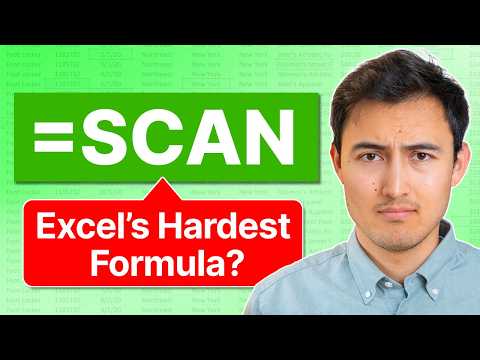
In a recent YouTube tutorial, Kenji Farré (Kenji Explains) [MVP] walks viewers through practical uses of Excel's SCAN function and related array tools. He frames SCAN as one of the harder functions to learn, but he argues that it unlocks powerful, program-like capabilities inside spreadsheets. Consequently, the video focuses on step-by-step examples that show how SCAN can replace helper columns and simplify cumulative calculations. The presentation stays practical by using real-world scenarios like year-to-date profit and cash-flow sequences.
Moreover, the tutorial pairs SCAN with other modern Excel features such as LAMBDA and the REDUCE function to broaden what formulas can do. Kenji emphasizes how dynamic arrays change formula design and how these newer tools spill results automatically without manual copying. As a result, viewers get a sense of both the possibilities and the learning curve ahead. The video also includes alternatives so that users can weigh different methods for common problems.
Examples Demonstrated
The author demonstrates four main scenarios to showcase SCAN in action. First, he builds a running total for year-to-date profit, which shows how an accumulator pattern produces cumulative sums across rows. Then, he uses SCAN to calculate a running maximum for monthly profit, illustrating how custom logic with LAMBDA can change the operation performed at each step. These practical examples help viewers see how a single formula can spill a full series of intermediate results.
Next, Kenji compares SCAN to an alternative method that relies on absolute references with dollar signs, explaining when the classic approach still makes sense. He also demonstrates text handling by combining SCAN with conditional logic, an IF statement, and string concatenation using an ampersand, which reveals non-numeric use cases. Finally, the tutorial touches on the REDUCE function and a cash-flow scenario, showing how slightly different functions suit different aggregation needs. Together, these examples underline the flexibility of modern formulas.
How SCAN Works and Key Technical Notes
At its core, SCAN iterates over an input array and produces a new array of intermediate results using an accumulator and a function, typically supplied via LAMBDA. The pattern works by defining an initial value, then applying a custom calculation to each incoming element to update the accumulator and record each state. Because Excel now supports dynamic arrays, the output spills automatically and adjusts when the input grows or shrinks, which simplifies maintenance. Kenji points out that this behavior reduces the need for helper columns and makes formulas easier to update.
He also highlights pairing SCAN with functions that trim empty cells, such as TRIMRANGE or the shorthand dot operator, to avoid processing blanks and to improve performance. Using these helpers prevents unnecessary iterations and can make formulas resilient to empty rows. However, Kenji warns that reading and debugging nested LAMBDA logic can be harder for people unfamiliar with functional patterns. Therefore, while SCAN is powerful, it asks spreadsheet authors to adopt new ways of thinking about formulas.
Tradeoffs and Challenges
One major tradeoff is between expressiveness and accessibility: SCAN lets advanced users write compact, flexible formulas, but those same formulas can be opaque to colleagues who expect traditional cell-by-cell logic. Thus, teams must balance cleaner workbooks against the overhead of training and documentation. Additionally, compatibility is an issue because these functions require recent Excel versions that support dynamic arrays and LAMBDA, so legacy users may not be able to open or maintain the files.
Performance also matters: on small datasets SCAN runs fast and simplifies work, but very large arrays combined with complex LAMBDA logic can slow recalculation. Kenji discusses alternatives like the dollar-sign method and helper columns as pragmatic fallbacks when performance or team familiarity is a concern. Ultimately, the choice involves balancing maintainability, speed, and the skill set of the workbook’s users.
Practical Takeaways for Excel Users
For practitioners, the video offers clear starting points: use SCAN for running totals and running maximums, prefer LAMBDA for custom logic, and consider REDUCE when you want a single final value rather than a spilled series. Kenji’s examples show how to combine these tools with basic conditional statements and text concatenation to solve both numeric and textual problems. Consequently, users can replace cumbersome helper columns with single, dynamic formulas that adapt as data changes.
In closing, the tutorial makes a balanced case for learning modern Excel features: the initial effort pays off in cleaner workbooks and greater flexibility, but teams should weigh adoption costs and compatibility limits. Therefore, readers who manage important models should experiment with these techniques in safe copies of their files, document complex formulas, and consider training for colleagues. By doing so, they can unlock the practical power that Kenji demonstrates while avoiding common pitfalls.
Keywords
SCAN function Excel, Excel SCAN tutorial, how to use SCAN function, SCAN function examples Excel, Excel dynamic array SCAN, SCAN function Office 365, learning SCAN function Excel, SCAN function advanced Excel