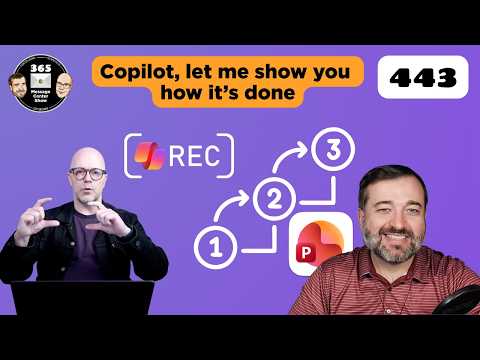
PowerPoint Copilot: Record Presentations
PowerPoint Copilot skill recording, Planner private plan moves tasks to To Do, Brand Kit tweaks, MS cloud release ends
Key insights
- Record a skill in PowerPoint Copilot captures a sequence of slide edits and ribbon actions to create a reusable workflow.
Copilot analyzes your actions, drafts a name, description, and instructions, and saves the skill to your personal Skills folder in OneDrive. - How to record: open Copilot in PowerPoint, choose "Manage plugins & skills," add a custom skill, then select "Record Skill" and perform the steps you want saved.
Stop recording, review or edit the generated draft, and upload the skill to make it available from the Copilot pane or via an @-mention. - Recording limits and rules: recordings must be under ten minutes; voice narration is not captured; actions done outside PowerPoint or still running when you stop may be excluded.
Plan recordings so core actions happen inside the PowerPoint window for reliable capture. - Practical benefits include less repeated prompting, faster consistent presentations, and lower technical barriers for creating custom skills.
Teams can apply repeatable review checks, format standards, or storytelling steps across multiple decks. - Admin and governance: organizations can publish approved skills to users, groups, or the whole tenant, enabling standardized workflows without each user building skills separately.
This gives IT and content teams central control over repeatable presentation processes. - Planner / To Do impact: private tasks will be stored in each user’s private Planner plan, while Microsoft To Do continues to surface personal tasks for users.
The change shifts the storage location to Planner and gives admins clearer controls, but end users should still see their personal tasks in To Do.
Video summary and context
The YouTube video from 365 Message Center Show highlights a set of Microsoft 365 updates, with special focus on a newly announced workflow feature for PowerPoint. In particular, the hosts demonstrate the new Record a skill capability inside PowerPoint Copilot, while also covering Planner and Brand Kit changes. Consequently, the episode explains how the feature works, who can use it, and what limits apply. This article summarizes the video’s key points and explores the tradeoffs and challenges that organizations will face when adopting the new capabilities.
How "Record a skill" works
The video demonstrates that the new Record a skill feature lets users perform a series of slide edits while PowerPoint Copilot observes those actions and generates a reusable skill. After recording, the tool drafts a skill name, description, and step-by-step instructions, which users can edit before saving to their personal Skills folder in OneDrive. Then the skill becomes selectable inside the Copilot pane and can be invoked by name, making it easier to repeat the same workflow across decks. Importantly, the recording must be under ten minutes, excludes voice narration, and ignores actions taken outside PowerPoint, which affects what can be automated.
Integration with Brand Kit and organizational governance
The hosts note that recorded skills pair well with the Brand Kit capability, which stores approved templates, logos, and brand rules. As a result, teams can start from the correct visual identity and then apply recorded workflows to enforce review steps, formatting, or audience-specific edits. Moreover, administrators will be able to publish approved skills to groups or the entire tenant, which supports consistent organizational processes. However, this central distribution introduces governance questions about who creates skills, how they are reviewed, and how to balance standardization with local flexibility.
Planner, private tasks, and impact on Microsoft To Do
In addition to Copilot updates, the video covers Planner changes, including an updated My Task experience and the decision to store private tasks in a user’s private plan. Consequently, tasks marked private are kept in a personal Planner plan rather than a public group plan, which raises questions for users of Microsoft To Do. While the change improves privacy by segregating personal tasks, it can complicate task sync and visibility for teams that relied on shared plan structures. Therefore, teams must weigh improved privacy against potential friction in cross-tool task management.
Benefits, tradeoffs, and practical challenges
The video argues that recording skills lowers the technical barrier to automation because users no longer must write a separate SKILL.md file. Thus, business users who know a process but not the file format can create repeatable workflows more easily. On the other hand, the approach trades precise, hand-crafted instructions for a model-generated summary that may need editing, which adds a validation step to ensure accuracy and compliance. Additionally, limitations such as the ten-minute cap and the inability to capture cross-app steps mean some workflows remain out of scope, pushing organizations to maintain hybrid approaches of manual guidelines and recorded skills.
Operationally, organizations must consider lifecycle and maintenance of skills. Over time, changes in templates, slide layouts, or brand rules can make recorded skills stale, so administrators need processes for reviewing, updating, or deprecating skills. Furthermore, applying centralized skills improves consistency but can reduce local agility; therefore, leaders will need to balance governance with user autonomy to avoid bottlenecks. Lastly, reliance on automation raises testing and error-handling challenges when a recorded sequence fails in a different slide structure or with unexpected content.
Practical advice and next steps
For teams interested in adopting recorded skills, the hosts recommend starting with simple, high-value tasks such as format standardization, review checklists, and executive-summary preparation. Then, teams should pilot skills with a few users and validate the Copilot-generated instructions before publishing them more broadly. At the same time, IT and governance teams should define ownership, review cadence, and rollback plans so skills remain accurate and aligned with brand and compliance needs. Finally, users must be trained on the recording limits and on how to edit generated skill drafts to reduce surprises when a skill runs at scale.
Overall, the 365 Message Center Show episode frames Record a skill as a practical step toward making automation more accessible inside PowerPoint, while also highlighting implications for Planner privacy and organizational governance. As the feature rolls out, organizations will have to balance ease of use, accuracy, and control to get the most value from recorded skills and related Microsoft 365 updates.

Keywords
PowerPoint Copilot tutorial, how to record in PowerPoint Copilot, record presentation with Copilot, PowerPoint AI recording, Copilot for PowerPoint tips, record narration PowerPoint Copilot, PowerPoint Copilot demo, PowerPoint screen recording Copilot