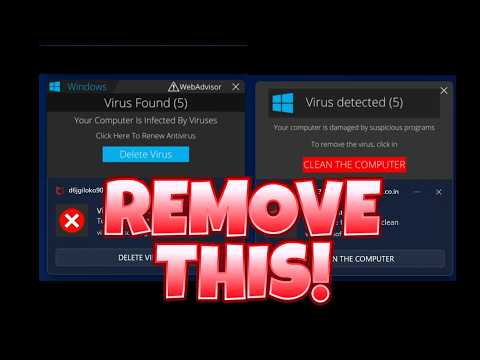
Microsoft Defender: Stop Fake Alerts
Principal Cloud Solutions Architect
Stop fake malware alerts in Microsoft Edge and Windows with Defender and browser notification settings
Key insights
- browser-based scams: Do not click or call any number shown in the alert.
Close the page or the whole browser immediately to stop further interaction. - Task Manager: Press Ctrl + Shift + Esc to open Task Manager and end the browser process (for example, msedge.exe).
This stops persistent pop-ups without installing extra tools. - notifications: Remove the malicious site from allowed notifications in your browser settings and toggle off "Sites can ask to send notifications."
Deleting the bad site from the allowed list prevents repeat alerts. - Edge: In Microsoft Edge, check edge://settings/content/notifications, review extensions, and clear browsing data (cookies and cache) to remove leftovers.
Similar steps apply in Chrome and Firefox under their notification and extension settings. - Microsoft Defender Antivirus: Use built-in Windows Security to scan your PC before adding any third-party tools.
Run an on-demand scan to quickly spot and remove any real malware that may have been installed. - Full scan: If alerts continue, run a full system scan, remove unknown extensions or apps, and reset the browser.
Keep Windows and your browser updated and avoid granting notification permission to unfamiliar sites.
Overview of the Video
The YouTube video by John Savill's [MVP] walks viewers through a quick, practical way to stop browser-based fake malware alerts. It explains how these scams use notification permissions and malicious pages to display urgent warnings that urge users to call fake support numbers or download harmful software. The presenter emphasizes staying calm and not interacting with the popup, and then shows a sequence of built-in Windows and browser steps to remove the problem safely. Overall, the video aims to give everyday users a fast recovery path without installing extra tools.
In addition, the video clarifies why these alerts are scams rather than genuine system warnings. For that reason, John Savill highlights common fake labels using names that look official, so users can better spot deception. He stresses that the correct action is to remove permission for the offending site and then scan with native security features. Consequently, the method focuses on speed, simplicity, and minimizing third-party software use.
How the Browser Scams Operate
The presenter outlines how malicious websites exploit browser notification APIs and sometimes shady extensions to deliver loud, persistent pop-ups. As a result, many users think the message came from Microsoft or Windows Defender, because scammers copy logos and wording to appear legitimate. Moreover, the scams can lock a tab into fullscreen mode or play alarm sounds, which increases panic and the chance that someone will call a fraud number or run untrusted installers. Therefore, identifying the source as a browser-based nuisance is the crucial first step.
John Savill also explains that different browsers expose the same permission settings under different menus, but the principle stays the same. For example, Edge, Chrome, and Firefox allow sites to request notification permission, and attackers abuse that prompt. While the technical details vary, the video shows that removing the offending site from the allowed list stops the pop-ups nearly instantly. Thus, users can take one decisive action to halt the scam and regain control of the browser.
Step-by-Step Removal Demonstrated
The video demonstrates a short sequence starting with force-closing the browser via Task Manager (Ctrl + Shift + Esc) to stop active pop-ups quickly. Next, John opens the browser settings and navigates to the notification permissions screen to remove or block the suspicious domain from the "Allow" list. Then, he clears cookies and site data to remove any lingering session artifacts and checks browser extensions for unknown entries to uninstall them.
After cleaning the browser, the presenter runs a full scan with Windows Defender via Windows Security to ensure no additional malware is present on the system. He also recommends reviewing the system's installed apps and running full scans if any unknown software appears. In the video, these combined steps often resolve the issue in minutes without needing third-party antivirus tools, which aligns with the speaker's goal of a low-friction fix. Consequently, users can return to normal operation quickly while keeping their device secure.
John Savill further shows alternative paths for other browsers, such as the equivalent notification settings in Chrome and Firefox, which helps users on non-Edge platforms follow the same logic. He also points out small UI differences so viewers avoid accidentally leaving permissions in place. Therefore, the tutorial remains practical across multiple setups and minimizes confusion for the audience. As a result, the video becomes a useful reference for a common, stressful scenario.
Benefits and Tradeoffs of Built-in Tools
Using native Windows and browser tools offers clear advantages, including no extra downloads, fast resolution, and privacy benefits because you avoid sharing system data with external vendors. Additionally, built-in tools receive automatic updates and integrate well with the operating system, which simplifies recovery for typical users. However, John Savill notes tradeoffs: built-in protections may not offer some advanced scanning features found in premium solutions, and they may miss niche or highly targeted threats. Thus, while the native route is ideal for most scam alerts, some situations still call for specialized tools.
Another tradeoff involves convenience versus control: the video shows that simple permission changes work quickly, yet users who prefer deeper analysis might want additional logs or forensic details that built-in tools do not surface. At the same time, relying on third-party utilities can introduce its own risks, such as bundled software or confusing interfaces. Consequently, the recommended balance is to start with the native approach and escalate only if scans or symptoms indicate a deeper compromise.
Practical Challenges and Recommended Habits
John Savill highlights common challenges, such as users who panic and call fraudulent numbers or those whose browser settings are locked by malicious extensions. To address these issues, he recommends simple habits: never call numbers shown in browser pop-ups, avoid clicking within the pop-up, and remove notification permissions for unknown sites. These habits reduce the chance of further compromise and keep recovery steps straightforward.
Finally, the presenter encourages regular system maintenance like keeping the OS and browsers updated, periodically reviewing allowed notifications, and running routine scans with Windows Defender. He also stresses user education, because a calm, informed response is often the fastest path to resolution. By combining those practices with the short removal steps shown in the video, users can significantly lower their risk and recover quickly when a browser-based fake alert appears.

Keywords
fake malware alerts removal, remove fake virus alerts, stop scareware popups, fake antivirus removal guide, how to remove fake security alerts, block fake system alerts, remove pop-up malware warnings, fix fake malware alert notifications