PowerPoint Interactive Slides add audience exploration
Principal Group Product Manager - Microsoft Education
Mike Tholfsen demonstrates Copilot Interactive Slides, which let presenters create dashboards, image comparisons and diagrams from prompts.
Key insights
- Mike Tholfsen’s tutorial shows how to start Interactive Slides with a Copilot prompt or the Interactive Slides button.
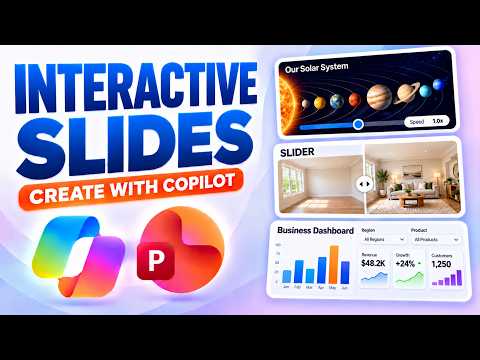
- Examples include business dashboards, before-and-after image sliders and interactive diagrams.
- The video description says Interactive Slides are generally available and require a Copilot Premium license.
- The tutorial covers prompt writing as well as examples for business and education.
Mike Tholfsen recently published a 13-minute tutorial on Interactive Slides in PowerPoint Copilot. The video demonstrates how to start with a prompt or the Interactive Slides button, then explores examples including business dashboards, before-and-after image sliders and interactive diagrams. The takeaway for presenters is that Copilot can help create slides people explore, rather than only slides that present information in a fixed way.
What's new
The feature covered in the tutorial is called Interactive Slides. Tholfsen presents it as a way to turn a simple prompt into an interactive experience, with examples aimed at business, education and recreational use. The video description says the feature is generally available and requires a Copilot Premium license.
The examples named in the description give a sense of the range: a business dashboard for exploring data, a slider for comparing before-and-after images, and diagrams that bring educational concepts to life. These are presented as tutorial examples, not as a complete catalog of supported slide types. The video also introduces a new Interactive Slides button in PowerPoint.
Why it matters
For presenters, the practical difference is the possibility of putting an exploratory visual into a presentation instead of relying only on bullet points or a fixed sequence of information. A dashboard can give an audience a way to explore data, while a before-and-after slider makes a visual comparison the focus. An interactive diagram can support explanations in an education setting.
For makers and people who build decks, the prompt-based creation approach may be useful when they want to try an interactive format without starting from a blank design. Tholfsen’s tutorial specifically covers writing prompts to get better results, suggesting that the request itself is part of the creation process. The description does not give detailed prompt templates or explain how much editing each example needed.
For administrators and buyers, the stated license requirement is the key qualification: the video description says a Copilot Premium license is required. It describes the feature as generally available, but does not provide a detailed account of eligible plans, tenant settings or regional availability. Organizations should check their own licensing and PowerPoint experience rather than assume the feature is included for every user.
How it works
The tutorial description outlines two starting points: create an Interactive Slide with a Copilot prompt, or use the Interactive Slides button in PowerPoint. The examples then show the kinds of outcomes Tholfsen covers, including business dashboards, image sliders and educational diagrams. The description does not specify all the controls available in each example or the exact sequence of clicks.
- Start in PowerPoint using a Copilot prompt or the Interactive Slides button.
- Describe the experience you want to create; the tutorial recommends paying attention to prompt quality.
- Explore an example such as a business dashboard, before-and-after slider or interactive diagram.
This is the extent of the workflow verifiable from the published description. It does not explain whether a slide can use particular data sources, how users edit generated interactions, or what happens when the deck is opened in other PowerPoint clients. Those details should not be inferred from the examples alone.
Limitations and open questions
The available material is a video description rather than a full transcript of the demonstration. It names the feature, the starting options and several example types, but does not document the underlying mechanics or provide a complete walkthrough that can be independently checked here. As a result, this article does not claim specific controls, supported platforms or behavior in presentation mode.
The description calls the feature generally available and names a Copilot Premium license, but does not clarify the exact licensing conditions or any rollout differences. It also does not state whether Interactive Slides can be created from existing files or whether the examples require particular inputs. Users should verify the feature and its licensing in their own environment.
For a closer look at the demonstrated examples, see Tholfsen’s Interactive Slides tutorial. The video description also links to a before-and-after slider sample.
Sources
- Mike Tholfsen’s PowerPoint Interactive Slides tutorial
- Microsoft 365 Business Premium with Copilot information
- Before-and-after slider sample
Frequently asked questions
What can Interactive Slides create?
The tutorial description names business dashboards, before-and-after image sliders and interactive diagrams as examples.
How do I start creating one?
The description says to use a Copilot prompt or the Interactive Slides button in PowerPoint.
What license does it require?
The video description says Interactive Slides requires a Copilot Premium license. It does not give further eligibility or plan details.