PowerPoint
Jul 23, 2026 7:08 AM
PowerPoint: Reveal Text with Motion Path
by HubSite 365 about Presentation Process YouTube
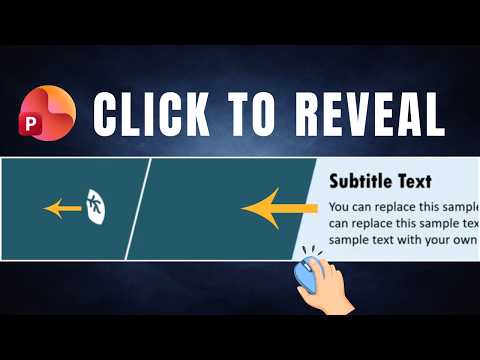
Microsoft PowerPoint tutorial for click-to-reveal animations using Motion Path and Fly In for interactive presentations
Key insights
- Click-to-Reveal overview: This tutorial shows how to build a presentation where icons and text appear one click at a time, improving audience focus and pacing.
Use this technique for definitions, processes, features, timelines, and classroom or business slides. - Step-by-step tutorial: Follow the sequence—draw the graphic with shapes, add the motion path, then finish the interactive diagram.
The video breaks these steps into short chapters for quick reference (draw, animate, finalize). - Motion Path and Fly In roles: Use Motion Path to move elements from an off-screen start point and Fly In to control entry behavior.
Combine both so an icon moves into place while its label appears cleanly. - Interactive Diagram setup tips: Place elements off-slide, set animations to start on click, layer icons and labels logically, and test the click order.
Keep each reveal isolated so clicks advance predictable content. - Use cases and benefits: Click-to-reveal reduces cognitive load, guides attention, and helps explain stepwise information clearly.
It works well in training, executive briefings, and classroom lessons where controlled pacing matters. - Best practices: Keep motion paths simple, match icon and label timing, preview in Office 365 or your PowerPoint version, and rehearse clicks before presenting.
Export a video only when you need a non-interactive copy.

Keywords
PowerPoint text reveal, PowerPoint motion path animation, Animate text in PowerPoint, Motion path text animation, Text reveal animation tutorial, PPT text animation effects, Reveal text with motion paths, PowerPoint slide animation tips
HubSite 365 Apps