SharePoint and Power Query connection patterns explained
Excel Off The Grid will show you how to work smarter, not harder with Microsoft Excel.
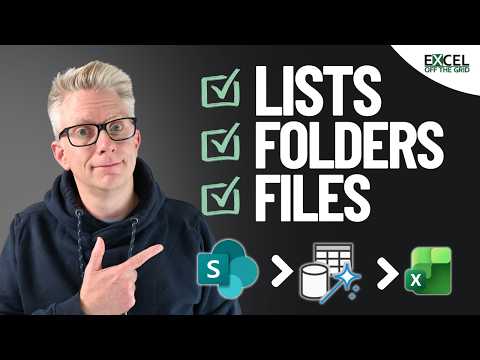
Excel Off The Grid's video covers SharePoint lists, folders and files, helping Excel users choose an appropriate Power Query connection.
Key insights
- The video covers SharePoint lists, folders and files as separate connection scenarios.
- Research notes distinguish list data from files stored in SharePoint document libraries.
- For a SharePoint List connection, the research notes say to enter the site URL.
- The SharePoint Folder connector is intended for files in a document library or folder.
Excel Off The Grid recently published a video about connecting SharePoint to Excel with Power Query. The 11-minute, 48-second walkthrough is organized around lists, folders and files, three common source types that can call for different connection approaches. Its central takeaway is practical: identify what kind of SharePoint content you need before choosing a connector or entering a URL.
What's new
This is a how-to video, not a report of a new Microsoft feature. The publisher describes common SharePoint connection scenarios and names three sections: SharePoint Lists, SharePoint Folders and SharePoint Files. The description says the video demonstrates how to use an approach for each scenario, but does not provide a transcript of the specific clicks or settings shown.
The accompanying research notes make the main distinction explicit. A SharePoint List connector is for structured records held in a SharePoint list, while the SharePoint Folder connector is for files in a document library or folder. Power Query is the data connection and transformation layer: it can import data and reshape it before loading it into a destination such as a worksheet or data model.
That distinction matters because a SharePoint list and a document library are not interchangeable source types. Lists hold records in fields; libraries hold files and related metadata. The notes also identify a single-file case: Microsoft’s documented guidance, as summarized in the research, recommends a file URL with a Web connector in Power Query Desktop or a Web API connector in Power Query Online.
Why it matters
For Excel users and analysts, selecting the suitable connection pattern can make recurring reporting less dependent on downloading and preparing files by hand. A list connection can bring structured records into a query for cleanup, while a folder connection can be used to work with files stored together. The video’s scope makes it useful to people who encounter several kinds of SharePoint content and are unsure where to start.
For makers building reports, the folder scenario is especially relevant when a library contains multiple files with a consistent structure. The research notes say Power Query can filter files by folder path or extension, apply a transformation process to each file, and combine the results. That offers a repeatable way to prepare a collection of files rather than treating each one as a separate manual import.
Site owners and administrators may also care about the connection details because a query depends on access to the SharePoint source. The research notes say the signed-in account needs permission to reach the target site, list or library. They do not describe a new permission model or an administrative rollout; the video is presented as guidance on connection scenarios.
The material does not specify licensing requirements, a preview status or a change in availability. It also does not say that every connection scenario behaves identically across Excel and Power Query Online. Readers should treat the video as practical orientation, not as a complete reference for every tenant configuration.
How it works
Start by identifying whether the information is a list, a collection of files, or one particular file. The research notes describe the list connector as asking for the SharePoint site URL, rather than the URL of a list view. A site URL identifies the SharePoint site that contains the list.
- For list records: choose the SharePoint List connector and provide the URL of the site containing the list, as described in the research notes.
- For a library or folder of files: use the SharePoint Folder connector. Review the returned file metadata, then filter for the relevant folder or file type before transforming or combining data.
- For one file: the research notes say to use the file URL with the Web connector in Power Query Desktop or the Web API connector in Power Query Online.
- Check access: sign in with an account that has permission to the relevant SharePoint site, list or library.
For folder-based imports, combining works best when the files share a structure, according to the research notes. Power Query can apply the same transformation steps to the files and combine their contents. That can produce one table from a set of files, but the source material does not specify how the video handles mismatched columns or other exceptions.
The URL is another point to check. The notes recommend using the site address for a list connection, not a full list-view URL that includes a page such as AllItems.aspx or view parameters. They also state that the SharePoint Folder connector does not support a classic SharePoint URL page, while a modern SharePoint homepage is supported. These details are useful checks when a connection fails, but they are not a substitute for confirming the correct address for a particular environment.
Limitations and open questions
The available video description names its topics but does not include the transcript or step-by-step demonstrations. As a result, the material here cannot confirm the exact menus, connector versions, authentication prompts or sample data used onscreen. The broader connection details come from the accompanying research notes, not a claim that every one is demonstrated in the video.
The research notes flag that complex SharePoint fields—including people, lookup, choice and managed metadata columns—may need expansion or additional cleanup before they are useful for reporting. They do not explain the transformations needed for each field type. Likewise, authentication errors may result from insufficient site permissions, but the provided notes end before listing all possible causes.
The sources do not establish licensing, refresh schedules, performance limits or tenant-wide availability. Nor do they verify how each connection behaves in every Excel or Power Query environment. Use the walkthrough to understand the broad choices, then validate the connector, URL and permissions against your own setup.
Sources
- Excel Off The Grid video on Power Query and SharePoint
- Excel Off The Grid website
- Research source for SharePoint connection notes
Frequently asked questions
Which connector should I use for a SharePoint list?
The research notes identify the SharePoint List connector for structured list records and say to enter the URL of the site containing the list.
Can Power Query combine files from a SharePoint library?
The research notes say the SharePoint Folder connector can filter files and combine files with a consistent structure. The video description lists folders and files among its scenarios.
What URL should I enter for a list connection?
The research notes recommend the SharePoint site URL, rather than a full list-view URL containing a page such as AllItems.aspx or view parameters.
Does the material specify licensing or availability?
No. The video description and research notes provided do not specify licensing requirements or availability across tenants.