Power Automate use Power Automate Desktop
RPA Teacher. Follow along👆 35,000+ YouTube Subscribers. Microsoft MVP. 2 x UiPath MVP.
Microsoft expert: Power Automate and Power Automate Desktop UI automation, machine to cloud setup and flow orchestration
Key insights
- Power Automate UI Automation tutorial (YouTube) walks through setting up the machine runtime, connecting your environment to the cloud, and running a flow built with Power Automate Desktop from the cloud.
It shows a complete end-to-end setup so you can run UI automation in real scenarios. - Learn to capture UI elements visually and store them in the flow designer, then use multiple selectors to keep actions stable when the interface changes.
The video demonstrates how to identify elements and manage them in a central pane for reuse. - Key advantages highlighted: automation works with both legacy applications and modern web pages, supports full browser automation, and enables business users through no-code/low-code tools.
These features reduce development time and broaden who can build RPA flows. - Practical steps show using the recorder to capture actions, adding dynamic selectors to handle UI changes, and extracting web data to feed into desktop apps.
The tutorial guides you to assemble and run an end-to-end flow that moves data between web and legacy systems. - Recent 2025 updates include a visual selector builder, clearer separation between desktop vs web UI elements, and improved learning resources to make automation more resilient.
These changes aim to simplify editing selectors and improve reliability across app updates. - Best practices emphasized: keep the UI Elements Pane organized, remove unused elements, test flows in the cloud, and iterate selectors for reliability and maintainability.
Following these steps helps ensure stable, long-running automation in production.
Overview of the Video
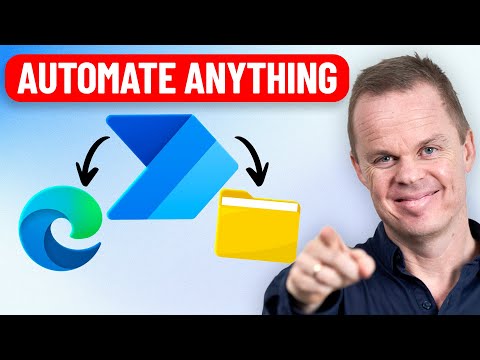
The YouTube video by Anders Jensen [MVP] walks viewers through a complete setup for Power Automate UI Automation. The presenter demonstrates how to prepare a machine runtime, connect that machine to the cloud, and run a flow created with Power Automate Desktop from the cloud. As a result, the video aims to give practical, repeatable steps so users can run UI automation in real scenarios. Overall, the presentation is hands-on and focused on end-to-end execution for common automation tasks.
Jensen frames the session for both beginners and intermediate users who want to integrate desktop flows with cloud triggers. He emphasizes capturing and managing UI elements to make automations more reliable across UI changes. The video shows concrete examples that range from legacy desktop apps to modern web pages. Consequently, viewers can see how the same principles apply across different application types.
The tutorial blends explanation with demonstration to reduce guesswork when following along. Anders highlights common pitfalls and offers quick tips for preparing the target machine. This combination of explanation and example helps shorten the learning curve for teams adopting UI automation. Ultimately, the video is a practical guide rather than a theoretical overview.
Core Concepts of Power Automate UI Automation
The video centers on the concept of UI elements, which are the building blocks for interactions such as clicks, typing, and data extraction. Anders explains how these elements map to specific controls on windows or webpages and how the automation uses them to act like a user. He also clarifies that desktop automations rely on native UI selectors while web automations usually use CSS selectors. Therefore, understanding selectors is essential to maintain stable flows when interfaces change.
Jensen demonstrates the UI element pane inside the flow designer and shows how captured elements are stored and reused. He suggests creating multiple selectors for one element to improve resilience, especially when UI attributes vary across versions. In addition, the video shows how to clean up unused elements to avoid clutter and reduce maintenance. This management step supports more sustainable automation practices over time.
Step-by-Step Setup Demonstrated
First, Anders covers the machine runtime installation and configuration so local machines can accept cloud-triggered flows. He walks through the required settings and highlights checks to confirm the connection is healthy. Next, he links the machine to the cloud environment and verifies the registration within Power Automate. These steps ensure the machine responds when a cloud flow calls a desktop flow.
Then, the video demonstrates capturing UI elements using keyboard shortcuts and the recorder tool in Power Automate Desktop. Anders records interactions in a legacy invoicing app and a web browser, showing how the same flow can span both environments. He adds dynamic selectors to handle slight layout shifts and shows how to test the flow end to end. After testing, he runs the desktop flow from the cloud to validate the full integration.
Finally, Anders highlights common automation tasks such as extracting web data and inserting it into a desktop application. He explains how to chain actions so web scraping feeds data into the legacy app without manual intervention. In doing so, the video illustrates an end-to-end use case that many organizations need for digital transformation. This practical example helps viewers adapt the technique to their own processes.
Tradeoffs and Practical Challenges
While UI automation offers broad reach, Anders discusses tradeoffs such as reliability versus maintainability when relying on visual selectors. On one hand, UI automation can support legacy systems that lack APIs, but on the other hand, it can break when the UI changes unexpectedly. He recommends using multiple selectors and dynamic patterns, yet he warns that creating many selectors increases complexity and maintenance work. Thus, teams must balance selector robustness with simplicity to keep flows manageable.
The video also addresses performance and security considerations when running desktop flows from the cloud. Running heavy UI automation on shared machines can cause conflicts or slowdowns, so choosing dedicated runtimes may be safer. Security is another concern because running UI automation often requires credential handling and access to sensitive screens, so proper governance is essential. Therefore, organizations need policies that balance automation speed with operational risk and compliance.
Takeaways and Recommendations
In conclusion, Anders Jensen’s tutorial provides clear, actionable steps for setting up and running Power Automate UI Automation across desktop and web environments. He combines practical setup advice with tips for selector management and element cleanup to help viewers create resilient flows. Moreover, the end-to-end example demonstrates how to move data between web pages and legacy apps without manual handoffs. For teams, the main recommendation is to plan for ongoing maintenance and governance alongside initial automation efforts.
Finally, the video underscores that UI automation is a pragmatic option when APIs do not exist, but it requires careful planning to remain stable and secure. Anders encourages testing in realistic environments and documenting selectors to reduce future troubleshooting. As a result, teams that follow these practices can achieve reliable automations while managing the tradeoffs that come with UI-driven workflows. Overall, the tutorial serves as a solid starting point for organizations that want to extend automation to both legacy and modern applications.
Keywords
Power Automate UI Automation Tutorial, Power Automate Desktop UI Automation, Power Automate RPA Tutorial, Power Automate UI Flows Tutorial, Power Automate Automation for Beginners, Power Automate Desktop Tutorial 2025, Power Automate UI Automation Examples, Power Automate Best Practices for UI Automation