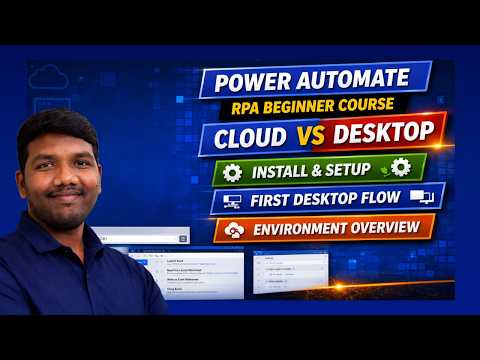
Power Automate: RPA Env & PAD Guide
Jumpstart RPA with Microsoft Power Automate Desktop: install, cloud vs desktop, recorder, variables, Excel automation
Key insights
- Power Automate is Microsoft’s platform for RPA (robotic process automation).
Use Power Automate Desktop (PAD) on Windows to build visual flows that mimic user actions and move data between apps. - Understand cloud vs desktop flows: cloud flows handle online services and connectors, while desktop flows run UI automation on Windows.
Choose cloud for backend integrations and desktop for app or legacy UI tasks. - Get started by installing PAD, creating your first desktop flow, and using the recorder to capture clicks and keystrokes.
Rely on recorded steps, then refine with actions and variables to add logic and data handling. - Automate common tasks with built-in actions: use Excel automation actions for reading/writing workbooks and browser automation for web forms and scraping.
Combine selectors and variables to make flows reliable across windows and pages. - Know the RPA execution modes: attended runs with a user present for approvals, unattended runs autonomously in background, and hosted offers managed, scalable infrastructure.
Match the mode to process criticality and scale. - Leverage AI and Copilot features to speed up flow building and use built-in document processing for invoices or forms.
Tap native integration with Microsoft 365 and Azure to connect Teams, SharePoint, Outlook and reduce custom work.
Introduction
This article summarizes a YouTube video by Automate with Deenu that introduces Microsoft Power Automate Desktop for new users. The video walks viewers through installation, environment setup, and a practical walkthrough of creating a first desktop flow. Overall, the session aims to demystify basic concepts and equip beginners with the skills to start automating routine tasks. Therefore, this write-up highlights the main lessons and practical tradeoffs shown in the video.
Moreover, the presenter frames the material as a starter guide to RPA with a hands-on approach. He contrasts cloud-based automation with desktop automation and then demonstrates recorder usage and simple Excel and browser automation. As a result, viewers can quickly see how different parts of the platform connect. Consequently, the video serves as an accessible entry point for those new to process automation.
Environment and Setup
The video begins by explaining where Power Automate Desktop runs and how it differs from cloud flows. Specifically, the presenter clarifies that desktop automation executes on Windows devices while cloud flows run in the Microsoft service layer, which affects deployment and management choices. He then steps through installation and extension configuration to connect browser automation to the desktop environment. Thus, the environment overview helps viewers avoid common setup pitfalls.
In addition, the narrator emphasizes permissions and extension requirements for browser automation, which can otherwise block UI interactions. He shows how to enable the necessary extensions and check settings so the recorder can capture actions reliably. Consequently, this setup work reduces intermittent failures later in development. Ultimately, a solid setup improves both productivity and automation stability.
Creating Your First Desktop Flow
Next, the video demonstrates how to create a basic desktop flow using the recorder and manual actions. First, the presenter records a simple sequence that opens applications, reads data, and interacts with a web page, and then he refines the recorded steps. He also introduces variables and simple branching to make the flow more robust against minor UI changes. As a result, beginners learn how to combine recorded actions with deliberate design choices.
Furthermore, the presenter shows how to test and debug flows within the desktop environment, stressing iterative validation. He explains common points of failure and suggests verifying each step before adding complexity. This measured approach helps developers balance speed with reliability. Consequently, viewers can adopt a repeatable workflow for building dependable automations.
Tools and Features Demonstrated
Throughout the session, the video highlights practical actions for interacting with Excel and web browsers, including data extraction and input automation. The presenter uses native Excel actions to read and write ranges, then shows how those values flow into web forms. He also describes how variables track intermediate data, making it easier to handle dynamic content. Therefore, viewers see clear examples of end-to-end automation across desktop and web apps.
In addition, the video touches on UI elements like selectors and how to make them less fragile, which is crucial for real-world use. The presenter briefly reviews attended versus unattended scenarios, describing when human intervention is expected and when full automation is appropriate. He also mentions the emerging role of AI-assisted authoring, which can speed up flow creation but requires human oversight. Thus, the showcased features convey both capabilities and practical limits.
Trade-offs and Challenges
The video fairly presents several tradeoffs between convenience and robustness when choosing automation approaches. For example, using the recorder offers speed, yet recorded UI-driven flows can be brittle if screens change frequently, whereas programmatic API integration tends to be more stable but requires more effort. Similarly, cloud flows simplify scale and orchestration, while desktop flows give direct control over local applications and legacy systems. Consequently, teams must balance speed, reliability, and maintenance when planning automation projects.
Security and maintainability also appear as recurring challenges in the presentation, particularly when automations handle sensitive data or rely on user credentials. The presenter recommends testing in controlled environments and documenting variable usage to reduce risk. He also addresses scaling: unattended bots and hosted RPA reduce operational overhead but require governance and capacity planning. Therefore, organizations should weigh operational benefits against governance and long-term support costs when adopting automation at scale.
In conclusion, Automate with Deenu delivers a concise, practical introduction to Power Automate Desktop that is well suited for beginners. The video balances hands-on demonstrations with clear explanations of tradeoffs, and it encourages viewers to start small while planning for security and maintenance. As a result, readers can expect to follow the video to build simple, useful automations and to understand where further investment will be required for reliable, larger-scale deployments.

Keywords
Power Automate RPA tutorial, Power Automate Desktop walkthrough, Power Automate environment overview, Power Automate extension configuration, RPA setup and configuration, Power Automate Desktop beginner guide, Power Automate RPA best practices, Power Automate environment setup