Power Automate: Create Word Docs Free
Power Platform Cloud Solutions Architect @ Microsoft | Microsoft BizApps MVP 2023 | Power Platform | SharePoint | Teams
Microsoft expert: Power Automate guide to create Microsoft Word documents without premium connector using Power Platform
Key insights
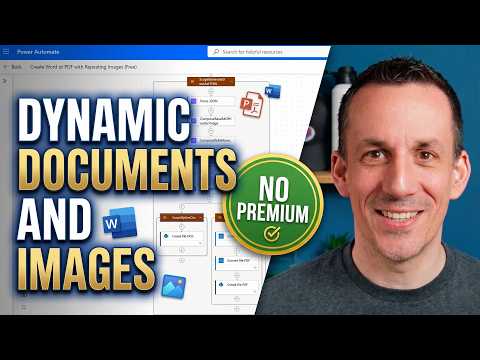
- Video summary: This is a concise recap of a YouTube video by Damien Bird that shows how to generate Word documents using Power Automate without the paid premium connector.
It explains how to use standard Microsoft 365 tools so teams can avoid extra licensing costs. - Main tools: The method uses SharePoint document libraries, Word templates with Quick Parts, and optional Power Apps for data entry.
Templates live in a SharePoint library or Site Assets and use columns that match template placeholders. - Core flow steps: Typical steps include a trigger (item created or Power Apps), Get file content to fetch the .docx blob, Create file to make a new document, and Update file properties to populate Quick Parts.
Post-processing can include getting final content and converting to PDF via standard OneDrive/Office actions. - Benefits: The approach delivers clear Cost Savings by avoiding premium licensing, plus Scalability for many documents, easy maintenance, and use of standard SharePoint and Word features.
It works well for onboarding, reports, and simple personalized documents. - Limitations: The solution does not handle repeating sections, advanced people-picker formatting, or complex image insertion without premium actions.
Workarounds include converting people picker values to text and storing simple images or data in SharePoint fields. - Best practices: Prepare templates with Quick Parts and align SharePoint site columns or a content type before building the flow.
Store templates in Site Assets, name files dynamically, test end-to-end, and document the mapping between columns and template fields.
Damien Bird’s recent YouTube video walks viewers through a practical way to generate Word documents using Microsoft tools without paying for the premium Power Automate connector. In this news-style summary, we objectively describe the technique, the steps shown, and the tradeoffs involved. Moreover, we place the approach in context for IT teams and business users who want to automate document generation on standard Microsoft 365 licenses.
What the video demonstrates
The video demonstrates how to use Power Automate and SharePoint together to create and populate Word documents without the premium Populate a Microsoft Word template action. Damien explains how to store Word templates in a SharePoint library, retrieve them as file content, create new files from that content, and then update document metadata so Quick Parts in Word display the desired values. He also shows how to convert results to PDF using standard connectors like OneDrive when a non-premium output format is required.
How the solution works
First, the process relies on preparing a SharePoint document library with custom columns that match placeholders inside a Word template. Next, a flow triggers on an action such as a SharePoint item creation or a Power Apps button, then uses actions like Get file content, Create file, and Update file properties to populate the template indirectly. Finally, the flow can fetch the completed file and optionally convert it to PDF before sending it by email or storing it for later use, thereby completing the automation without premium connectors.
Benefits and practical tradeoffs
This approach clearly saves licensing costs because standard Microsoft 365 subscriptions support the required SharePoint and OneDrive actions, so organizations avoid rolling out premium Power Automate or Power Apps licenses to every user. Consequently, it scales better for high-volume or broad user bases where buying per-user premium access would be expensive. However, the technique trades off some advanced functionality: it does not natively handle repeating sections, complex image insertion, or rich people-picker formatting, so teams must weigh cost savings against feature limitations.
Challenges and limitations
Several practical challenges surface when adopting this method. For example, mapping Quick Parts to SharePoint columns requires careful template design and consistent column naming, and errors in mapping can produce blank fields or incorrect output. In addition, scenarios that need repeating content blocks, dynamic image placement, or formatted people fields often force workarounds that add complexity and maintenance overhead. Therefore, groups with highly dynamic document layouts may find the workaround approach brittle and eventually consider premium connectors or third-party tools.
Another operational challenge involves permission and ownership boundaries: content type management and template updates usually require site owner or administrator rights, so smaller teams should plan governance and change control. Moreover, concurrent flows that create and update files can cause race conditions unless you add locking or serialisation patterns, which increases flow complexity. Finally, converting to PDF via OneDrive or similar services may add extra steps and transient storage considerations, particularly for very large batches of documents.
Recommendations and alternatives
Damien’s video suggests sensible best practices: keep templates in a controlled SharePoint location, use consistent site columns, and test flows with representative data before broad deployment. For most teams, this approach offers a pragmatic balance: maintainable templates plus cost control, provided the document requirements remain straightforward. For organizations that need repeating sections, dynamic images, or richer people-type formatting, the recommendation is to evaluate the premium Word connector or specialist third-party document-generation tools, since those options reduce custom work at the expense of license or vendor costs.
As a final note, administrators should build robust error handling in flows, manage content type versioning carefully, and document template-field mappings so non-technical contributors can update templates safely. In addition, consider periodic audits of flows and templates to prevent drift between SharePoint columns and Word Quick Parts. Overall, Damien Bird’s video offers a valuable, cost-conscious pattern for many common document automation needs, while also clarifying where teams must accept tradeoffs or invest in higher-capability solutions.

Keywords
power automate create word document without premium, power automate generate word doc without premium connector, create word document from template power automate, power automate populate word template no premium, power automate create docx without premium, power automate word automation no premium connector, power automate word template fill dynamically, power automate export data to word without premium