Power Apps
Feb 10, 2025 4:26 PM
Power Apps 2025: Custom Forms with Top Best Practices
by HubSite 365 about Andrew Hess - MySPQuestions
Currently I am sharing my knowledge with the Power Platform, with PowerApps and Power Automate. With over 8 years of experience, I have been learning SharePoint and SharePoint Online
Power Apps 2025: Custom form design, accessibility tips, SharePoint integration; using Power Apps, Fluent Framework.
Key insights
- Power Apps in 2025 offers new features like AI-powered capabilities, including intelligent agents for automating tasks such as data exploration and entry.
- The platform has enhanced design tools with modern controls in canvas apps, providing a more intuitive way to build maintainable and accessible applications.
- When creating custom forms in Power Apps, it's important to organize the form into logical sections. Use multiple screens or tabs for lengthy forms to improve usability.
- Reuse forms for creating, editing, and viewing records to save development time and ensure consistency across your applications.
- Implement validation rules to ensure data accuracy by marking mandatory fields clearly and validating formats like email addresses or phone numbers.
- Use the ‘Container’ control to organize app layout, enhancing accessibility, particularly for screen reader users.
Introduction to Power Apps in 2025
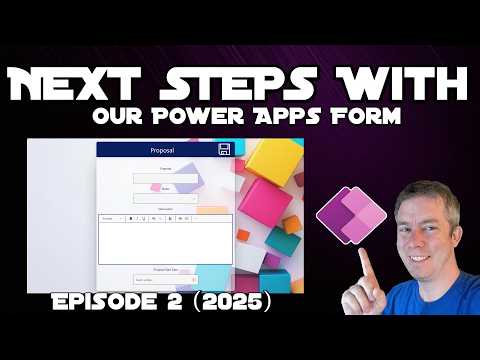
In February 2025, Power Apps continues to evolve, offering several new features and enhancements that aim to improve app development and user experience. Andrew Hess from "MySPQuestions" has released a two-part YouTube video series, with the second part focusing on completing a Power Apps form and discussing best practices. This video is particularly beneficial for beginners who are looking to build scalable and accessible apps with SharePoint integration. The video covers a range of topics, including resetting controls, adding colors and gradients, accessibility considerations, and delegation with SharePoint.Designing a Responsive User Interface
One of the key highlights of the video is the emphasis on designing a responsive user interface using containers and Screen.Size. Andrew demonstrates advanced styling techniques, such as incorporating HTML text controls for gradient effects, to achieve a modern, Microsoft Forms-inspired look. This approach not only enhances the visual appeal of the app but also ensures that it is adaptable to different screen sizes and devices. By organizing controls using the 'Container' control, developers can structure the app layout effectively, enhancing accessibility, especially for screen reader users.Accessibility and Fluent Framework
Accessibility is a crucial aspect of app development, and Andrew Hess delves into best practices for ensuring that color schemes and fonts are friendly for all users. The video introduces the Fluent Framework, which aids in creating accessible labels and managing tab indexes. These elements are vital for users who rely on assistive technologies. Moreover, Andrew provides resources for verifying and documenting accessibility, ensuring that developers can create inclusive applications that cater to a diverse audience.Resetting Controls and Delegation Challenges
The video also explores methods for resetting controls easily using the Concurrent function. This technique is essential for maintaining a smooth user experience, allowing users to reset forms without hassle. Additionally, Andrew addresses delegation challenges when integrating Power Apps with SharePoint. Delegation is a common issue that developers face, as it affects the performance and scalability of apps. The video provides insights into handling these challenges effectively, ensuring that apps remain efficient and responsive.Evaluating the Role of Power Apps in Business
As Power Apps continues to grow, its role in modern business environments becomes increasingly significant. The platform's AI-powered capabilities, such as intelligent agents, automate common tasks like data exploration and entry, streamlining the app development process. These advancements make Power Apps a valuable tool for businesses looking to enhance productivity and efficiency. However, developers must carefully evaluate whether building a Power App is the right choice for their specific needs, considering factors such as integration with existing systems and user requirements.Best Practices for Creating Custom Forms
Adhering to best practices is crucial when creating custom forms in Power Apps. Andrew Hess emphasizes the importance of organizing forms into logical sections, grouping related fields together. For lengthy forms, using multiple screens, steps, or tabs can enhance usability. Reusing forms for creating, editing, and displaying records reduces development time and ensures consistency. Implementing validation rules is also essential for data accuracy, clearly indicating mandatory fields and validating specific formats like email addresses or phone numbers. In conclusion, by following these best practices and leveraging the latest features in Power Apps, developers can create efficient, user-friendly, and maintainable custom forms that meet the evolving needs of their organizations. Andrew Hess's video serves as a valuable resource for anyone looking to harness the full potential of Power Apps in 2025.

Keywords
Power Apps 2025 custom forms best practices low-code development Microsoft Power Platform app building user experience digital transformation
HubSite 365 Apps