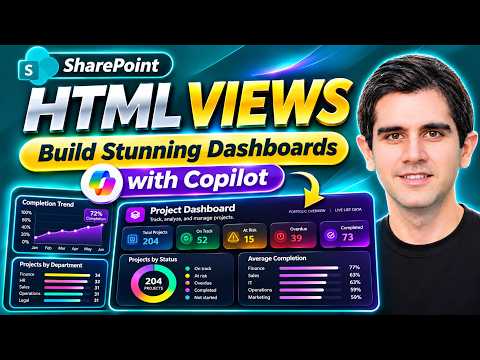
SharePoint HTML views build live list dashboards
Principal Program Manager at Microsoft Power CAT Team | Power Platform Content Creator
SharePoint list owners can use Copilot to create interactive HTML dashboard views that stay connected to list data.
Key insights
- Creating or editing a dashboard view with Copilot requires a Microsoft 365 Copilot license.
- People who view the dashboard do not need a Copilot license, and SharePoint list permissions still apply.
- HTML views display list data but cannot create, update or delete items on their own.
- Add buttons that open the SharePoint New or Edit forms to let users change list items.
- A view created from an existing list carries its views, including HTML views, to the new list.
SharePoint HTML views let list owners use Copilot to create interactive dashboards connected to list data, rather than showing that data only in rows and columns. The feature can help teams that track operational information in SharePoint lists or libraries and want a visual way to explore it. Reza Dorrani demonstrates how to create and customize these views, including adding buttons that open SharePoint list forms.
What it does
A Dashboard view turns a natural-language description into an HTML-based view of a SharePoint list. A prompt can request visual elements such as KPI cards, charts, filters and a searchable table. In the Projects example, the dashboard displays project information and lets users filter the displayed items by status, department or priority.
The view works with the list’s data, so it is a presentation of the list rather than a separately maintained dataset. That makes it useful when users need an at-a-glance view of information they already track in SharePoint. It sits alongside familiar options such as Board and Calendar views, giving people different ways to work with the same list.
Copilot can also revise a view in response to follow-up prompts. For example, the demonstration uses an image as a visual reference for a redesign. The generated view is based on JSON view formatting with custom HTML, which means a maker can also use HTML created with a coding agent and apply it as a formatter.
Who it is for and what you need
The feature is aimed at list owners and makers who want a custom, interactive presentation for structured SharePoint data. The list or library should contain the fields the dashboard needs to show, such as status, priority, owner or due date. Clear field names and a specific description of the desired content give Copilot useful context for creating the view.
Creating or editing views with Copilot requires a Microsoft 365 Copilot license for the person doing that work. People who consume the finished view do not need a Copilot license. They still need access to the underlying SharePoint list, and the view respects its permissions.
The demonstration creates views from a SharePoint list and also describes the experience for Microsoft Lists and document libraries. It does not establish a general rollout date or tenant-wide availability status, so check whether the Dashboard option appears in the list or library experience available to your organization.
How it works
- Open the SharePoint list or library and choose the option to add a view. Select Dashboard as the view type.
- Describe the view in everyday language. Specify what it should help users understand and which list fields, charts, filters or controls it should include.
- Review the generated view, then use Copilot prompts to refine it. In the demonstrated workflow, a reference image can guide a redesign.
- To create a view from the Dashboard option, give it a descriptive name. The name becomes part of the prompt Copilot uses to start building the view, so include the subject and intended visualization.
- For a custom-built view, open Format current view, choose Advanced mode, and paste the JSON formatter code. The view’s formatting uses custom HTML.
HTML views are read-only for list data: they do not create, edit or delete items on their own. To provide editing actions, ask Copilot to add buttons that open the existing SharePoint New and Edit forms. Users can then submit changes through those forms and see the updated information in the view.
Views can also travel with a list when you create a new list from an existing one. The demonstrated copy includes the columns and views, including HTML views; the new list starts without the original list’s data.
Limitations and alternatives
The main practical distinction is between viewing data and changing it. An HTML dashboard can present interactive visualizations and filters, but its HTML does not directly perform list-item create, update or delete operations. Add links or buttons to the standard SharePoint forms when users need to make changes.
Before relying on a dashboard for a workflow, check that it shows the fields and interactions users need and that the list’s permissions match the intended audience. The output is a formatted view, not a replacement for the underlying list: users continue to work with the list and its forms for data entry.
If Copilot-generated HTML does not match the desired experience, the formatter can be edited or supplied from a coding agent and applied in Advanced mode. Standard list, Board and Calendar views remain alternatives for users who prefer those layouts.
Sources
Frequently asked questions
Do users need a Copilot license to view a SharePoint HTML dashboard?
No. The person creating or editing the view with Copilot needs a Microsoft 365 Copilot license, but viewers do not. SharePoint list permissions still apply.
Can a SharePoint HTML view edit list items?
Not directly. Add New or Edit buttons that open the existing SharePoint list forms so users can submit changes there.
How do I create a SharePoint Dashboard view with Copilot?
Add a view, select Dashboard, and describe the desired layout and content. The view name also becomes part of the prompt when you start from the Dashboard option.
Can I use custom HTML in a SharePoint list view?
Yes. The view uses JSON formatting with custom HTML. You can apply formatter code through Format current view and Advanced mode.