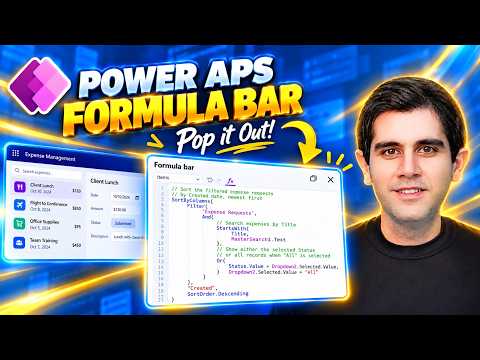
Power Apps Formula Bar adds a pop-out editor
Principal Program Manager at Microsoft Power CAT Team | Power Platform Content Creator
Reza Dorrani demonstrates Power Apps’ pop-out Formula Bar, giving canvas app makers more room to read and edit larger Power Fx formulas.
Key insights
- The new experience lets makers pop out the Formula Bar while editing canvas apps.
- Dorrani demonstrates the editor with an Expense Management app connected to SharePoint.
- Examples include gallery search, filtering and sorting, plus an All option for SharePoint Choice values.
- The walkthrough covers reusable App Formulas, named formulas, and comments in formulas.
Power Platform content creator Reza Dorrani recently demonstrated a new Formula Bar experience in Power Apps canvas apps. The central change is that makers can pop out the Formula Bar to work with larger Power Fx formulas in a more comfortable editing space. His walkthrough uses an Expense Management app connected to SharePoint to show formula examples and the editor in context.
What's new
The feature highlighted in Dorrani’s post is the option to pop out the Formula Bar. Power Fx is the formula language makers use to define app behavior, and the Formula Bar is where they work with those expressions. The demonstrated change focuses on editing experience: it gives makers a separate, larger space for reading and editing formulas.
The examples span several common canvas app tasks. Dorrani shows search, filter, and sort logic in a gallery, dropdown filtering, and adding an “All” option to SharePoint Choice values. He also demonstrates formula functions including ForAll, Sequence, CountRows, Choices, and Index.
The walkthrough also turns to App Formulas and named formulas. These examples show reusable logic being used across the app, including a check for whether the current user is an Admin and metrics in App Formulas. Dorrani also shows adding comments to formulas to make larger expressions easier to understand.
Why it matters
The change is aimed at canvas app makers who regularly work with Power Fx, particularly when their formulas grow beyond what is comfortable to review in the usual Formula Bar space. More editing room can make it easier to read and change a long expression, while keeping the focus on the app’s behavior rather than squeezing the formula into a smaller area.
For makers maintaining an existing app, the examples offer a sense of the types of work the pop-out can support: gallery data logic, dropdown behavior, reusable calculations, and user checks. The post’s practical takeaway is not that the Formula Bar changes what a formula can do, but that larger formulas may be easier to read, edit, and maintain in the popped-out view.
For admins, the material provides no details about tenant controls, licensing, or rollout. It does not say whether the feature requires a setting or whether it is available to specific environments. End users are not the focus of the walkthrough; the described change concerns how makers edit an app, not a new end-user capability.
How it works
Dorrani demonstrates the feature while working in a canvas app and editing Power Fx. The described workflow is to use the Formula Bar’s pop-out option when working with a formula that benefits from more space. The source material does not provide a full sequence of interface clicks, so the steps below reflect only what it describes.
- Work in a canvas app in Power Apps and identify the formula you need to edit.
- Pop out the Formula Bar to open a more spacious editing experience.
- Read and edit the formula in that space, using examples such as gallery search, filtering, sorting, or reusable App Formulas.
- Add comments where useful to make larger formulas easier to understand and maintain.
The Expense Management example connects to SharePoint. Its demonstrations include working with Choice values and creating an “All” option for a dropdown, alongside gallery search, filtering, and sorting. Other shown formula topics include ForAll, Sequence, CountRows, Choices, and Index; the post identifies these functions but does not provide their detailed expressions in the supplied material.
Named App Formulas are another part of the walkthrough. Dorrani demonstrates reusable logic, a current-user Admin check, and metrics in App Formulas. The source does not describe the exact formula syntax or explain the app’s data model, so these examples should be read as topics shown rather than complete implementation instructions.
Limitations and open questions
The post description explains the purpose of the pop-out Formula Bar and lists the examples shown, but it does not specify how the feature is enabled or identify a Power Apps Studio version. It also gives no rollout stage, availability information, licensing requirements, or administrator configuration details. Those points cannot be established from the material provided.
The description does not document editor behavior such as synchronization, supported window arrangements, or specific editing tools. It also does not include the complete formulas used in the Expense Management app. Makers can take away the practical idea—use the popped-out editor for larger formulas—but should consult the product interface and documentation for operational details not covered in the demonstration.
Sources
Frequently asked questions
What does the pop-out Formula Bar do?
It provides a more spacious editing experience for working with larger Power Fx formulas in canvas apps. The supplied description does not specify the exact interface steps.
What examples does Dorrani show?
The walkthrough includes gallery search, filtering and sorting, dropdown filtering, an “All” option for SharePoint Choice values, reusable App Formulas, a current-user Admin check, and formula comments.
Does the post say which licenses or environments support the feature?
No. The supplied material does not give licensing, rollout, or environment availability details.