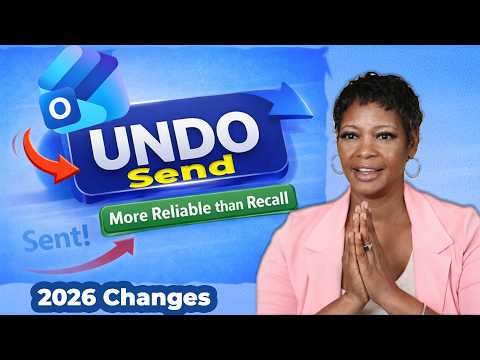
Outlook: Undo Send Emails in Seconds
My channel covers training videos of Microsoft 365 Online and Desktop products like Outlook, Excel, Word, PowerPoint, and Microsoft Teams. Microsoft's classic products are evolving with modern technol
Microsoft Outlook expert: Master Undo Send in New Outlook to recall emails fast and improve Outlook email management
Key insights
- Undo Send in the New Outlook pauses delivery after you click Send and shows a "Sending… Undo" banner so you can return the message to Drafts and edit before it goes out.
- How it works: Outlook holds the message for a short, configurable delay (up to 30 seconds) and only delivers after the timer ends, making the action reliable across internal and external recipients.
- Enable and adjust: Open Outlook settings, find Mail > Compose and Reply, then set the Undo Send delay (typical range 5–30 seconds); save changes and test with a draft.
- Undo Send vs. Recall: Undo Send blocks delivery before the message leaves your outbox, so it works every time during the window; traditional Recall tries to retract a sent message and often fails for external or already-read emails.
- Benefits and limits: The feature reduces typo and attachment mistakes, is easy to use, and works for any recipient; longer delays can slightly slow delivery and may show minor instability on some networks.
- Practical tips: Keep a mid-range delay (around 10–15 seconds) for speed and safety, test the setting in a draft folder, and use Undo to fix wrong attachments or recipients before resending.
Overview of the Video
The YouTube video by TRACCreations4E demonstrates how to retract a sent message using the New Outlook feature called Undo Send. The presenter walks viewers through the moment of panic after sending an email with a mistake. Then the clip explains how the Undo Send delay pauses delivery and offers a short window to recover the draft. Overall, the video frames the feature as a simple fix for common email errors.
The video opens with a relatable scenario: a message sent with wrong information or the wrong attachment. The presenter emphasizes how often users wish for a quick undo option after hitting Send. Next, the clip contrasts Undo Send with the older Message Recall approach to show why the new method works better in many cases. The tone stays practical and focused on everyday use.
Throughout, TRACCreations4E uses screen recordings to make each step clear. Viewers see the small banner that appears after sending, labelled "Sending… Undo", and the simple click that restores the message to Drafts. The video also notes configuration options and recommended delay settings. This hands-on style helps viewers decide whether to enable the feature right away.
How Undo Send Works
The core idea of Undo Send is a pre-delivery delay that holds an email for a short time after you press Send. During that window the client shows the "Sending… Undo" prompt and allows you to cancel delivery and edit the draft. If you click Undo within the time limit, the message never leaves your outbox and you can fix mistakes before anyone sees them. This differs from recall methods that try to retract a message after it already left your mailbox.
Because the email does not actually reach recipients until the timer expires, Undo Send avoids many of the failures that plague post-send recall attempts. It works across internal and external recipients since the message never transmits. This mechanism therefore provides more predictable results than server-dependent recall features. The approach keeps things simple and reliable for most users.
However, the feature has a finite window and depends on client settings and network behavior. If the timer is too short you may not have enough time to realize the mistake. If it is too long, some users may notice slight delivery delays, especially on slower networks. Therefore, understanding the timing options is important for an effective setup.
Setting Up and Using the Feature
The video shows how to locate the Undo Send setting inside the New Outlook app and change the delay between 5 and 30 seconds. The presenter guides users to the mail compose settings where they can slide the timer to a preferred value. After saving the change, the next sent messages follow the chosen delay and display the undo banner. The steps are straightforward and work for most modern Outlook installations.
Viewers see a quick demo of sending a message and clicking Undo while the timer runs. The message returns to Drafts and shows up for immediate editing, which the presenter demonstrates. For web-based Outlook, the video notes shorter defaults but similar controls in the online settings. The practical walkthrough helps less technical viewers adopt the feature without guesswork.
The presenter also recommends testing the feature on a low-risk message before relying on it for critical communications. Testing helps users learn where the visual banner appears and how long they need to act. It also reveals any local network delays that could affect the perceived responsiveness. This simple trial prevents surprises in urgent situations.
Tradeoffs and Implementation Challenges
Extending the delay to 30 seconds improves safety but introduces tradeoffs that organizations must weigh. Longer delays give users more time to catch errors, yet they also postpone delivery and may upset workflows that expect immediate transmission. In time-sensitive contexts a shorter interval may be preferable, while less urgent exchanges can tolerate the extra hold time.
Another challenge lies in consistency across platforms and accounts. Settings may differ between desktop, web, and mobile clients, which can confuse users who switch devices. Administrators must decide whether to standardize defaults or allow personal preference, and they must communicate any policy choices clearly. Without coordination, users might assume behavior that does not match reality.
Finally, implementations must account for network instability and client updates. High delay settings can interact with temporary connectivity issues and create perceived delays that frustrate users. In addition, workplace policies or third-party systems might override client-side delays, reducing the feature's reliability. These operational factors mean IT teams should test and document expected behavior before broad rollout.
Practical Tips and Final Takeaways
For most users, a mid-range delay such as 10 to 15 seconds balances speed and safety while avoiding noticeable delivery lag. The video suggests this sweet spot and demonstrates how it reduces follow-up corrections and apologies. Team training and simple documentation help people adopt the feature quickly and avoid false confidence in recall tools. Clear guidance also prevents mismatched expectations between senders and recipients.
Administrators should test the feature in pilot groups and monitor any effects on delivery times and user satisfaction. They can then tune default settings or set group policies to match business needs. Communication about where the undo banner appears and how to act gives people the confidence to use the feature properly. Overall, the video from TRACCreations4E presents a practical, low-friction improvement that can reduce daily email mistakes and improve workflow.
Keywords
undo send outlook, recall sent email outlook, unsend email outlook, take back sent email outlook, recall email outlook 365, retract sent email outlook, outlook undo send tutorial, delay send outlook trick