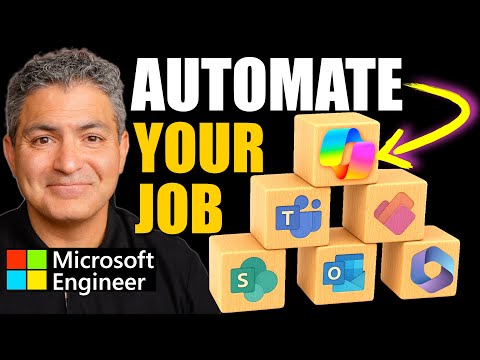
Copilot Workflows Agent: Full Tutorial
Principal Technical Specialist @ Microsoft | Engineer | YouTuber
Expert guide to Copilot Workflows Agent automating emails in Outlook and Teams with Microsoft three sixty five Copilot
Key insights
- Copilot Workflows Agent: An AI tool inside Microsoft 365 Copilot that turns plain-language requests into automated flows across apps.
In this tutorial the presenter rebuilds an autonomous email helper so anyone can follow along. - Step-by-step workflow: Open the Microsoft 365 Copilot app, pick the Workflows Agent, describe the task in plain language, then review and run the generated flow.
You can edit steps directly in the conversation before you execute the automation. - Natural language automation: Tell Copilot what to do (for example, reply to incoming emails or create a Planner task) and it will generate the flow logic.
This removes the need for deep technical skills to build common automations. - Cross-app integration: Workflows run across Outlook, Teams, SharePoint, Planner, and Approvals to enable end-to-end automations like auto-replies, task creation, and file-driven processes.
The agent integrates directly with Outlook and Teams for the real-world examples shown in the video. - File handling & code interpreter: Agents can accept files, pass them to connectors or Power Automate, and run Python code inside Copilot Studio for richer processing.
“Express Mode” speeds many flows so logic-heavy, small-data runs often complete in under two minutes. - Analytics and cost controls: Makers get transcripts, session analytics, and activity logs to measure agent performance and spot missed questions.
Admins can monitor usage and set monthly Copilot credit limits to manage costs and capacity.
Video snapshot and context
In a new tutorial-style video, Shervin Shaffie (Collaboration Simplified) demonstrates how the Copilot Workflows Agent works inside the Microsoft 365 Copilot app and walks viewers through building a practical automation from scratch. The recording aims to make automation approachable, showing steps to recreate an autonomous email helper that originally lived in Copilot Studio. Consequently, the video targets both newcomers and makers who want a simpler route to everyday automation.
Reportedly, the host emphasizes plain-language prompts and shows real-time flow creation, including connections to Outlook and Teams. Therefore, the clip serves as a hands-on guide to enable, build, and test a working agent that replies to emails automatically. At the same time, Shaffie notes the distinction between using the new Workflows Agent and the more advanced tooling available in Copilot Studio.
What the Workflows Agent does
The video describes the Workflows Agent as an assistant that turns your natural language instructions into automated flows across Microsoft 365 apps. For example, you can ask it to reply to messages, create tasks, or route information between SharePoint and Teams, and it will assemble the steps for you. Importantly, Shaffie highlights that this approach lowers the technical barrier, enabling people without coding skills to automate routine work.
Moreover, the agent handles files and can pass them to downstream systems through connectors or integrations, which broadens its practical use cases. The tutorial also points out a built-in code interpreter feature in Copilot Studio for those who need custom logic, thereby offering a spectrum from simple no-code flows to code-enabled agents. In short, the Workflows Agent sits between quick wins for everyday users and advanced maker scenarios for power users.
Finally, Shaffie shows the agent’s ability to build cross-application flows in real time, so users can review and adjust steps as the system drafts them. This live feedback loop helps prevent obvious mistakes and speeds iteration when the flow’s logic needs fine-tuning. Consequently, the experience feels more conversational and less like filling out forms.
Step-by-step tutorial highlights
Shaffie opens the Copilot app, enables the Workflows Agent, and starts by describing the goal in plain English, then watches as the agent generates the flow. Next, he customizes actions such as reading emails, crafting replies, and posting notifications to Teams, demonstrating how each modification appears in the workflow builder. In this way, viewers can see both the initial draft and the edits needed to make the automation production-ready.
During the walkthrough, the host tests the agent to prove it can reply automatically and shows how to monitor runs and view transcripts of agent activity. He also points out the analytics and session logs that help makers track performance and spot unanswered questions. Therefore, the tutorial balances creation with the operational steps that matter when deployments start to run at scale.
Additionally, Shaffie mentions billing and consumption controls, showing how administrators can monitor usage and cap monthly credits to manage costs. These settings aim to prevent runaway automation costs and give IT teams a lever to control experiments. As a result, organizations can pilot automations while retaining governance over consumption.
Tradeoffs and practical challenges
While the Workflows Agent simplifies many automation tasks, Shaffie and the tutorial implicitly raise tradeoffs between ease of use and control. On one hand, plain-language flows accelerate adoption and let teams automate repetitive tasks quickly; on the other hand, they may obscure complex logic that benefits from explicit design in a traditional workflow or in Copilot Studio. Thus, teams must decide when a quick agent is enough and when to invest in more controlled, auditable solutions.
Security and governance also present real challenges: automated agents that handle email and files require correct permission boundaries and monitoring. Shaffie stresses that admins should configure limits and review connectors to limit exposure of sensitive data. Consequently, balancing user productivity with organization-level controls remains a central concern for IT leaders.
Finally, reliability and error handling can be harder to predict in natural-language-driven flows, especially for logic-heavy tasks or when integrating with many systems. Express execution modes may speed runs for lightweight flows, but complex automations still need careful testing and fallback steps. Therefore, makers should plan for monitoring, retries, and human-in-the-loop checks where errors could cause business risk.
Takeaways for teams and makers
Overall, the video by Shervin Shaffie provides a clear, approachable path to start using the Copilot Workflows Agent for common scenarios like an automated email helper. Consequently, teams can reduce manual work quickly while learning how to build and monitor agents. Moreover, the blend of no-code convenience and optional advanced features makes this a flexible option for many organizations.
That said, organizations should pilot thoughtfully, set governance guardrails, and train makers on best practices to reduce risk. In addition, when automations need deep customization or rigorous auditing, moving from a Workflows Agent to a more developer-oriented approach in Copilot Studio may be the right tradeoff. Ultimately, the video serves as a practical starting point that clarifies both the promise and the real responsibilities of deploying AI-driven automation at work.

Keywords
copilot workflows agent, copilot workflows tutorial, automate job with copilot, microsoft copilot workflows, copilot agent automation, copilot workflows full tutorial, automate tasks with copilot, copilot workflow examples