Excel: Agent Mode, Copilot & Formula AI
Software Development Redmond, Washington
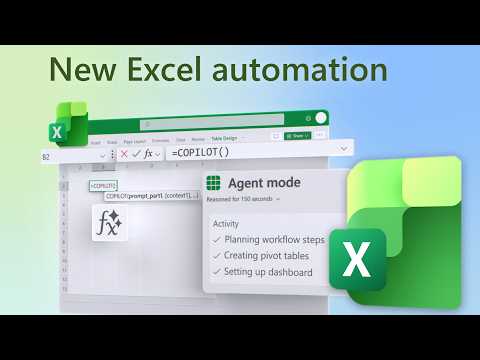
Microsoft Excel tips with Agent Mode Copilot and Formula AI to automate analysis build dashboards and generate formulas
Key insights
- Source & focus: Summary of a Microsoft Mechanics video with Jeremy Chapman that highlights Excel's AI updates: Agent Mode, Copilot Function, and Formula AI.
These tools aim to make analysis, formulas, and dashboards faster and easier. - How it works: Use plain-language prompts inside Excel to tell the AI what to do; Agent Mode runs multi-step workflows in-canvas and edits workbooks for you.
It can create pivot tables, build dashboards, and automate repetitive setup tasks. - Formula help: Formula AI and formula completion offer context-aware suggestions when you type “=”, and can generate accurate formulas from plain-language requests.
This reduces trial-and-error and speeds up complex calculations. - Text and feedback analysis: The Copilot Function can categorize feedback, score sentiment, and streamline text analysis directly in spreadsheets.
Use it to turn raw comments into structured insights and KPIs quickly. - Underlying tech: These features use large language models and reasoning models that iterate, check, and refine results so outputs match your goals.
Always review AI suggestions and validate key formulas before finalizing work. - Practical benefits: Expect greater speed, efficiency, and broader accessibility for advanced analysis—helping teams make faster, data-driven decisions.
Tip: start with clear prompts, confirm outputs, and use Copilot to automate repeatable workflows.
Overview of the Video Update
The YouTube video, published by Microsoft, showcases recent enhancements to Microsoft Excel that center on AI-driven productivity tools. In particular, it highlights three features: Agent Mode, the Copilot Function, and Formula AI, and explains how they accelerate analysis and reduce manual work. Microsoft 365 Director Jeremy Chapman guides viewers through demonstrations and practical examples, making the technical changes easy to follow. Consequently, the video positions these improvements as meaningful steps toward more accessible, intelligent spreadsheets.
The presentation structures the content with clear time markers and short demos, which helps viewers jump to specific features during playback. Moreover, the narrator emphasizes real-world use cases, such as automating pivot tables, scoring sentiment from feedback, and generating formulas from plain language. This practical framing makes the update relevant to both casual users and advanced spreadsheet professionals. Overall, the video aims to show how AI can transform routine Excel tasks into rapid insights.
Agent Mode: Multi-Step Automation Inside Excel
Agent Mode acts as an in-canvas assistant that can plan, iterate, and validate multi-step processes in a workbook. The video demonstrates how a user can describe an analysis in natural language and watch the agent perform tasks like creating pivots, filtering data, and building dashboards without manual setup. This approach reduces repetitive clicks and enables more consistent results across complex workflows. As a result, teams can focus on interpretation rather than on routine configuration.
However, this convenience introduces tradeoffs that organizations must consider. While automation speeds execution, it may also hide intermediate steps that analysts typically review, which can make debugging or auditing results harder. Additionally, Agent Mode’s performance depends on data quality and clear prompts; messy or ambiguous inputs can lead to incorrect outputs. Therefore, balancing automation with transparency and validation remains essential for trust and governance.
Furthermore, enterprises must weigh where to apply Agent Mode versus retaining manual control. For repeatable, well-defined processes, the agent can deliver time savings and consistency. Conversely, for exploratory analysis or regulatory reporting, human oversight and documented steps may still be preferable. Thus, the feature complements rather than replaces existing best practices in spreadsheet management.
Copilot Function and Formula AI: Natural Language to Results
The video also spotlights the Copilot Function, which interprets plain-language prompts directly inside cells to perform tasks like categorizing feedback or calculating sentiment. This function lowers the bar for users who struggle with complex functions, enabling faster prototyping and clearer outcomes. Simultaneously, Formula AI assists by suggesting or completing formulas as users type, offering context-aware recommendations that reduce syntax errors and speed up formula creation. Together, these capabilities make Excel more approachable for non-experts.
Yet, these features demand thoughtful use. Natural-language interpretations can be ambiguous, so users should validate Copilot outputs against known samples and edge cases. Similarly, formula suggestions speed work but may not always align with specific business logic, requiring review before deployment. Consequently, teams should adopt verification steps and perhaps maintain a library of proven formulas for critical reports.
On the upside, combining Copilot with Formula AI supports a rapid learning curve for new users and helps experienced analysts avoid tedious tasks. It also promotes experimentation, as users can iterate on prompts and instantly see results. Therefore, the technology fosters both faster delivery and iterative refinement when paired with disciplined review practices.
Tradeoffs and Implementation Challenges
Adopting these AI features involves tradeoffs across accuracy, control, and compliance. While automation increases speed, it can obscure how results are produced unless tools provide clear audit trails. The video suggests iteration and validation as remedies, but organizations must implement governance frameworks to monitor AI-driven processes in spreadsheets. In turn, that raises decisions about who reviews outputs and how to document changes for internal or external audits.
Another challenge lies in data sensitivity and privacy. When AI models process user data inside Excel, companies need policies that limit exposure and manage access. Moreover, the effectiveness of AI features depends on the quality of source data, so investments in data hygiene and consistent schemas remain critical. Thus, technical enhancements must be paired with process controls to ensure reliable and secure outcomes.
What This Means for Users and Next Steps
For everyday users, these updates mean faster analysis, easier formula generation, and reduced manual effort when building dashboards and KPIs. For teams, the changes offer opportunities to standardize repetitive tasks and free analysts for higher-value questions. However, the benefits are maximized only when organizations balance automation with oversight and maintain best practices for data quality and governance.
Ultimately, the video from Microsoft presents a pragmatic vision: AI can significantly enhance spreadsheet productivity, but thoughtful adoption matters. As companies pilot these features, they should measure accuracy, track time savings, and establish review processes to manage risk. By doing so, they can harness the speed and accessibility of AI tools while preserving transparency and control in their Excel workflows.

Keywords
Excel Copilot features, Agent Mode for Excel, Formula AI in Excel, Excel power user updates, Microsoft 365 Copilot Excel, Advanced Excel automation, Excel AI formulas and functions, Copilot agent mode tutorial