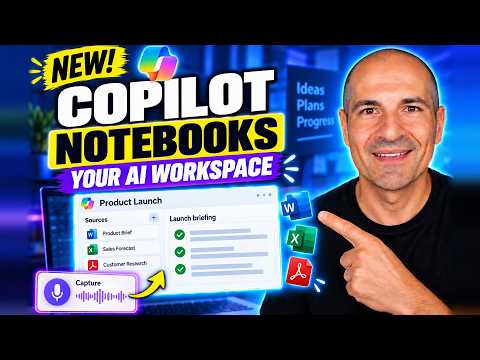
Copilot Workspaces: Build a shared project context
Microsoft MVPs, YouTube Creator youtube.com/giulianodeluca, International Speaker, Technical Architect
Copilot Workspaces keep project files and conversations together so users can ask questions without restating the same background.
Key insights
- A workspace can collect Word, PowerPoint, Excel and PDF files as references for Copilot.
- Copilot uses the current workspace as its context; users can switch to Work and web to broaden the search.
- Workspace files can be edited, and Copilot may reflect saved changes in later answers.
- Users can pin, rename, recolor or delete a workspace and add members.
- OneNote surfaces Copilot Workspaces, where users can also create pages and outputs such as mind maps and audio overviews.
Copilot Workspaces organize a project’s files and related information so Copilot can answer questions using that selected context instead of requiring users to restate the background in each prompt. They are useful for teams and individuals who return to the same project information across multiple conversations. Giuliano De Luca [MVP] demonstrates creating a workspace, adding project files, asking grounded questions and continuing the work in OneNote.
What's new
In the experience De Luca demonstrates, the Copilot area labels the feature “Workspaces,” formerly called “Notebook.” The name reflects the practical role of the feature: a persistent place to collect references, ask questions about them and continue working with the project context. Users can create a workspace for a project, give it a name, select an icon and color, and add members.
Once created, the workspace holds references such as Word documents, PowerPoint presentations, Excel files and PDFs. Copilot can then use those references when responding to a prompt. Instead of attaching the same documents or explaining the project background repeatedly, a user can ask a question from inside the relevant workspace and review the answer alongside the listed sources.
The demonstrated workspace can also be opened in OneNote. There, users can see its linked files, conversations and meetings, add more content, create pages and start another Copilot chat. The OneNote experience also includes ways to create outputs such as mind maps and audio overviews; the demonstration additionally shows an infographic option identified as coming from Frontier.
Who it is for and what you need
Workspaces suit people managing ongoing projects whose information is spread across several files or conversations. A launch team, for example, could gather a product brief, a sales forecast and a presentation, then ask Copilot to summarize strategy, risks or unresolved questions against that collection.
The demonstration shows a workspace owner adding two members, who can then use the workspace from their Copilot overview page. It also shows the owner pinning a workspace so it is easier to find. These shared-context and organization features can help a team return to the same project reference set instead of relying on separate chats.
For setup, begin with project references you want Copilot to use. The demonstrated example uses files stored in OneDrive and adds Word, PowerPoint, Excel and PDF content. For its workspace-specific answers, Copilot is scoped to the workspace; the interface also offers “Work and web” when the user wants to expand the search beyond those references.
How it works
- Create a workspace in Copilot, name it for the project and optionally choose an icon and color. Add members if others should be able to use it.
- Use the plus button to add relevant project files and content. The example includes a Word document, a PDF, a PowerPoint presentation and an Excel sales forecast.
- Open the workspace and ask a question that identifies the task and the information you need. De Luca asks for a product launch strategy summary covering its audience, differentiators, risks, marketing activities and open questions.
- Review the response and its references. Ask a follow-up about which workspace information supports the conclusions to check how Copilot is using the context.
- Update source files as the project changes, then ask again. In the demonstration, the owner edits a Word document’s launch market and city details; a later Copilot answer reflects the saved edits while also flagging a conflicting market stated in the PowerPoint.
- Return to the workspace through Copilot or OneNote. Pin it for easier access, add material, create pages, or use available creation options such as a mind map or audio overview.
The example highlights why source review matters. Copilot’s answer can reflect updated information in one file and still surface an inconsistency in another. A useful follow-up is to ask which references support an answer, then check those documents directly before treating a project decision as settled.
Limitations and alternatives
A workspace makes its selected references easier to reuse, but the result still depends on what those references say. In the demonstration, a revised Word document says Italy is the approved initial market, while a PowerPoint still describes Germany as the first rollout. Copilot reports the discrepancy rather than making the documents agree.
That means teams should keep important project files current and review conflicting claims in their source documents. A workspace is not a substitute for deciding which version or statement is authoritative. When a question needs a broader search, users can switch from the workspace context to “Work and web,” but doing so changes the scope of the answer.
Workspaces also sit alongside OneNote rather than replacing all of its note-taking functions. The example uses OneNote to reopen a workspace, inspect its content, add pages and generate additional outputs. For straightforward questions that do not need a persistent collection of project references, a regular Copilot conversation remains an alternative; for repeat work, the saved workspace preserves the context for later sessions.
Sources
Frequently asked questions
What does a Copilot Workspace do?
It collects project references so Copilot can answer questions using that selected context. Users can return to the workspace and continue working with its files and conversations.
What files can I add to a Copilot Workspace?
The demonstration adds Word, PowerPoint, Excel and PDF files as references. It also describes adding other project-related content, including meetings and chats.
Can Copilot Workspaces be used in OneNote?
Yes. The demonstrated workspaces appear in OneNote, where users can open one, see its content, add files or pages, chat with Copilot and create outputs such as mind maps and audio overviews.
Does Copilot use updated files in a workspace?
In the demonstration, Copilot reflects saved edits to a Word document in a later answer. It also surfaces a conflicting statement that remains in a separate PowerPoint file.