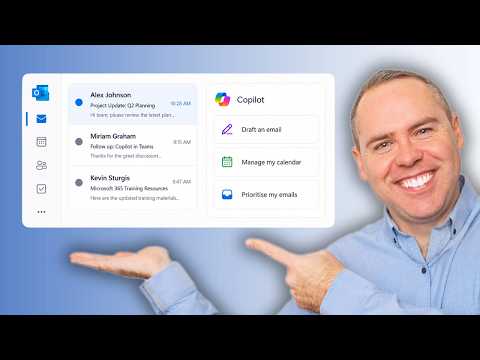
Microsoft 365 Copilot Manages Your Inbox
Helping you and your company achieve more in Microsoft 365
Microsoft Copilot brings AI email drafting, Copilot Chat sending, calendar rescheduling and inbox priority to Outlook
Key insights
- Microsoft 365 Copilot in Outlook: Scott Brant presents a practical walkthrough showing how Copilot integrates into Outlook to reduce email and calendar admin.
He demonstrates real-world examples that make Outlook more proactive and less manual. - Draft emails and Copilot Chat: Copilot can draft messages directly inside Outlook and can create and send emails from Copilot Chat without opening the full Outlook app.
This speeds up replies and reduces context switching. - Calendar management and Reschedule: Copilot can schedule meetings from chat, apply calendar instructions, auto accept/decline/delete invites, and reschedule events when conflicts appear.
These features help keep calendars tidy and reduce back-and-forth planning. - Inbox prioritization and AI summaries: Copilot triages your inbox, generates short summaries, and sorts mail by priority so you see what needs attention first.
This helps you focus on action-required messages instead of informational noise. - Automation: The tool automates rules, draft creation, and folder management through simple prompts, saving time and cutting repetitive tasks.
It works across the new Outlook experiences and the Microsoft 365 Chat interface for flexible use. - Availability and Licensing: Some features require a paid Copilot license and others are in preview or Frontier stages, so availability can vary by tenant.
Check your tenant’s rollout before relying on every feature in production.
Video snapshot: what Scott Brant demonstrated
Scott Brant published a practical walkthrough showing how Microsoft 365 Copilot can now manage key tasks inside Outlook. He uses step-by-step examples to demonstrate drafting emails, scheduling from chat, and letting the assistant manage calendar items. Moreover, the video illustrates sending messages directly from Copilot Chat without opening the full Outlook app, highlighting a tighter workflow between composing and sending. Consequently, Brant frames these updates as time-savers for people who spend much of their day in email and calendar tools.
Key features shown in the demo
First, Brant shows how Copilot drafts emails inside the Outlook interface, so users can quickly create messages from short prompts and then refine them before sending. Next, he demonstrates the ability to send email directly from the chat experience, which removes a step for users who prefer conversational prompts over switching windows. He also walks through scheduling tasks, including creating meeting invites and rescheduling conflicts automatically, and details how Copilot can apply calendar instructions like accepting, declining, or deleting invites. Finally, the video highlights inbox prioritisation and AI-generated summaries that surface the messages most likely to need action.
Practical benefits and tradeoffs
On the positive side, these features promise clear time savings and reduced administrative overhead, since Copilot can triage messages and draft routine responses quickly. However, there are tradeoffs: automation can misprioritise messages or suggest inaccurate replies if prompts lack context, which means users must still review outputs carefully. Additionally, while Copilot can reduce repetitive tasks, relying too heavily on automation risks eroding situational awareness about ongoing conversations and subtle workplace dynamics. Therefore, teams should balance automation with deliberate oversight to keep control of tone, accuracy, and relationship context.
Availability, licensing and governance considerations
Brant notes that the demo uses a paid Microsoft 365 Copilot licence and that some features may be in preview or part of a Frontier experience, so availability will vary across tenants. Consequently, IT administrators must plan deployment and licensing decisions carefully before rolling these features out widely. Moreover, governance is a key challenge because Copilot acts on calendar and mail data; organisations must define data handling policies, consent rules, and audit trails to meet compliance needs. In short, technical readiness must be paired with governance planning to avoid surprises when enabling these capabilities.
Operational challenges and user experience risks
Operationally, Copilot faces challenges around ambiguous prompts, conflicting calendar rules, and permission boundaries that can complicate automated rescheduling or acceptance of invites. For example, when multiple attendees or overlapping policies exist, Copilot may need clearer instructions or human confirmation to avoid double bookings or missed approvals. Furthermore, the assistant’s prioritisation logic might require tuning for different roles, since what is important for one user can be noise for another. Therefore, organisations should pilot these features with representative users and iterate on instruction sets and rules.
Security, privacy and trust implications
Because Copilot reads and acts on email and calendar content, privacy and security are central concerns, especially for regulated industries and cross-border teams. Consequently, administrators must review access controls and ensure that sensitive content is handled according to policy, while also educating users about when to verify AI-suggested actions. In addition, maintaining trust will require visible audit logs and the ability to revert automated changes easily. Ultimately, transparency about what Copilot can and cannot do will help users accept assistance without surrendering control.
Best-use scenarios and recommended approach
Brant’s examples suggest Copilot is most useful for routine tasks: triaging newsletters, drafting standard replies, and handling straightforward scheduling conflicts. Therefore, organisations should start with low-risk scenarios and expand once confidence and governance controls are in place. Moreover, pairing Copilot with clear user guidance helps ensure good outcomes, because users will better understand when to accept suggestions and when to intervene. Consequently, a phased rollout with training and feedback loops will produce more reliable adoption.
Tradeoffs between efficiency and oversight
While Copilot can boost productivity, it introduces a classic tradeoff: efficiency versus human oversight. In practice, teams will gain time but must invest some of those savings into review processes and policy management to avoid costly mistakes. Additionally, the balance will differ by role and industry, so a one-size-fits-all approach will not work. Therefore, decision-makers should define acceptable error rates and monitoring mechanisms before enabling aggressive automation.
Final assessment and newsroom perspective
Scott Brant’s walkthrough provides a clear, practical look at how Microsoft 365 Copilot is evolving within Outlook and Copilot Chat to reduce email and calendar toil. Nevertheless, the technology is not a set-and-forget fix; it requires licensing choices, governance, and careful user training to maximise benefit while minimising risk. As organisations consider adoption, they should weigh productivity gains against oversight needs and pilot thoughtfully to refine rules and trust. In that way, Copilot can be a powerful assistant without replacing necessary human judgement.

Keywords
microsoft 365 copilot, copilot outlook inbox management, outlook ai email management, copilot email triage for outlook, automate outlook inbox with copilot, outlook email summarization copilot, ai-powered inbox management, microsoft copilot for outlook