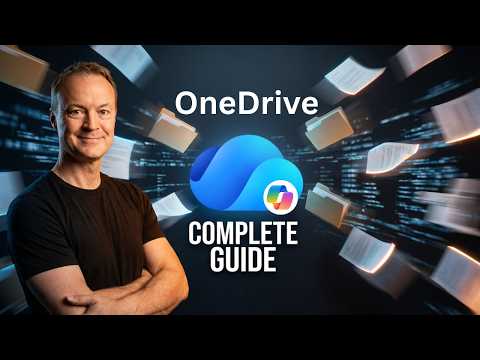
OneDrive Course: Web, Mobile & AI
Microsoft OneDrive guide for web desktop mobile with sync sharing Personal Vault and Copilot AI for Teams & SharePoint
Key insights
- OneDrive is Microsoft’s cloud storage and file hub that keeps your files synced across web, desktop, and mobile with tight Microsoft 365 integration.
It acts as a central workspace for storing, sharing, and collaborating on documents in daily workflows. - Get started by signing in with a Microsoft account and installing the app on Windows, Mac, or mobile; the updated OneDrive Sync Service runs background sync and shows clear sync status icons.
Use the web interface for quick access and the desktop client for seamless local file access. - Manage files by uploading, creating folders, and using smart naming and organization; enable Files On-Demand to save local space while keeping files available instantly.
Use the built-in search to find content fast and rely on version history to recover earlier edits or restore files. - Share securely with link options and granular permissions for view or edit access, and collaborate in real time with Office apps and Teams integration.
Set expiration dates or restrict downloads for sensitive shares to control access more tightly. - Protect sensitive documents with the Personal Vault (personal accounts) and manage photos with automatic organization on mobile; mobile also supports offline files, document scanning, and PDF markup for on‑the‑go productivity.
Note which features are specific to personal vs. work accounts when switching between them. - Leverage built‑in AI: Copilot summarizes long files, compares versions, explains complex content, generates audio recaps, and creates searchable OneDrive Agents that answer questions across project files.
These tools speed up reviews, simplify explanations, and surface insights without manual sifting.
Today’s roundup covers the new YouTube course by Teacher's Tech, titled "Learn OneDrive: Web, Desktop, Mobile & AI in One Course." The video aims to take viewers from absolute beginner to confident daily user by walking through installation, the web and desktop interfaces, and the mobile app. Importantly, it also explores recent AI features such as Copilot and the creation of OneDrive Agents, so readers can see how OneDrive now blends storage with intelligent assistance. Consequently, this article summarizes practical takeaways, tradeoffs, and the challenges users may face when adopting the platform.
Overview of the Course
The course begins with fundamentals, explaining what OneDrive is and how it integrates with a Microsoft account across Windows, Mac, and mobile devices. Then, the presenter demonstrates file upload, organization, sharing with proper permissions, and version history so users can follow real-world workflows. Additionally, the video separates personal features like the Personal Vault and Photos view from business features, which clarifies the differences between account types. As a result, viewers get a clear roadmap from setup to daily use.
Moreover, the timeline in the video breaks the lessons into easy segments, which helps learners jump to specific topics such as sync status icons, Files On-Demand, and search. The instructor also shows settings worth adjusting right away, including sync preferences and backup options, making the setup less overwhelming. Therefore, this portion of the course serves both new users and those looking to refine their OneDrive habits. Overall, it frames OneDrive as more than storage—rather, a central hub for file management.
Getting Started: Web and Desktop Experience
First, the walkthrough covers the web interface and the desktop sync client, highlighting how files appear and how sync status icons indicate availability. Then, the presenter demonstrates Files On-Demand and explains how it frees local storage while keeping files reachable, which is useful for devices with limited disk space. However, there are tradeoffs because Files On-Demand can confuse users who expect offline access by default, and sync conflicts may require manual resolution. Thus, administrators and individual users must weigh convenience against the need for predictable local copies.
Next, the video details sharing workflows, including setting link permissions and restoring file versions from history, which protects against accidental changes. Furthermore, the instructor points out how OneDrive ties into Office apps for real-time collaboration, reducing the friction of emailing attachments. Yet, this seamless integration assumes a stable network and an up-to-date Microsoft 365 environment, which can be a challenge in mixed or legacy setups. Consequently, organizations should plan compatibility testing and user training before broad rollouts.
Mobile Features: Scanning, Markups, and Offline Use
The mobile app section emphasizes on-the-go productivity features like document scanning, PDF markups, and offline file access, showing how smartphones can replace basic scanners. In addition, Teacher's Tech demonstrates how offline files save local copies for travel and how photo management works in a personal account. Nonetheless, users must consider storage quotas and device performance when keeping many offline files, which creates a balance between accessibility and device constraints. Therefore, good housekeeping—such as selective offline choices—remains important for power users.
Moreover, the Personal Vault provides a layer of security for sensitive documents on mobile devices, though it introduces extra steps when accessing locked content. Consequently, this improves protection but can slow workflows that require frequent access to those files. Finally, the video shows how scanning integrates into searchability, creating a workflow that supports both immediate sharing and later retrieval. In short, mobile features add flexibility but demand user discipline for optimal results.
Copilot, OneDrive Agents, and AI Workflows
In the second half, the course turns to AI, especially Copilot features that summarize long documents, compare versions, and explain complex policies in plain language. Then, the presenter introduces OneDrive Agents, which can answer questions across a project’s files, providing quick overviews or meeting recaps. While these tools save time and can boost understanding, they also raise privacy and accuracy concerns because AI-generated outputs depend on the files available and the underlying model. Thus, users should verify critical facts and consider permissions when enabling AI access to shared repositories.
Additionally, the video demonstrates audio overviews and image explanations that help teams digest meeting outcomes faster, which is valuable for busy schedules. Yet, relying too heavily on automated summaries can cause important nuances to be missed, so teams should use AI as an assistant, not as a replacement for human review. Therefore, the most practical approach combines AI for routine tasks with human oversight for final decisions. Overall, this section frames AI as a productivity multiplier that requires careful governance.
Tradeoffs, Challenges, and Recommendations
Balancing convenience, security, and performance forms the main tradeoff users must manage with OneDrive. For instance, Files On-Demand saves space but complicates offline access; AI features accelerate insight but can expose sensitive data if permissions are loose. Accordingly, the video recommends practical steps such as auditing sharing links, using Personal Vault for key documents, and setting clear policies for AI agent access. These steps help reduce risk while keeping workflows efficient.
Finally, the course serves as a usable guide for individuals and teams who want to adopt OneDrive more intentionally, and it highlights the importance of training and testing before large deployments. In conclusion, viewers will find actionable tips and a balanced view of OneDrive’s strengths and limits, which supports informed decisions about when and how to rely on cloud and AI tools. Ultimately, this video is a solid primer for anyone ready to use OneDrive as their central file workspace.
Keywords
Learn OneDrive course, OneDrive tutorial web desktop mobile, OneDrive AI features, OneDrive sync and backup, OneDrive for business tutorial, OneDrive tips and tricks, OneDrive mobile app guide, OneDrive productivity training