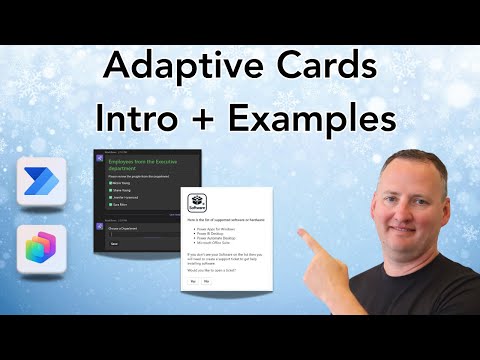
Power Automate: Adaptive Cards + Copilot
SharePoint & PowerApps MVP - SharePoint, O365, Flow, Power Apps consulting & Training
Microsoft expert on Adaptive Cards for Power Automate and Copilot Studio elevates Teams and Power Apps automation and UX
Key insights
- Adaptive Cards: JSON-based UI pieces that display interactive, richly formatted content inside Microsoft apps.
They automatically match the host app’s look and work both as prompts (interactive) and as displays (non-interactive). - Power Automate: Use a test flow and the Teams "Adaptive Card" action to send cards and collect user input.
Flow actions capture responses as output variables you can use later in the workflow. - Copilot Studio: Add "Ask with Adaptive Card" nodes to agent conversations to collect structured input.
Cards in Copilot Studio can appear inside Message or Question nodes and produce automatic variables from user responses. - Adaptive Card Designer: Build and preview cards visually with the designer panel, then edit the underlying JSON as needed.
Common elements include TextBlock for display and Input ChoiceSet for user selections. - JSON and Power Fx: Define card layout and behavior with JSON and use Power Fx formulas for dynamic content and conditional rendering.
This lets you bind data, show/hide fields, and tailor cards to user context without complex code. - Advanced examples & best practices: Video shows an advanced flow and a Copilot Studio example to spark ideas.
Keep cards simple, test them in the target host (Teams, Outlook, Copilot), and reuse card designs across platforms for consistency.
Overview of the Video
In a clear and practical YouTube tutorial, Shane Young [MVP] introduces viewers to Adaptive Cards and shows how they work with Power Automate and Copilot Studio. He opens with a concise explanation of what adaptive cards are and why they matter for modern automation and agent interfaces. Then, he lays out a step-by-step flow that moves from a simple test flow to more advanced examples to help both beginners and experienced users learn by doing.
Furthermore, the video is organized by time markers so viewers can jump to key sections such as creating a test flow, using the Teams Adaptive Card action, and exploring the Adaptive Card Designer. Shane demonstrates basic components like TextBlock and Input.ChoiceSet before moving on to two advanced builds. As a result, the tutorial balances conceptual explanation with hands-on demonstrations, making it useful for those who prefer either approach.
Step-by-Step Demonstration
Shane begins by creating a test flow and adding the Teams Adaptive Card action, which immediately shows how adaptive cards can be triggered from a flow. He then opens the Adaptive Card Designer to edit the card visually and to preview how the card will appear in Microsoft Teams. This visual approach helps viewers quickly understand how JSON maps to the on-screen card and how small design choices affect the final output.
Next, Shane explores key card elements such as TextBlock and Input.ChoiceSet, explaining how each element collects or displays data. Importantly, he shows how input elements feed back into the flow as output variables, enabling automated decision-making based on user responses. Consequently, viewers gain a practical sense of how to capture user input and route it through automation logic.
Advanced Examples and Tradeoffs
Midway through the video, Shane presents two advanced card examples designed to stretch the viewer’s imagination and to demonstrate practical patterns. These examples highlight how adaptive cards can contain complex logic, conditional visibility, and dynamic bindings, which together support richer user interactions. However, Shane also notes the tradeoff between complexity and maintainability: more complex cards can deliver richer experiences but demand tighter testing and clearer documentation.
Moreover, he contrasts reusable templates with bespoke designs to emphasize scalability. On one hand, reusable card templates save time and ensure consistent UI across flows, but on the other hand, custom designs better match a specific workflow or brand need. Therefore, teams must balance reuse against the need for tailored user experiences, especially when multiple host applications will render the cards differently.
Integration with Copilot Studio
Later in the video, Shane covers how to use adaptive cards within Copilot Studio, showing both interactive and non-interactive patterns. He explains that interactive adaptive card nodes let agents request user input and automatically produce output variables, while presentation nodes simply display formatted information. This distinction clarifies when to use cards to collect responses versus when to display data in a richer format.
Shane also demonstrates how Copilot Studio agents can incorporate adaptive cards into conversation flows and how Power Fx formulas can populate card fields dynamically. However, he cautions that dynamic binding introduces potential pitfalls, such as mismatched data types and runtime errors if variables are missing. Thus, developers should validate inputs and test cards in all target hosts to reduce surprises in production.
Practical Advice and Common Challenges
To conclude, Shane offers practical tips for testing and troubleshooting adaptive cards, including previewing in the designer and verifying behavior in target clients like Teams. He recommends iterative testing: start simple, validate data bindings, and then add conditional logic to reduce debugging complexity. By following this incremental approach, teams minimize the risk of breakage while improving the card step by step.
Finally, Shane addresses accessibility and consistency, reminding viewers that cards must look right in different themes and devices. While adaptive cards adapt to host styling, developers still need to consider contrast, focus order, and keyboard navigation to ensure usable experiences for all users. In summary, the video blends hands-on instruction with strategic guidance, helping practitioners weigh tradeoffs and adopt adaptive cards effectively in both Power Automate and Copilot Studio.

Keywords
Adaptive Cards Power Automate, Adaptive Cards Copilot Studio, Intro to Adaptive Cards tutorial, Power Platform Adaptive Cards, Adaptive Cards examples templates, Adaptive Cards JSON guide, Build Adaptive Cards in Power Automate, Copilot Studio Adaptive Cards integration