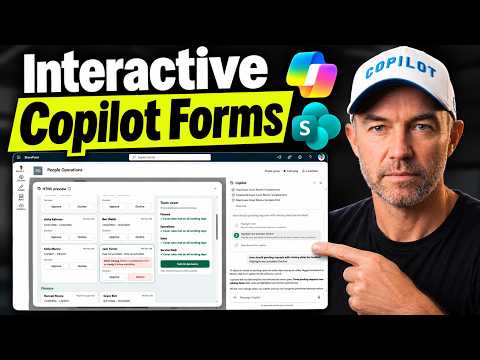
SharePoint Copilot interactive forms and reusable skills
A Microsoft MVP 𝗁𝖾𝗅𝗉𝗂𝗇𝗀 develop careers, scale and 𝗀𝗋𝗈𝗐 businesses 𝖻𝗒 𝖾𝗆𝗉𝗈𝗐𝖾𝗋𝗂𝗇𝗀 everyone 𝗍𝗈 𝖺𝖼𝗁𝗂𝖾𝗏𝖾 𝗆𝗈𝗋𝖾 𝗐𝗂𝗍𝗁 𝖬𝗂𝖼𝗋𝗈𝗌𝗈𝖿𝗍 𝟥𝟨𝟧
Build a SharePoint form that checks list rules, stages decisions for approval, and can be saved as a reusable skill.
Key insights
- A prompt can generate an interactive form over a SharePoint list with business rules built into the form.
- The form's cover check updates as users approve or decline requests.
- Submitting choices sends them to Copilot; a person must select Update before list items change.
- A site skill can save the form template in Site Assets and be invoked with a slash command.
- The same skill can be run against another list with different teams and coverage rules.
SharePoint Copilot can generate interactive forms over lists and libraries, letting users review records, apply rules, and stage changes before updating the underlying list. This approach matters to SharePoint users and teams that repeatedly process requests or other list items against business rules. Daniel Anderson [MVP] demonstrates the workflow using leave requests and team coverage checks.
What's new
The demonstrated experience turns a natural-language prompt into a visual form connected to SharePoint list data. Instead of opening and editing rows one at a time, a user can review pending requests in a form, make decisions, and see a coverage check change as choices are made.
The prompt supplies the logic for the form. In the leave example, the rules specify minimum staffing levels and roles needed on working days. The form groups requests by department and flags coverage gaps as approvals and declines change the proposed staffing picture.
The form does not immediately write each click to the list. The user submits the decisions to Copilot, reviews the proposed update, and explicitly selects Update. That confirmation step keeps a person in the loop before the SharePoint records are changed.
Who it is for and what you need
This method is relevant to people who manage SharePoint lists and need a repeatable way to assess records against team-specific rules. The example uses leave requests, but the material does not establish that the approach is limited to leave lists.
You need a SharePoint list containing the items to review and a clear description of the applicable rules. For reuse, the demonstrated workflow also creates a site skill and saves a form template in Site Assets. The transcript does not specify required licenses, tenant settings, minimum permissions, supported regions, or rollout status.
Copilot in SharePoint is the experience used in the demonstration. No official Microsoft documentation or rollout announcement was included in the available sources, so availability and prerequisites beyond what the demonstration shows are not verified here.
How it works
Start by asking Copilot in SharePoint to generate an interactive form for the relevant list. Make the prompt specific about the task and include the validation rules the form should apply. In the example, the form handles pending leave requests and checks whether each team will retain required coverage.
- Open the relevant SharePoint list and prompt Copilot to generate an interactive form for the records you want to process.
- Include the rules in the prompt, such as staffing minimums, required roles, and conditions that should cause an item to be declined.
- Review the generated form. Click through the items and watch the cover check update as you make decisions. The demonstrated form can flag gaps and display records with missing dates.
- Submit the decisions to Copilot, inspect the proposed changes, and select Update to write them to the list.
The distinction between submitting and updating matters: the first step sends the choices to Copilot, while the user’s confirmation triggers the list update. Anderson’s example reports that the workflow updated 11 requests on each of the two runs shown, with different approval and decline totals in the second run.
To reuse the form, the demonstrated prompt asks Copilot to create a skill called leave-cover, save the form as a template in Site Assets, and load it with the applicable leave list and coverage rules. The transcript shows the skill listed in the site’s skills area and invoked by entering /leave-cover in the Copilot conversation.
The skill is not limited to one identical set of team rules in the example. Anderson runs it against a second, Brisbane list and supplies different requirements for Customer Care and Dispatch. He also changes the template through chat so items with missing dates are displayed with decline preselected.
Limitations and open questions
The example demonstrates a specific process and two leave lists; it does not establish that every list, library, tenant, or data structure will work the same way. It also does not provide license requirements, administrator controls, rollout details, or a complete explanation of how skills are permissioned.
Rules depend on the instructions supplied to Copilot, so users should review the generated form and its decisions rather than assume the form has independently verified every business condition. The transcript illustrates a human review step before updates, but it does not describe audit records, error handling, or how to reverse an incorrect update.
The demonstration also creates a separate HTML calendar page that reads from both lists. That is an additional output, not a required part of the interactive form or reusable skill workflow. The available material does not explain how to maintain that page or what technical configuration it requires.
For teams considering this approach, the practical next step is to test the form with a noncritical list and verify the displayed rules and proposed changes before selecting Update. Confirm licensing and feature availability with current Microsoft documentation or your tenant administrator; those details are not supplied by the sources used here.
Sources
Frequently asked questions
How do SharePoint Copilot interactive forms update a list?
The user makes choices in the form and submits them to Copilot. The list is updated only after the user confirms the proposed changes by selecting Update.
Can I reuse a SharePoint Copilot form with another list?
The demonstration saves a form template as a site skill in Site Assets and invokes it with /leave-cover. It then runs the same skill against another list with different coverage rules.
What license do I need for interactive forms in SharePoint?
The available material does not state licensing requirements. Check current Microsoft documentation or ask your tenant administrator.
Can Copilot preselect a decision for list items?
In the demonstration, the template is changed through chat so items missing dates are displayed with decline preselected. The material does not establish how broadly this behavior is supported.